Notes & writing
Notes & notebooks
Create notes, use Views and Notebooks, add an icon and a cover, star, pin to a page, move, and restore from Trash.
Notes live in Views (ways of looking at all your notes) and Notebooks (folders you make). A note belongs to one notebook or to none.
Create a note
- Click + New in the List header, or press ⌥NAltN. If a notebook is selected, the new note goes into it.
- The first line is the title.
# A headingas the first line makes a nice title; Rename in the Note bar sets it too. - Notes save on your device as you type — there is no Save button to remember. See Sync & devices for when they reach the cloud.
Views
| View | Shows |
|---|---|
| All notes | Every note that is not in the Trash, newest first. |
| Pinned to pages | Notes pinned to a web page or site with the Chrome extension. |
| Starred | Notes you starred with ☆ in the Note bar. |
| Recent | Notes you changed lately. |
| Shared 🌐 | Your publish links (not notes) — see Sharing a note. |
| Trash | Deleted notes, kept for 30 days. |
Tags you write in notes (#work) appear under Tags at the end of the Sidebar — click one to see its notes.
Notebooks
- Make one: click + next to Notebooks, type a name, press ↵Enter.
- Rename or delete: point at the notebook and use ✎ or ×. Deleting a notebook keeps its notes — they stay in All notes.
- Make it private: the 🔒 button next to a notebook — see Protection & private notebooks.
- The Templates notebook: if you save a note as a template, Sidekick Note makes a notebook called Templates for it. Your templates and card presets live there as ordinary notes: open, edit or delete them like any other. A note you start from a template is created outside it, so it never turns into a template by accident (Templates).
The Sidebar and the Editor follow your click
Clicking a View, a Notebook or a #tag in the Sidebar always shows its notes:
- If you had folded the Note list away, it unfolds again. Clicking a
#taginside a note also leaves Focus mode, so you can see the list. - The Editor opens the first note of the new list, so what you see always matches what you picked.
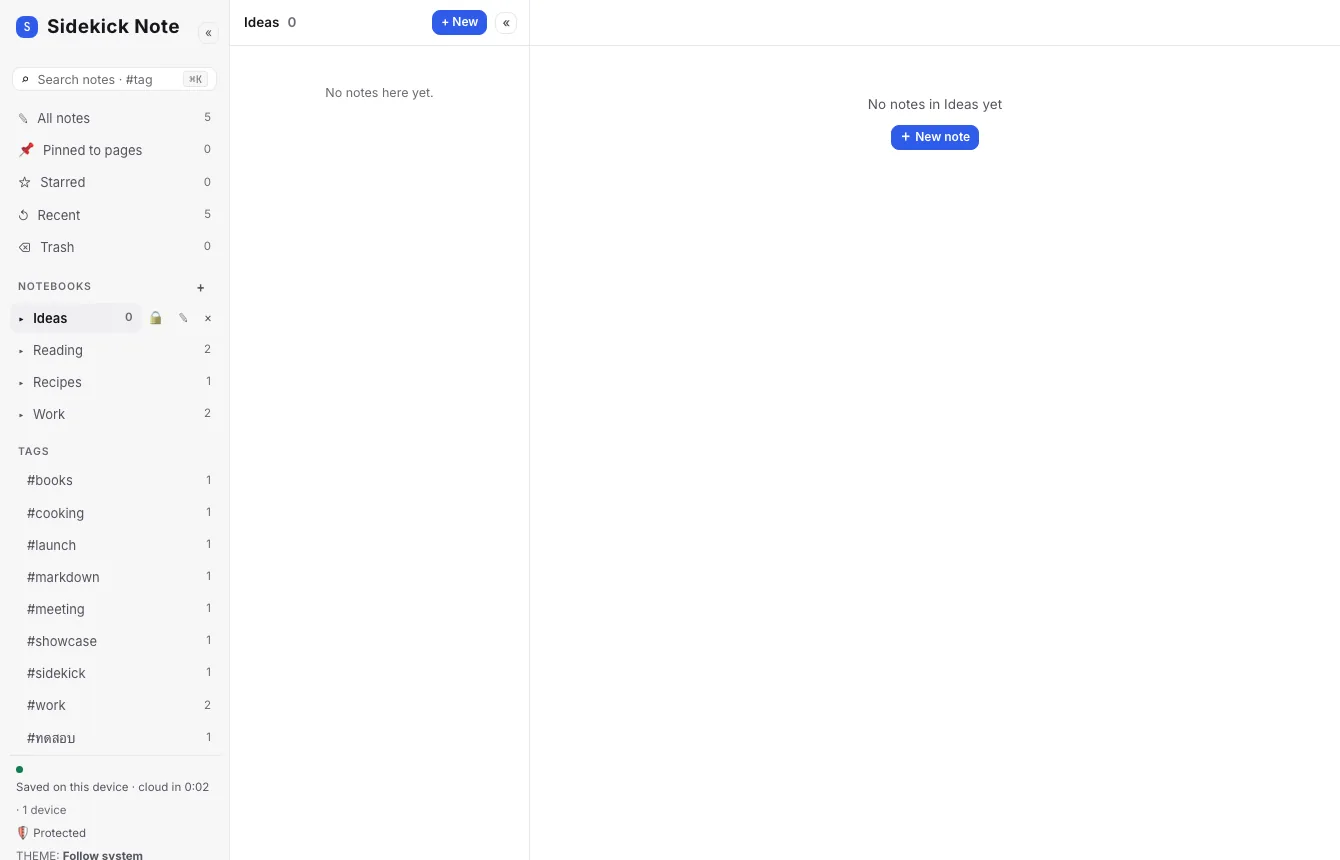
- If the list is empty, the Editor shows the Editor empty state: “No notes in name yet” with a + New note button. The empty Trash says “Trash is empty.”
- A locked private notebook shows “🔒 name is locked — unlock it in the Note list”, and the Note list shows the Unlock card.
Star and pin
- Star: ☆ in the Note bar (★ when on). Starred notes are in the Starred view.
- Pin to a page: done in the Chrome extension — a note pinned to a page (or a whole site) opens first when you visit it. In the web app the note shows a 📌 chip. See Chrome extension.
Note icon and cover
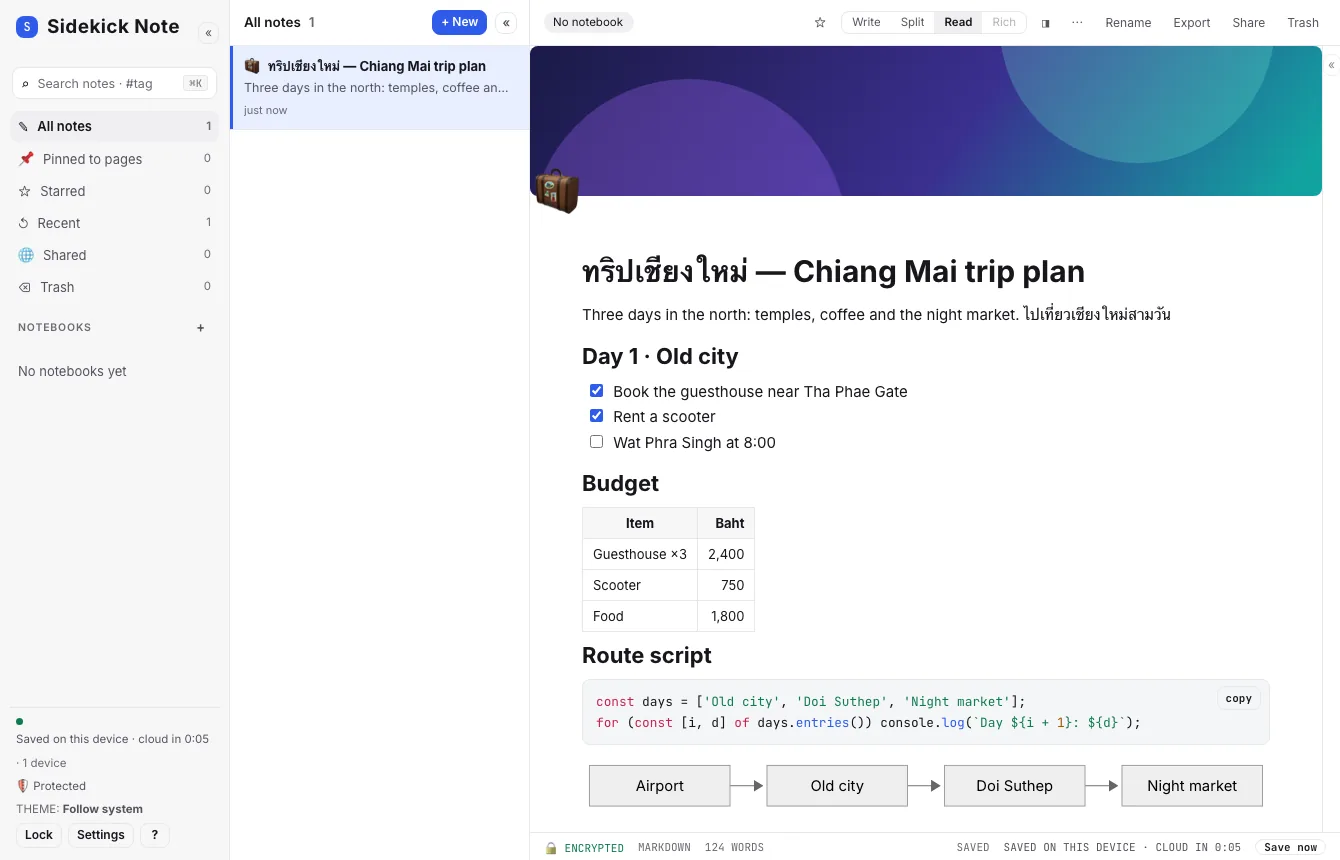
Give a note an emoji Note icon and a Note cover — a wide picture at the top, like a notebook sticker and a cover page.
- In Read or Split mode, point at the top of the note and click ☺ Add icon or ▭ Add cover. Or use the Note menu (⋯) → Add icon… / Add cover….
- The Cover gallery has original covers in three groups — Gradients, Patterns and Retro (Hercules, Amber, C64, CGA, Mac 1984) — plus the images already in the note.
- Click the icon to change it; point at the cover for Change cover or Remove. Remove icon and cover is in the Note menu.
- The icon also shows on the note’s Note card in the Note list (and in the Chrome extension).
- Both are stored inside the note and protected like the rest of it. Front matter works too:
icon: 🚀andcover: g:aurora. - When you publish the note, the page shows the cover and icon, and the link preview uses them (Sharing a note).
Move a note
The notebook chip at the start of the Note bar is a menu: pick another notebook (or none). Moving a note into or out of a private notebook asks first, because the note is sealed again with the other key.
The Note menu (⋯)
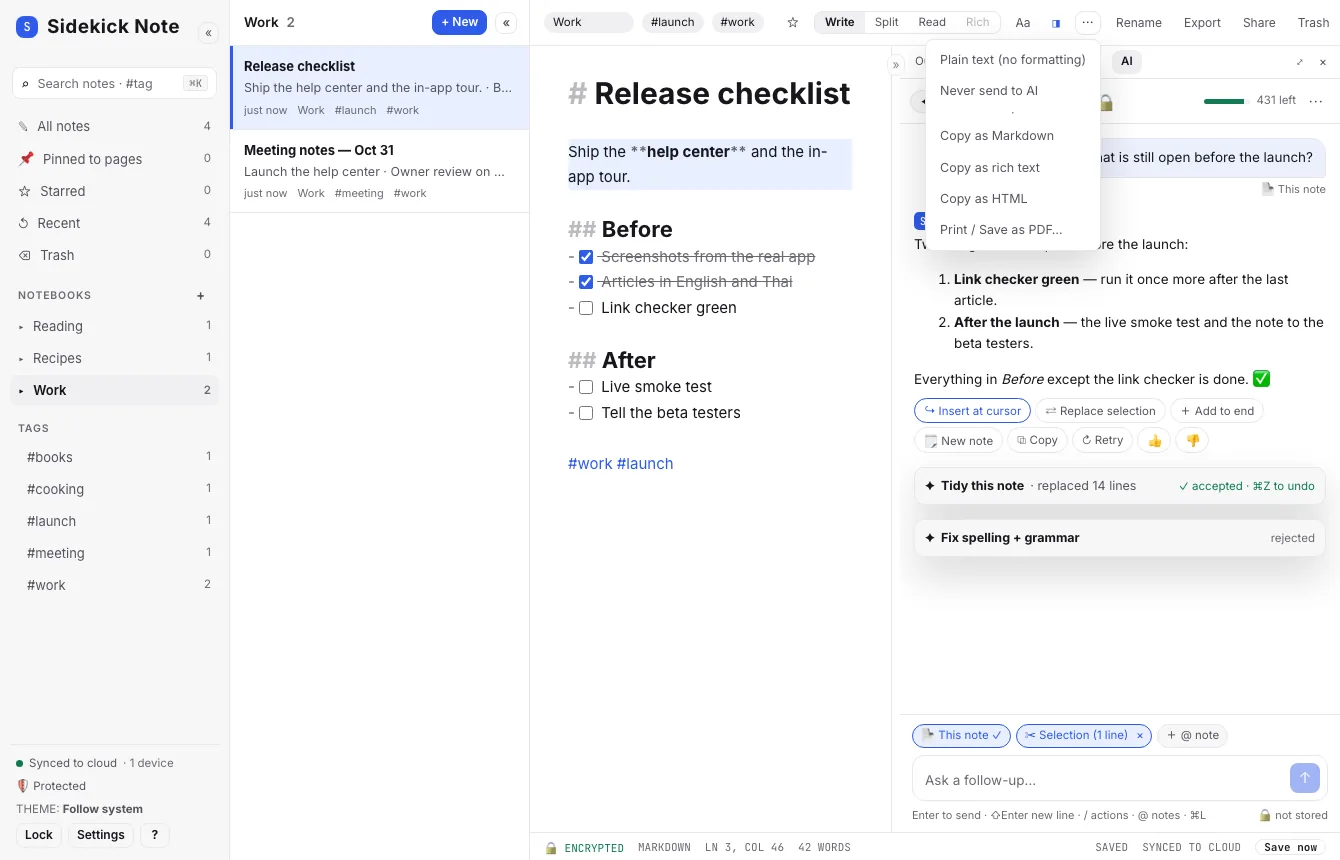
- Plain text (no formatting) — the note is shown exactly as typed, no Markdown.
- Never send to AI — cloud AI will refuse this note; see AI: menu, chat and privacy.
- Add icon… / Add cover… — see Note icon and cover.
- Copy as Markdown / rich text / HTML — for pasting into e-mail, docs or a website.
- Print / Save as PDF — plain black on white, or in your theme’s colours (Settings → Markdown).
Trash and restore
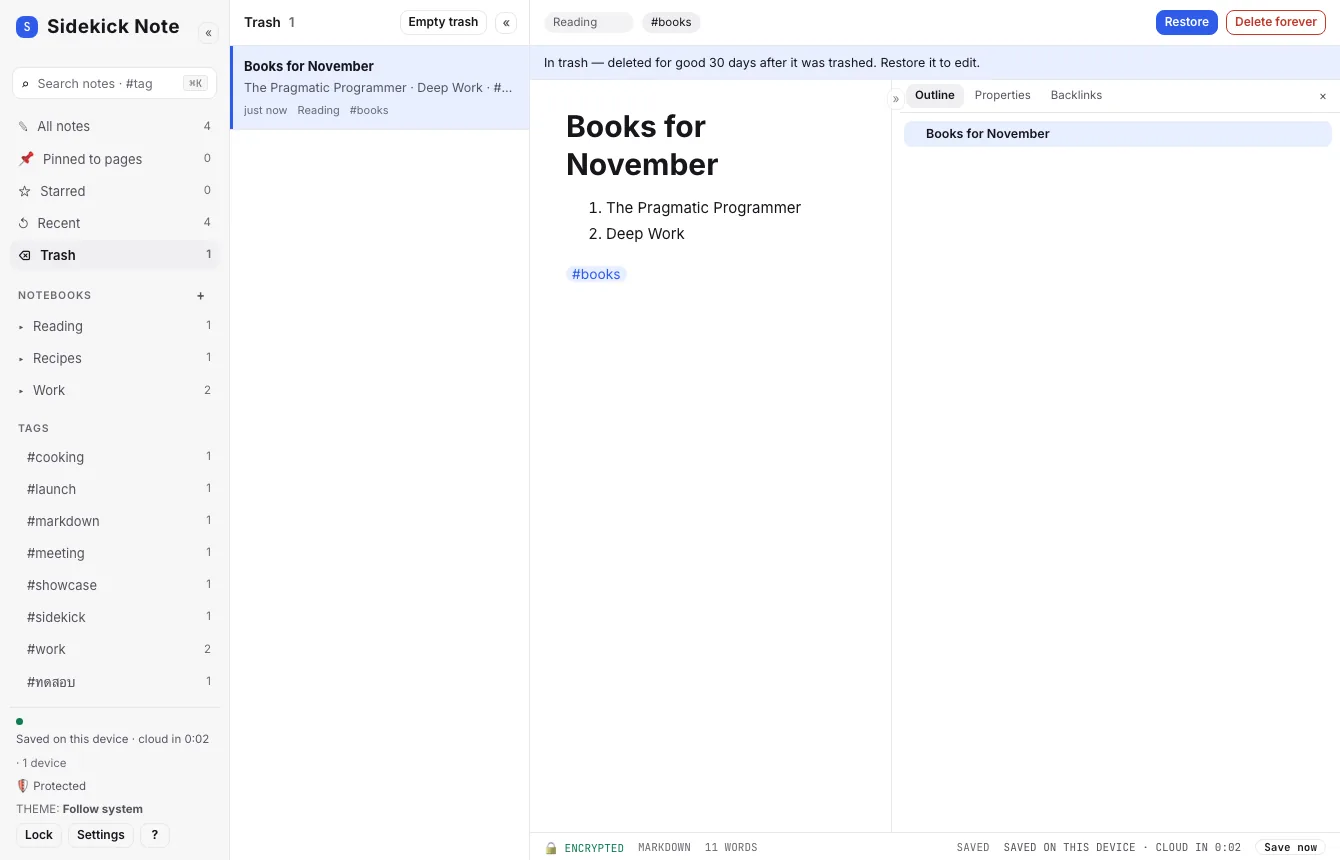
- Delete: Trash in the Note bar moves the note to the Trash.
- Restore: open the Trash view, pick the note, click Restore.
- For good: Delete forever on one note, or Empty trash in the List header. Notes in the Trash are deleted for good 30 days after they were trashed.
Was this helpful?
Thanks! We keep no record of your answer — if something was missing, tell us below.
Something missing or wrong? Write to support@plaazaa.com.