Sync, protection & sharing
Sharing a note
Publish links with chat previews, live or snapshot, password, expiry and custom addresses; the Shared view; Duplicate to my Sidekick; end-to-end private links.
Share a note in one of two ways. A Publish link makes a web page anyone with the link can open — with a nice preview in chats, and you can update it or turn it off. A Private link is end-to-end encrypted: our server never sees the note, but it has no preview and cannot be turned off.
Publish a link
- Open the note and click Share in the Note bar (or ⌘KCtrlK “share”; in the Chrome extension: ⋯ → Share).
- Publish link is already picked. Read the short warning: publishing makes a readable copy of the note on our server.
- Check the Link preview — it shows how the link will look in a chat. Open Link options if you want to change anything.
- Click Publish link, then Copy link (or Open ↗, or QR for phones).
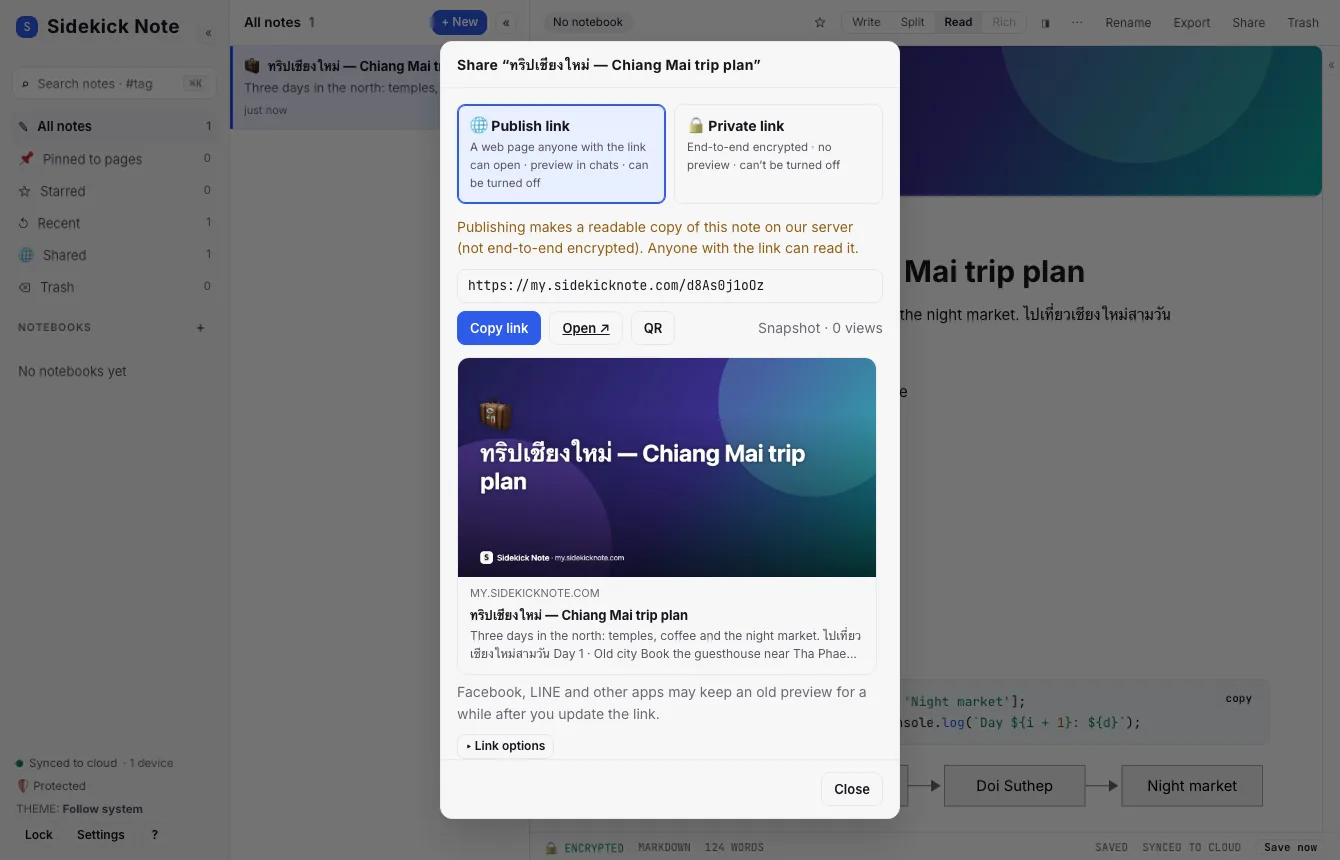
The link looks like https://my.sidekicknote.com/Ab3dE6gH9k. Readers need no account. The page shows your note with the full Markdown look — tables, highlighted code with a copy button, math, diagrams, callouts and a table of contents — in light or dark, ready to print.
Snapshot or live
- Snapshot (the default): the page stays as it was when you published. After you edit the note, open Share and click Update link when you want the page to change.
- Keep updated with the note (live): the page follows your edits. A new copy goes up after you stop typing, on the same rhythm as cloud sync (about a minute); Save now (⌘SCtrlS) sends it at once. In Manual sync mode it goes up only on Save now.
Link options
| Option | What it does | Default |
|---|---|---|
| Keep updated with the note | Live page (above). | Off |
| Show in search engines | Off: the page asks Google and others not to list it. On: it may appear in search results. | Off |
| Allow “Duplicate to my Sidekick” | Readers with a Sidekick Note account can copy the note into their own notes. | On |
| Show my name | Your display name on the page and on the preview card. | Off |
| Look | Clean light, Clean dark or Retro (Hercules green) — for the page and the card. Readers can switch light / dark with ◐. | Clean light |
| Link expires | Never, in 1, 7 or 30 days, or on a date. After that the page says “This link has expired”. | Never |
| Password | Readers type it on the page first. Our server checks it; too many wrong tries are blocked for 15 minutes. | Off |
| Custom address | my.sidekicknote.com/your-handle/trip-plan. Pick your handle once per account (3–20 letters, numbers or hyphens; some words are reserved). | Short id |
| Preview image | The picture chats show (next section). | Auto |
Change options and click Save options only to keep the page content as it is, or Update link to also send the latest note.
The link preview in chats
When you paste the link into LINE, Facebook, X, Slack, Discord or WhatsApp, they show a card: the title, a short description and a picture. Choose the picture under Preview image:
- Auto (default) picks, in this order: an
image:orcover:in the note’s front matter → the note’s Note cover with its Note icon and title on top → the first image that is big enough (at least 600 × 315) → a smart content card. - The smart content card is drawn from the most interesting part of your note: code (highlighted, first lines), a diagram, a table (first rows), a checklist, or else a short quote — always with the title and a small “Sidekick Note” mark. Thai, Chinese, Japanese and emoji are drawn with your device’s fonts.
- A small or tall image is not cropped badly: it appears as a thumbnail next to the title.
- Pick an image from this note, Upload a custom image (cropped to 1200 × 630) or Generated card (always the smart card).
The card is made on your device and uploaded with the link. Password-protected, expired and turned-off links only ever show a plain Sidekick Note card — never your note.
The Shared view
Click Shared (🌐) in the Views of the Sidebar to see every link you made: the note, Live or Snapshot, 🔒 password, the expiry date, how many times it was opened (a number only — we keep no data about readers), and when it was made and updated.
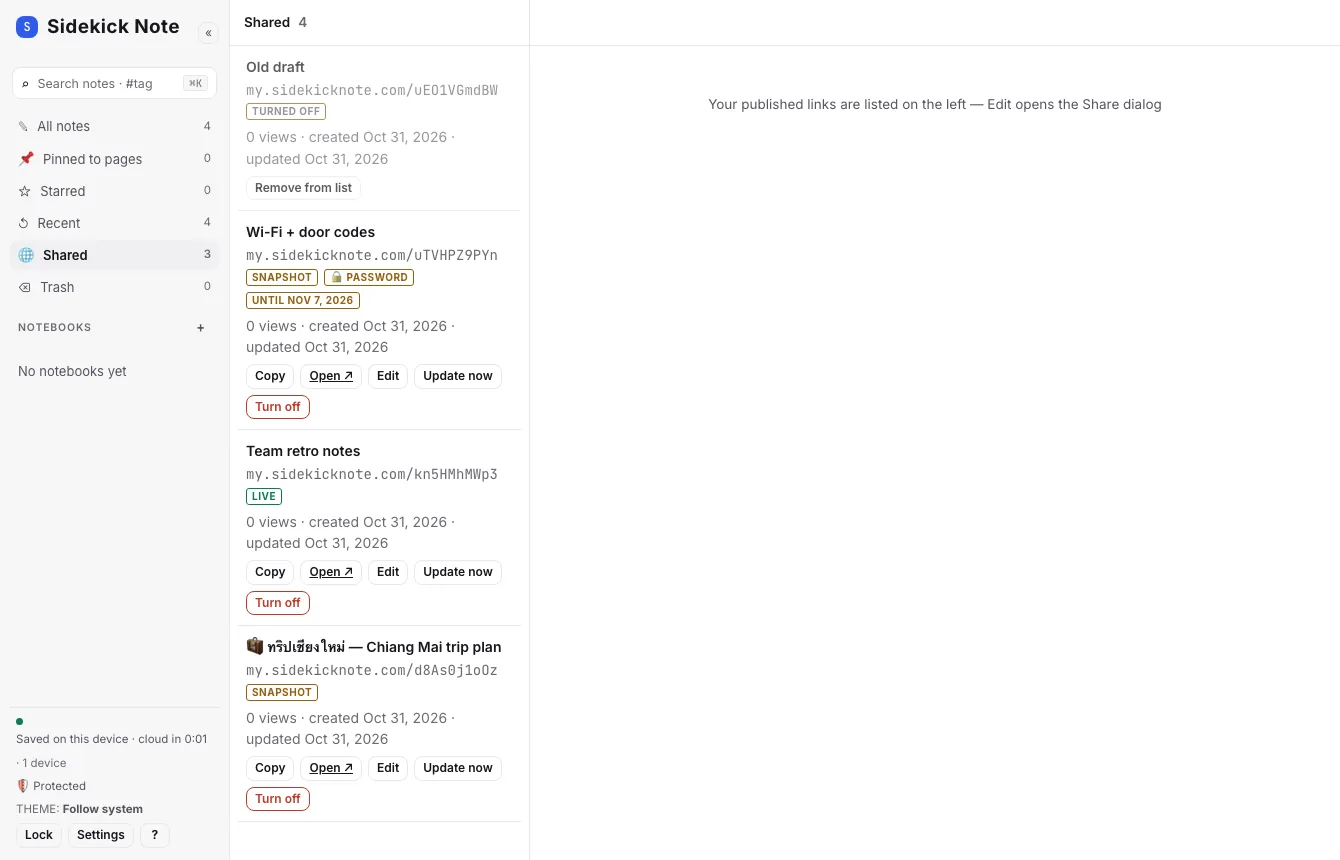
Each row has Copy, Open ↗, Edit (the Share dialog), Update now and Turn off. A link that is turned off shows “This link was turned off” at once and its copy and images are deleted from our server; Remove from list then clears the row.
Notes with widgets
A recipe card in a published note is interactive for readers: they can change the servings and copy the scaled recipe (they cannot change your note). Without JavaScript they see a clean ingredient list. Export, Copy as rich text and Print give the same readable list. Links published before cards existed show a plain block until you click Update link. More: Widgets: cards in your notes.
Duplicate to my Sidekick
On a published page, readers who use Sidekick Note can click Duplicate to my Sidekick. The app opens, and after they sign in the note is copied into their notes as a new note (encrypted like the rest). For a password-protected page they must enter the password first. Turn this off with Allow “Duplicate to my Sidekick”.
Private link (end-to-end)
Pick Private link in the Share dialog and click Create private link. The note is encrypted in your browser and the key travels inside the link, after # — browsers never send that part to a server.
- It is a copy of the note as it is now; later edits are not in it.
- Chats show no preview, and encrypted images are left out.
Sharing from a private notebook
A note in a private notebook is end-to-end encrypted. Publishing it needs one more tick: “I understand publishing makes a readable copy outside it”. A private link is allowed with a warning too (Protection & private notebooks).
Sharing a template
A template link is a third kind of link, for sending a template rather than a note: ⌘K → Copy template link for this note. It looks like app.sidekicknote.com/t#… and carries the text inside the link (after the #), so nothing is stored on our server and it cannot be switched off. It is not encrypted: anyone with it can read the text, like a file you send. The person opens it, sees the template with working cards, and chooses Add to my templates (Templates).
To send many templates at once, use a pack file (Export & import).
Rules and safety
- Published pages are cleaned before they are shown (no scripts, no tracking pixels from us), and links to other sites open safely in a new tab.
- Pages that break the rules can be taken down by the Sidekick Note team; the page then says “This page was removed”.
- Old links from the earlier Sidekick extension (
my.sidekicknote.com/b/…,/n/…,/p/…) keep working.
Plaazaa Spaces and chat
Posting a note into a Plaazaa Space or a Plaazaa chat, and sharing with chosen people, come later — the dialog shows them as “later”.
Was this helpful?
Thanks! We keep no record of your answer — if something was missing, tell us below.
Something missing or wrong? Write to support@plaazaa.com.