AI
AI: menu, chat and privacy
⌘J AI menu, the change preview, smart paste, AI chat with Context chips, models, credits — and exactly what is sent.
AI in Sidekick Note only runs when you ask, shows you what will be sent, and never changes your note without your OK. Every edit opens as a change preview you accept or reject.
The AI menu (⌘JCtrlJ)
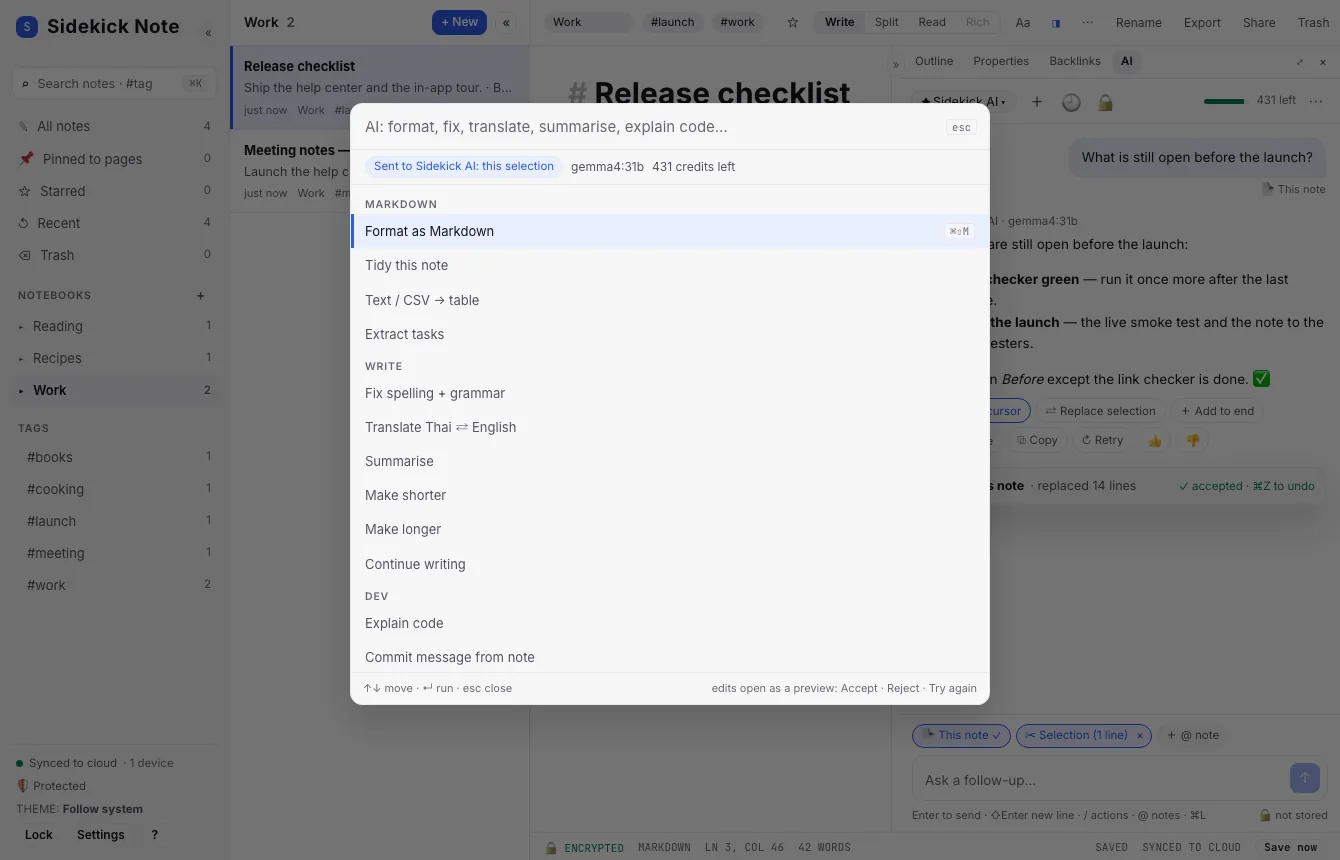
- Select some text (or nothing, for the whole note) and press ⌘JCtrlJ.
- The header says exactly what goes where — e.g. “Sent to Sidekick AI: this selection” — plus the model and the credits left.
- Type to filter, press ↵Enter to run.
Actions:
- Markdown: Format as Markdown (⌘⇧MCtrlShiftM) · Tidy this note · Text / CSV → table · Extract tasks.
- Write: Fix spelling + grammar · Translate Thai ⇄ English · Summarise · Make shorter · Make longer · Continue writing.
- Dev: Explain code · Commit message · README · Regex / SQL / cron from words.
- Organise: Suggest title + tags. YAML: fix · explain · write from words · .env / JSON → YAML.
- Image: alt text · image → Markdown (only when the model can read images).
The change preview
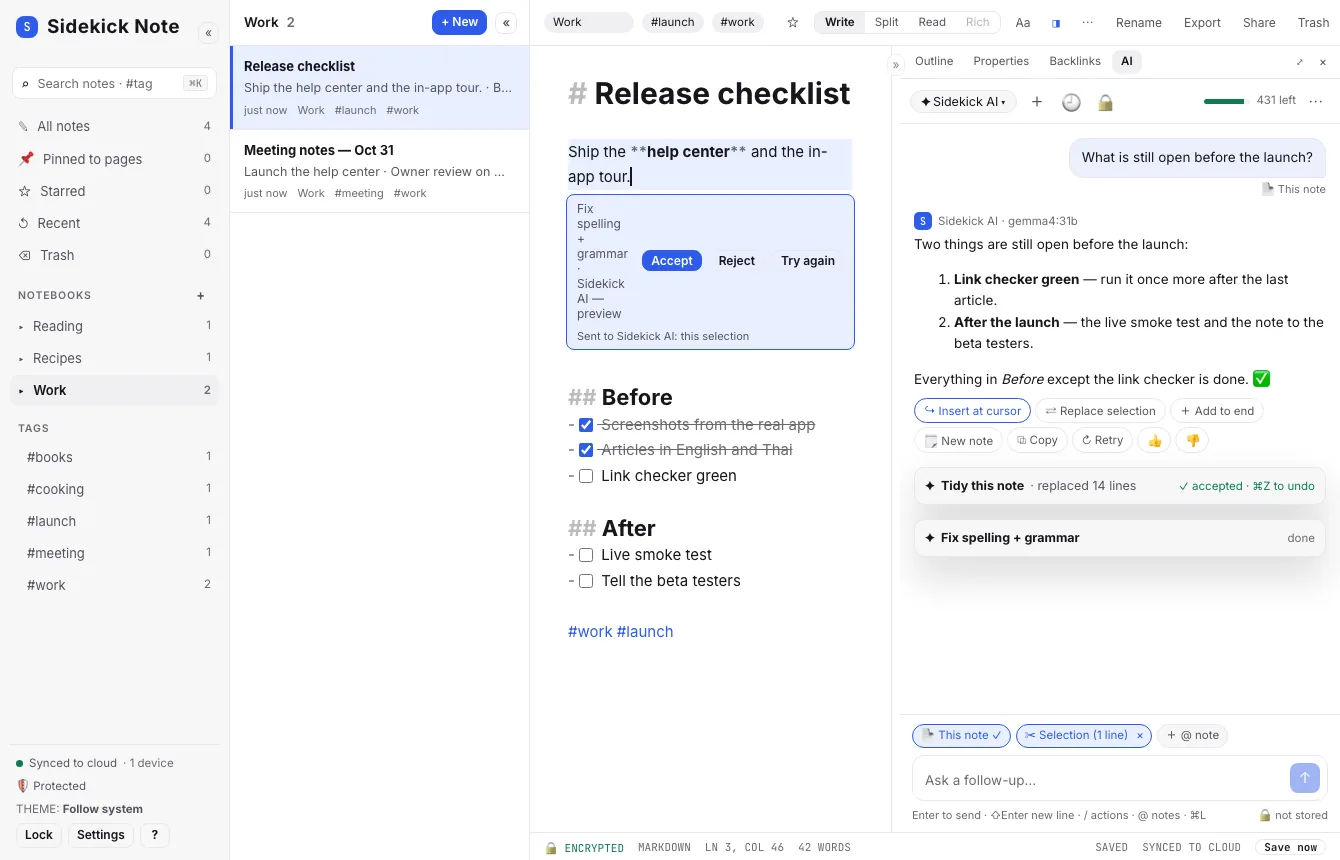
An AI edit appears inside the Editor as a difference — removed text struck out, new text highlighted — while it is being written. The Preview bar has:
- Accept (⌘↵CtrlEnter) — keep it. One ⌘ZCtrlZ undoes the whole change.
- Reject (Esc) — nothing changes.
- Try again — ask for another version. Stop — stop while it is still writing.
Smart paste
Paste messy text (copied from a PDF or e-mail) and a small Smart paste offer asks “Format it as Markdown?”. It never runs by itself; clicking it opens the usual change preview. Turn the offer off in Settings → AI.
AI chat (⌘LCtrlL)
The AI tab in the Right panel is a chat about the open note. ⌘LCtrlL opens it and puts the cursor in the Input box.
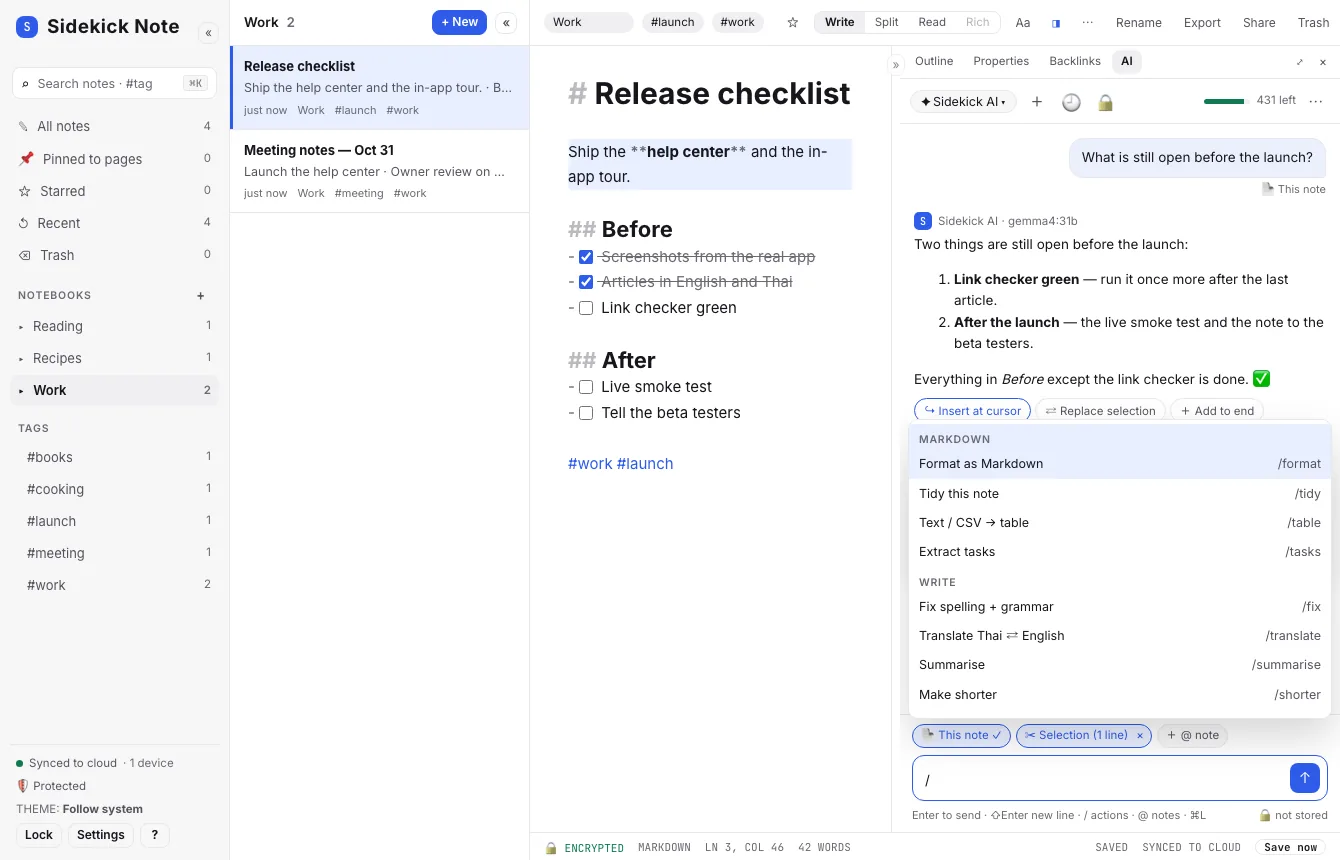
- Context chips show exactly what is sent with your message: 📄 This note (click to leave it out), ✂ Selection (appears when you select text), @notes (type
@and pick another note), 🖼 Image (with a model that reads images). In the Chrome extension there is also 🌐 This page — off until you turn it on. - Type
/for the same actions as the AI menu. - Each answer has Insert at cursor, Replace selection, Add to end, New note, Copy and Retry. Insert, Replace and Add open the change preview.
- ↵Enter sends, ⇧↵ShiftEnter starts a new line, Stop (or Esc) stops an answer.
- Long chats: earlier messages are trimmed to fit; the answer tells you when that happened.
History
🕘 History lists this note’s chats; + starts a new one. Chats are kept encrypted and synced like notes (last 50 messages per chat). Turn off Keep AI chats (⋯ or Settings → AI) to keep new chats in memory on this device only. Settings → AI → Delete all AI chats removes them.
Cards from the AI chat
Ask for a recipe and the answer comes as a card, with Insert card only, Card to end and Replace card in note under it (through the change preview). Say “make it vegan” or “double it” to change a card already in the note. Ask for the chords of a song and you get a songbook card (Widgets: cards in your notes). Check the amounts — the card says “AI-written” until you edit it. Details: Widgets: cards in your notes.
Templates from the AI chat
Ask for a template (“turn this note into a reusable template”, “make a meeting note template”) and the answer is the template text, with {{title}}, {{date}} and {{cursor}} where they belong and any cards kept. Under it, 📄 Save as template keeps it in your Templates notebook once you name it. The AI never saves anything by itself (Templates).
AI choices and models
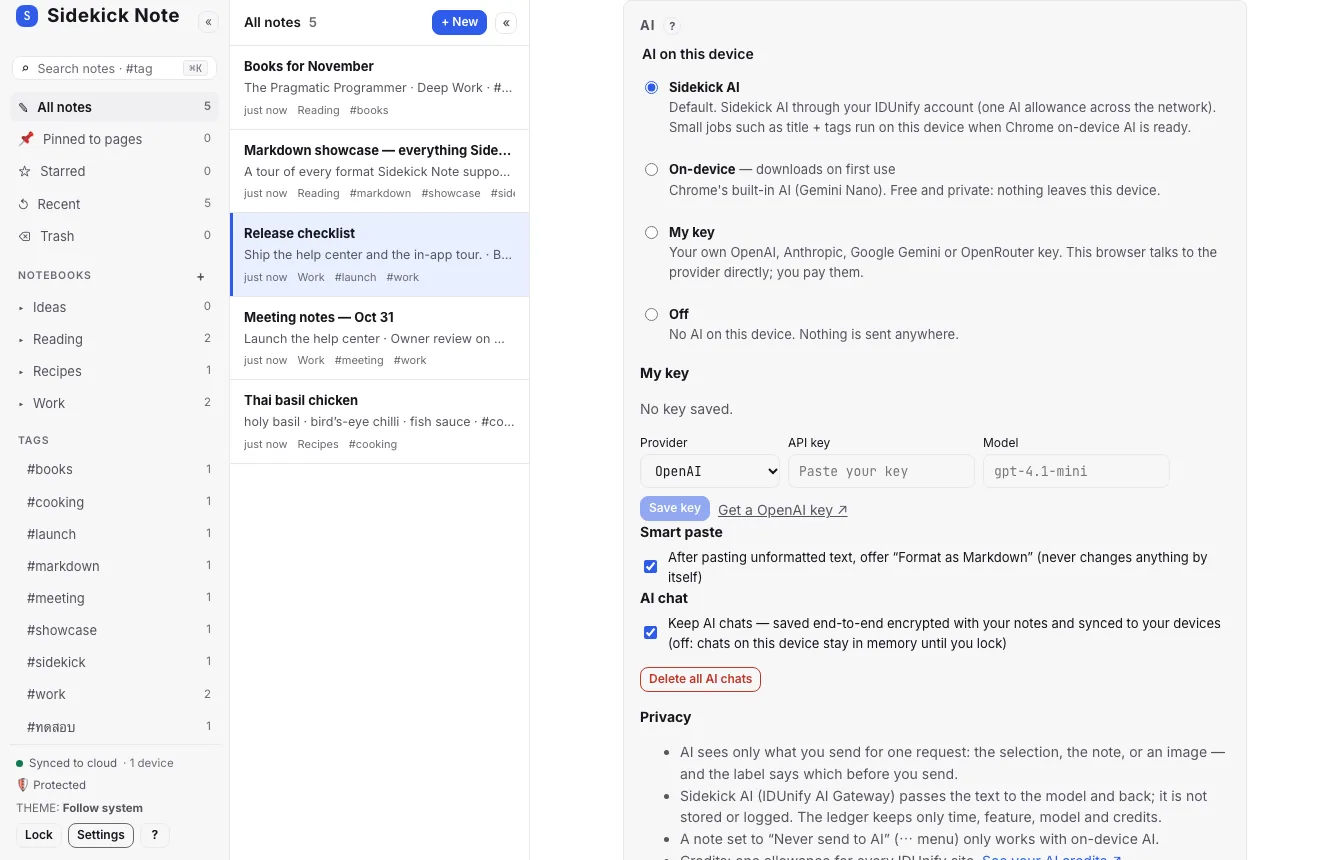
Settings → AI picks how AI works on this device:
| Choice | What happens |
|---|---|
| Sidekick AI (default) | Our AI service through your IDUnify account, with monthly credits. Small jobs (title + tags) run on-device when Chrome has it ready. |
| On-device | Chrome’s built-in AI, on your computer. Nothing leaves it; fewer actions. |
| My key | Your own OpenAI, Anthropic, Gemini or OpenRouter key; your browser talks to that service directly. The key is stored encrypted like a note. |
| Off | No AI; nothing is sent anywhere. |
The model picker in the AI header lists the models your plan allows (default gemma4:31b); the choice is per device.
Credits
Sidekick AI uses AI credits from your IDUnify account — a monthly allowance with a daily safety limit, shared across the sites that use IDUnify. The Credits meter shows what is left; click it to open your AI credits page. Out of credits? You get a notice with a link — or switch to On-device or My key. More in Plans & AI credits.
Privacy: what is sent
- Only what you ask about: the selection, the note, or the chips in the chat. Nothing runs in the background.
- Text is sent as data, not instructions, and is not stored by Sidekick Note or the AI service; we never use notes to train AI.
- Never send to AI (Note menu ⋯ or ⌘KCtrlK): cloud AI refuses that note — also when someone @mentions it in a chat. On-device AI still works.
- Private notebooks: before a private note goes to a cloud AI, Sidekick Note asks once per note per session. On-device AI needs no confirmation.
- AI off on a device: nothing is sent from that device.
Was this helpful?
Thanks! We keep no record of your answer — if something was missing, tell us below.
Something missing or wrong? Write to support@plaazaa.com.