Notes & writing
Templates
Start a note from a built-in template (daily note, meeting, trip plan, meal plan …) or your own; insert ready-filled card presets. English and Thai, with live cards.
A template is a note that is already half written: headings, a checklist, a bill splitter, a recipe card. Pick one and Sidekick Note creates a new note from it, with the title and today’s date filled in. The starter pack is built in; it works offline and costs no AI credits. You can also save any of your own notes as a template.
Start a note from a template
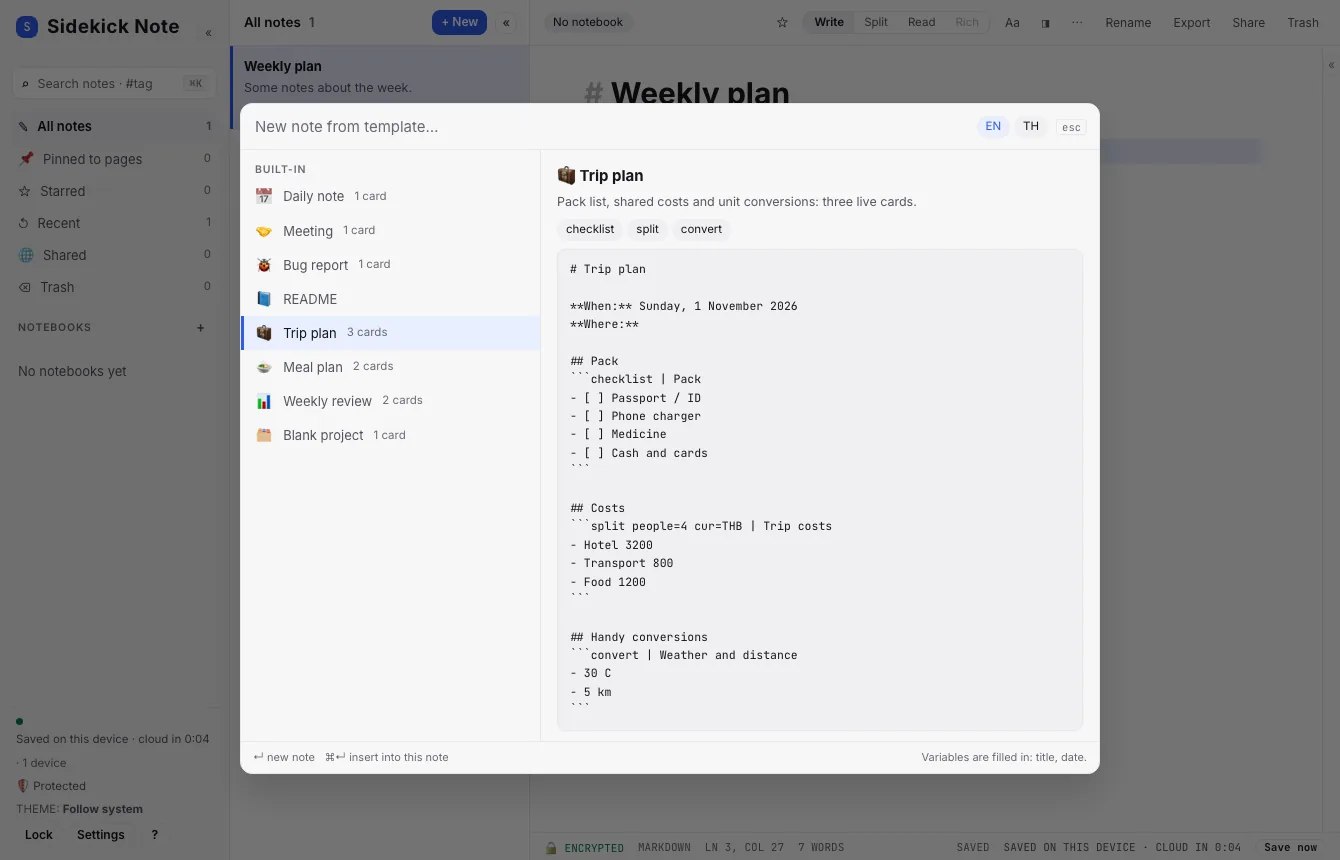
- Press ⌘KCtrlK, type “template” and pick New note from template. The Template picker opens.
- Move with ↑ ↓, or type to search (“trip”, “meeting”, “เที่ยว”). The right side shows what the note will look like.
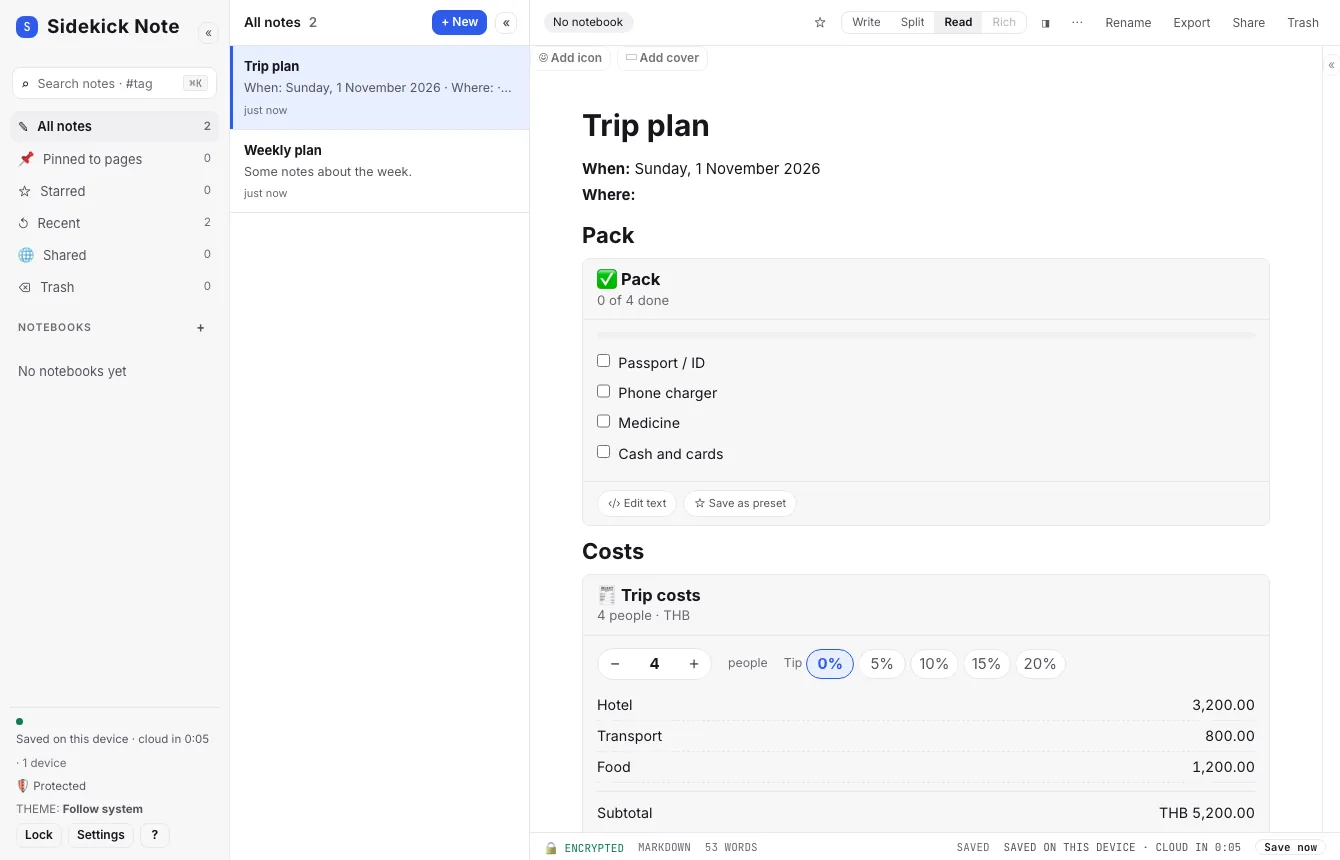
- Press ↵Enter. A new note is created and the cursor lands where you write first (for example after Where:).
Switch the note to Read and the cards come alive (Widgets: cards in your notes).
The starter pack
| Template | What it gives you | Cards |
|---|---|---|
| Daily note | Today’s date, your top three, notes and tomorrow. | checklist |
| Meeting | Agenda, decisions and actions you can tick off. | checklist |
| Bug report | Steps to reproduce, expected, actual, environment. | checklist |
| README | Install, usage, develop, license. | none |
| Trip plan | Pack list, shared costs, handy conversions. | checklist, split, convert |
| Meal plan | A recipe that scales, plus the shopping list. | recipe, checklist |
| Weekly review | Wins, lessons, a small mood chart, next week. | chart, checklist |
| Blank project | Goal, tasks you can tick, links. | checklist |
English or Thai
Every template exists in English and in Thai (written in Thai, not translated word for word). The EN | TH chip in the picker chooses which one you get; it starts from your browser language and remembers your choice on this device.
Insert into the note you have open
Press ⌘↵CtrlEnter in the picker instead of ↵Enter to put the template into the open note at the cursor, as a Change preview you can Accept or reject.
Make your own template
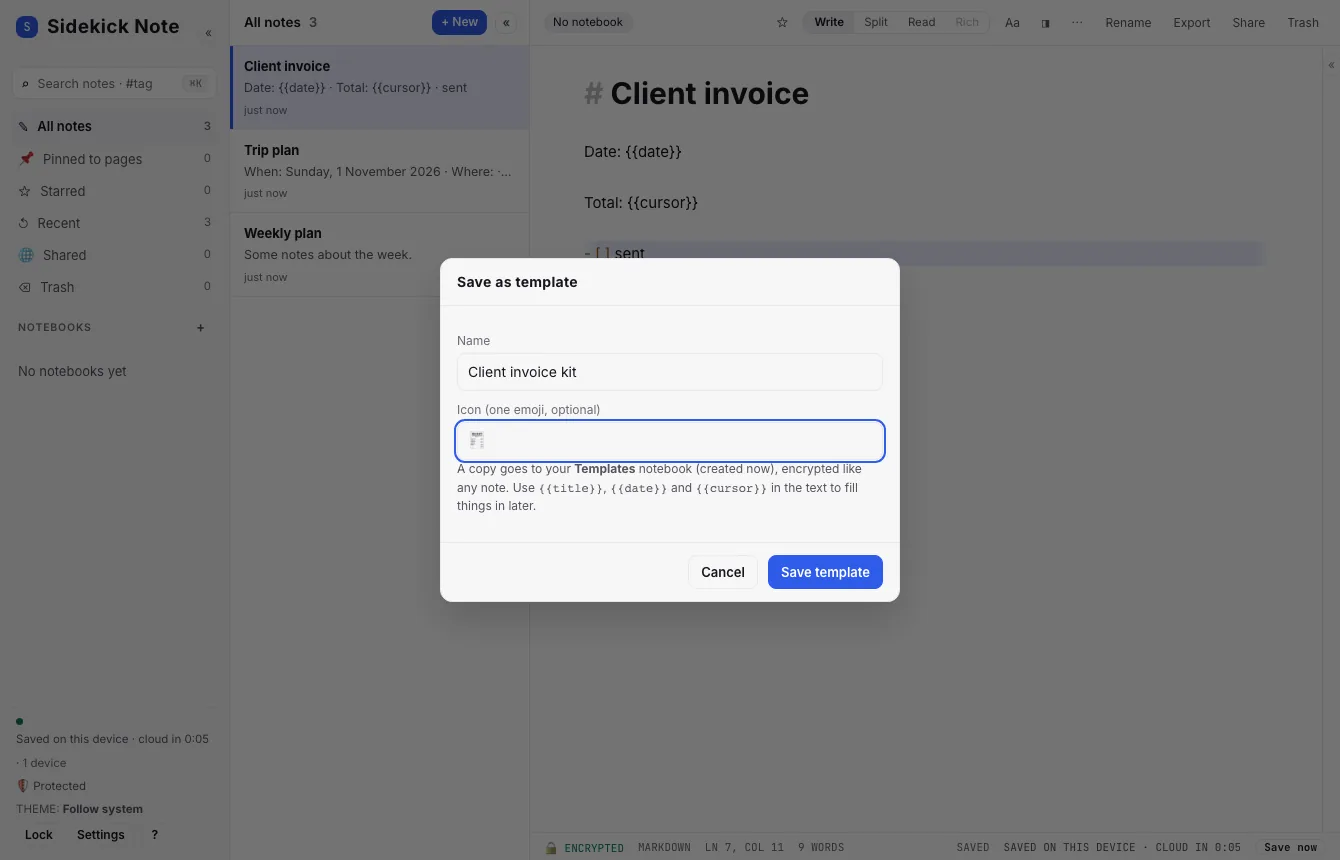
- Write the note the way you want every new one to start. Use
{{title}},{{date}}and{{cursor}}where you want them filled in later. - Press ⌘KCtrlK, type “template” and pick Save note as template. Give it a name and, if you like, one emoji.
- Press Save template. A copy goes into a Templates notebook (created the first time), encrypted like any note. Your original note is not changed.
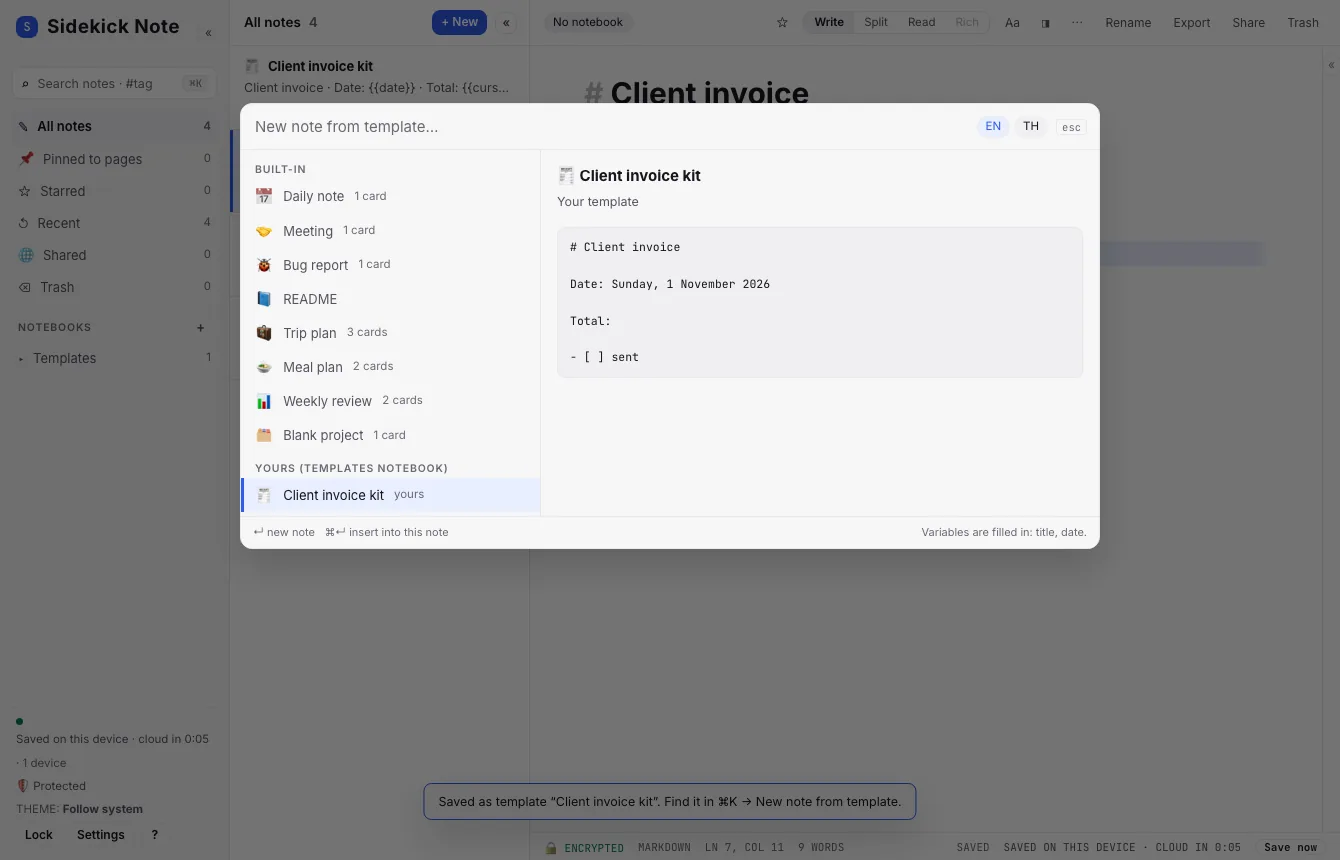
Your templates appear in the picker under Yours (Templates notebook), next to the starter pack, and you can search them.
- Change or delete one — open the Templates notebook and edit or delete the note like any other. It is just a note.
- A note made from a template is a normal note. Even if you start it while looking at the Templates notebook, it is created outside it, so it never turns into a template by accident.
- Private notebooks — a note from a private notebook cannot be saved as a template, because the copy would lose that privacy. Copy the text you need into a normal note first.
Let the AI make one
In the AI chat, say something like “turn this note into a reusable template”. The AI answers with the template text, using {{title}}, {{date}} and {{cursor}}, and keeps any cards in it. Under the answer, press 📄 Save as template to keep it. The AI never saves anything by itself: you choose, name it, and press Save (AI: menu, chat and privacy).
Card presets
A preset is a ready-filled card (a beach packing list, a dinner split for 4, a weekly weight chart) you can drop into any note in one step. Each of the five cards has three built-in presets, in English and Thai.
- Put the cursor where you want the card and press ⌘KCtrlK. Type “card preset” and pick Insert card preset….
- Browse the list or type to narrow it (“pack”, “dinner”, “ต้มข่าไก่”). Each row shows which card it is.
- Press ↵Enter. The card’s Markdown is inserted at the cursor; switch to Read and it works.
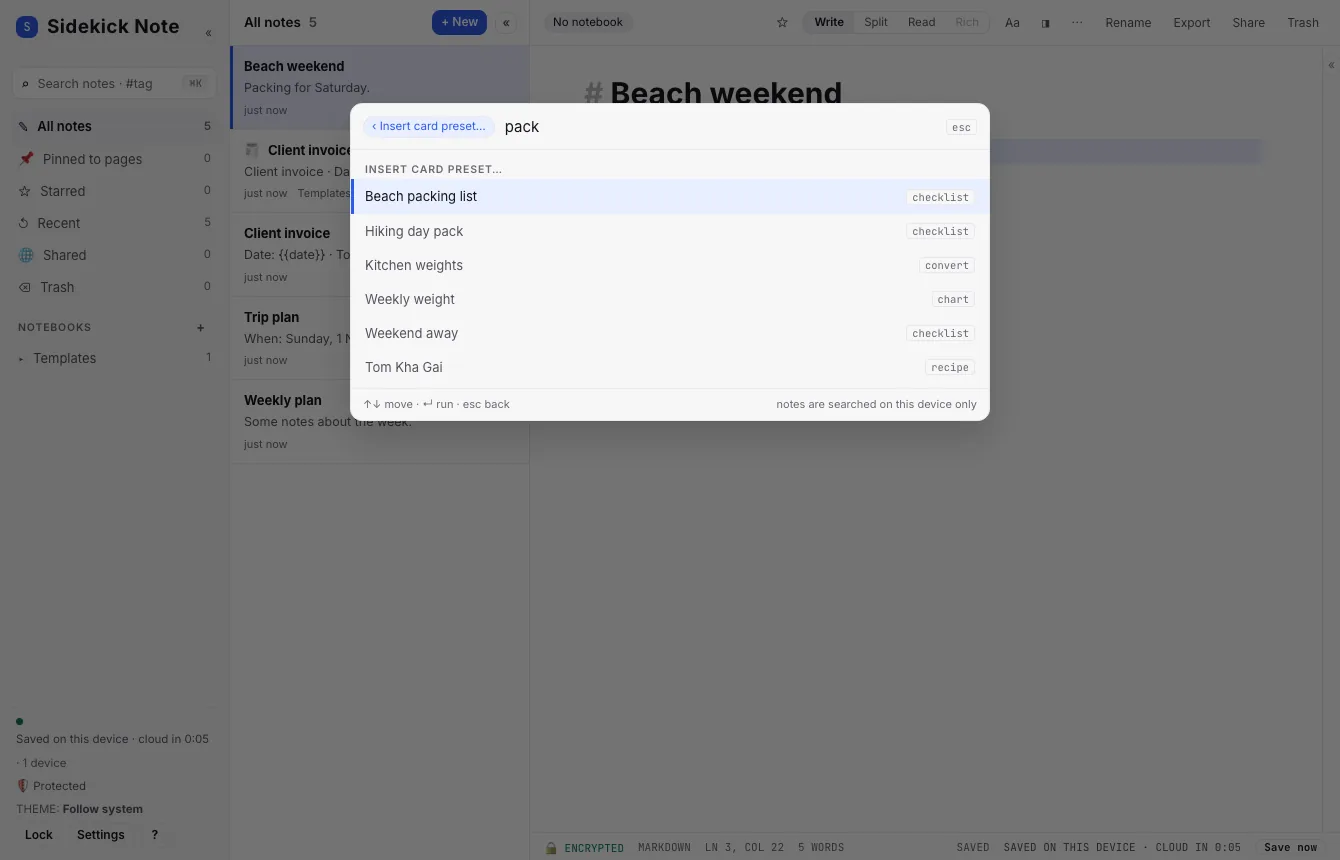
You can also type a preset’s name straight into ⌘KCtrlK: Preset: Beach packing list appears as soon as you search for it. The language of the built-in presets follows the EN | TH choice you made in the template picker.
Keep a card as your own preset
Set a card up the way you like it, then press ☆ Save as preset at the bottom of the card (in Read or Split). Give it a name. It is saved as plain text in your Templates notebook, in a note called Presets: checklist (one note per kind of card), and it shows up in Insert card preset… as one of yours.
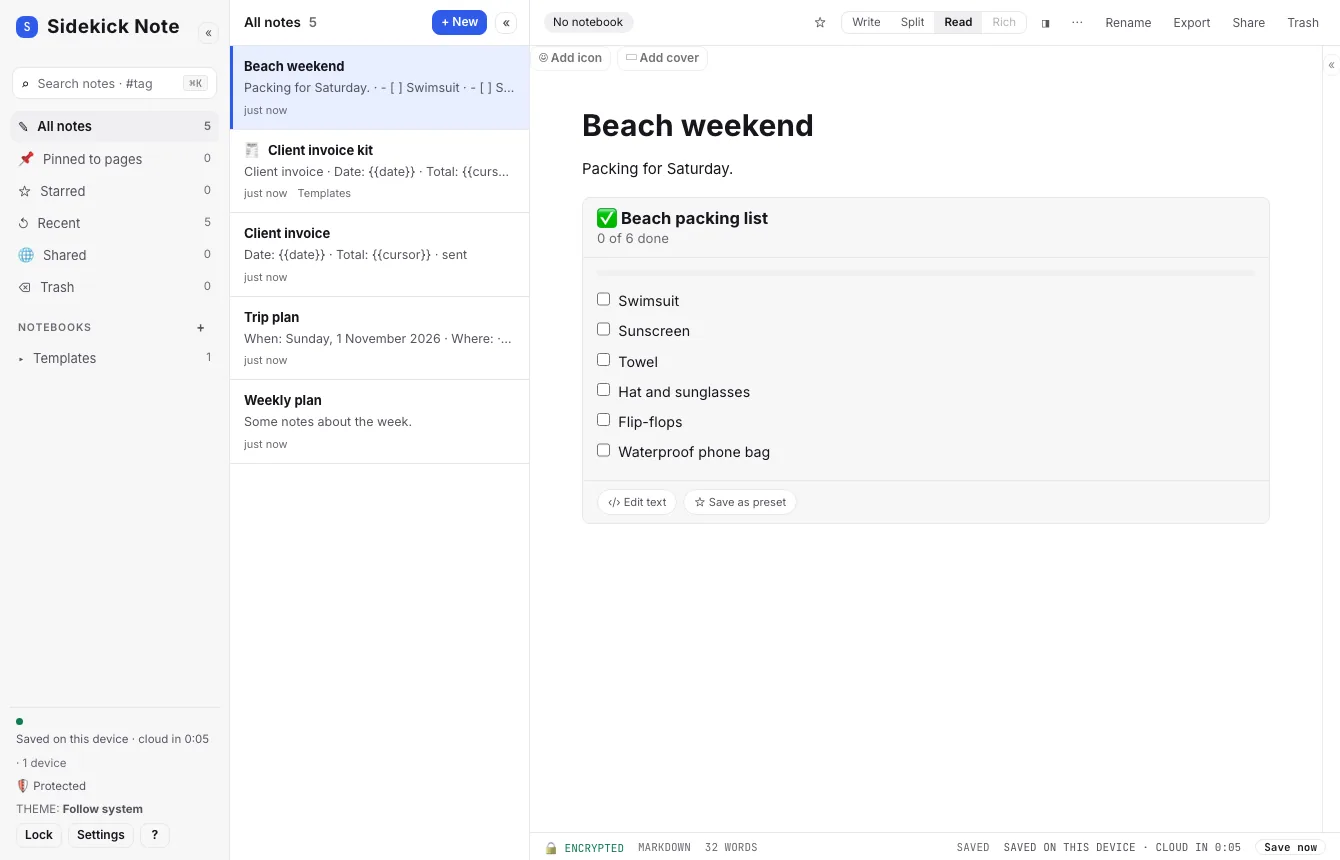
- Saving a preset with a name you already used replaces that one.
- You can have up to 50 presets per kind of card. Edit or delete them by opening the Presets: note in the Templates notebook; the text is ordinary Markdown.
- Cards in a private notebook cannot be saved as presets, for the same reason as templates.
- The Presets notes are not offered as note templates.
What gets filled in
| In the template | You get |
|---|---|
{{title}} | The template’s name, as the note’s title. Rename the note any time. |
{{date}} | Today, for example “Sunday, 1 November 2026”. |
{{cursor}} | Nothing is written; your cursor starts here. |
Share and move your templates
Share one template with a link
Open the note you want to share, press ⌘KCtrlK, type “template link” and pick Copy template link for this note. Send the link to anyone. They open it, see the template (cards included), and press Add to my templates; Sidekick Note asks them to confirm before it adds anything.
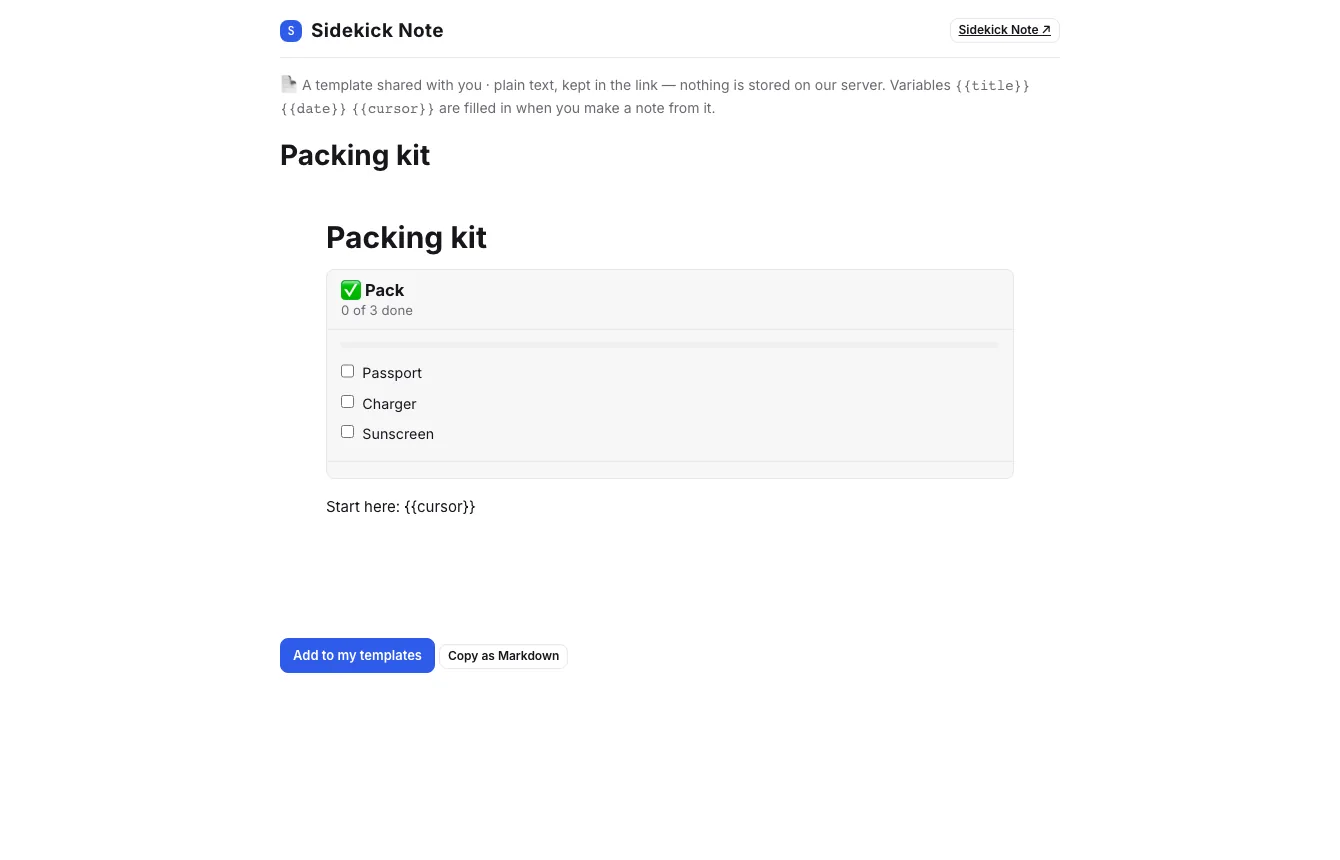
- Nothing is stored on our server. The template is inside the link (after the
#, which browsers never send anywhere). We cannot read it, count it or take it back. - It is a snapshot of the text: later edits are not in the link. Anyone with the link can read the text, so share it like a file.
- Variables stay as written, so it works for whoever uses it.
- Long templates make long links; a link over about 8,000 characters is refused. Use a pack file instead.
- Notes in a private notebook cannot be shared as template links.
Move many at once: a pack file
Press ⌘KCtrlK and pick Export my templates & presets…. You get one file, sidekick-templates-<date>.json, with all your templates and card presets. On another account or device, pick Import templates & presets… and choose the file.
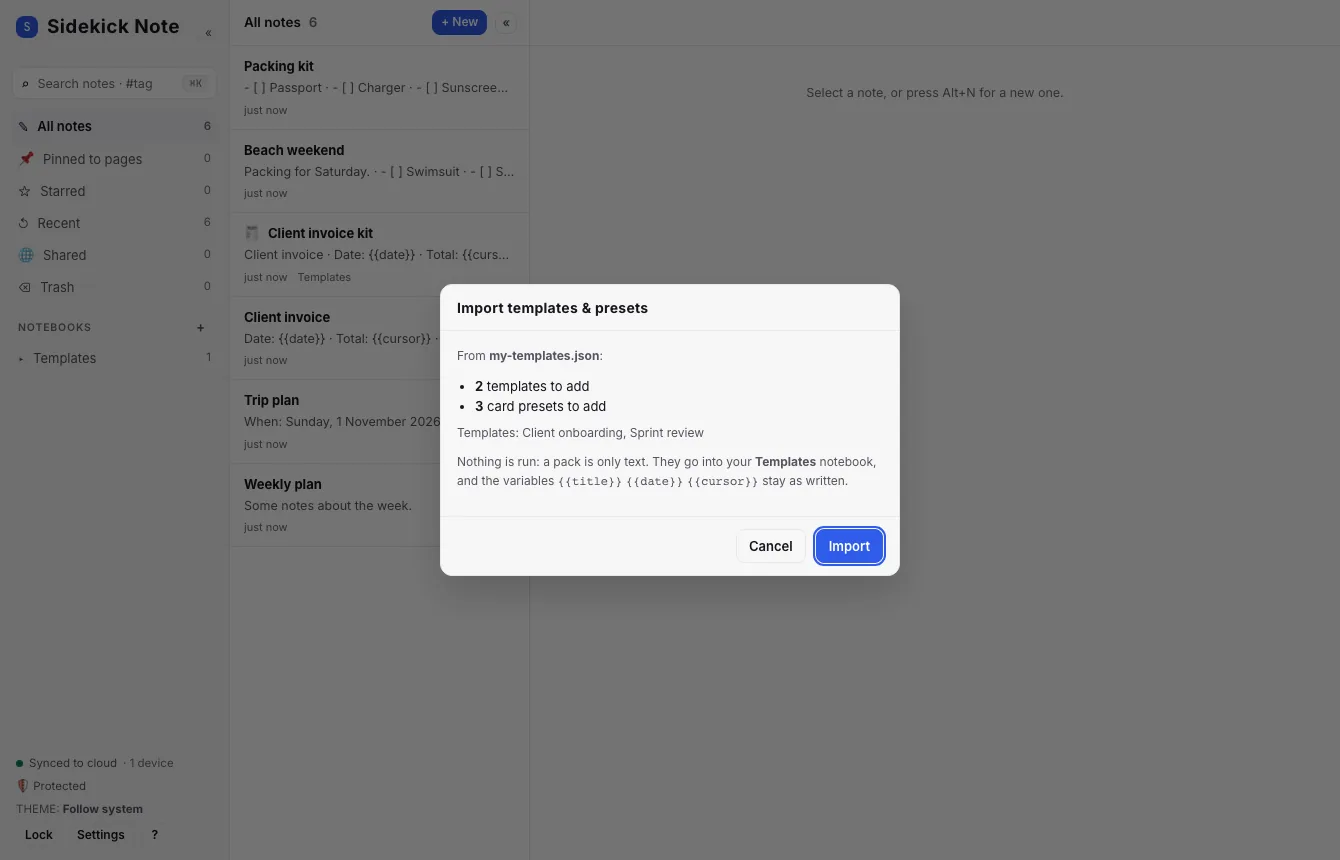
- You see what will be added, what is already there (skipped) and what will be replaced (a preset with the same name).
- A pack is only text. Nothing in it is run, every card preset must still be a valid card, and anything that is not is skipped and listed.
- Limits: a 2 MB file, 200 templates, 50 presets per kind of card.
The gallery
The Template gallery shows every starter template and card preset with its text. Open in Sidekick Note on a template adds it to your templates in the same way as a shared link. It is a gallery of ours; a community gallery is not planned yet.
In the Chrome extension
The Side panel has the same templates. Press the 📄 button next to the view icons: New note from template, Save note as template, Insert card preset…, Copy template link for this note and Export / Import templates & presets. A note made from a template is pinned to the page you are on, like + New. Cards in Read mode have ☆ Save as preset, and the AI chat offers 📄 Save as template under a template answer. Your templates and presets are the same notes as in the web app, so they sync. To add a template that someone sent as a link, open the link in the browser (it opens the web app, where you confirm); it then appears in the extension too (Chrome extension).
Coming next
- A community gallery — a place to share templates with everyone (it needs moderation, so it is a decision, not a promise).
Templates never change your existing notes.
Was this helpful?
Thanks! We keep no record of your answer — if something was missing, tell us below.
Something missing or wrong? Write to support@plaazaa.com.