Your data & account
Export & import
Take your notes anywhere as .md, .html or one .zip, import Markdown files, folders, Obsidian vaults and Notion exports, and bring notes over from the old Sidekick extension.
Your notes are plain Markdown and always yours. Exports are made on your device from your decrypted notes — nothing is sent to a server.
Export one note
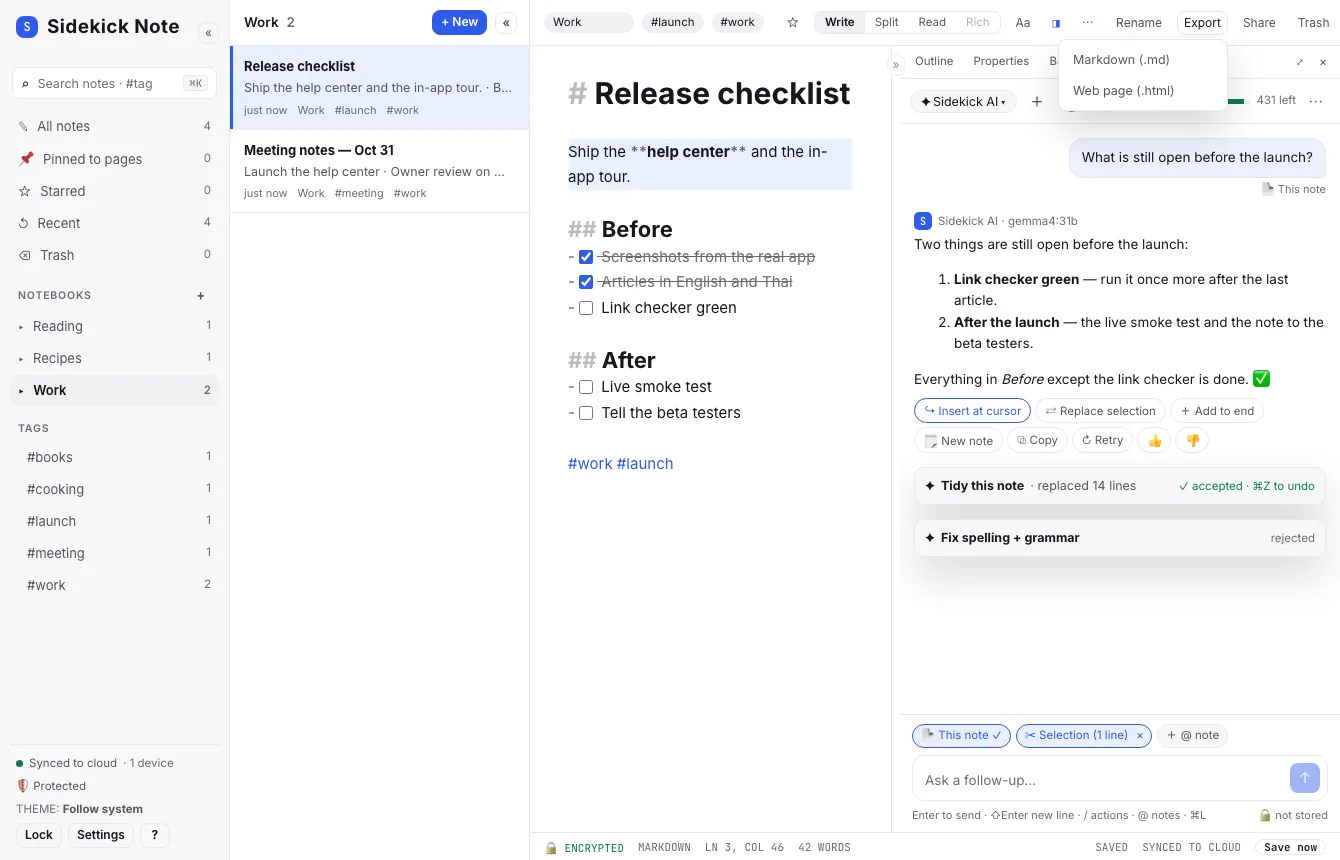
- Export in the Note bar → .md (Markdown) or .html (a web page with its images, math and diagrams built in — it opens in any browser, no internet needed).
- Print / Save as PDF in the Note menu (⋯).
- Copy as Markdown / rich text / HTML in the Note menu, to paste into e-mail or documents.
Export everything
Settings → Export → Export everything (.zip). The .zip has:
- one
.mdfile per note, in folders named after your notebooks (Trash inTrash/), plus an.htmlcopy of each; - your images as files, linked from the notes;
- a JSON file with every note and its details (tags, dates, notebook).
Template packs
Your templates and card presets have their own export: ⌘K → Export my templates & presets… saves one sidekick-templates-<date>.json file. On another account or device, ⌘K → Import templates & presets… shows what will be added, skipped or replaced before it changes anything. A pack is only text (nothing in it is run), and it is also part of Export everything as ordinary notes in the Templates folder. Details and limits: Templates.
Import from the old Sidekick extension
If you used the earlier “Sidekick — Browser Utility Belt” extension with the same e-mail, Sidekick Note finds those notes and shows a banner.
- Settings → Old Sidekick extension (or the banner’s button).
- Check the preview, then Import. Notes are encrypted and synced like any other.
- The old copy is kept. Delete it later with Delete old copy… — only when you are happy.
AI keys from the old extension are not carried over — enter them again in Settings → AI if you use your own key.
Import Markdown files
Settings → Import Markdown → Import Markdown files… (or ⌘KCtrlK → import), or drag .md, .markdown or .txt files onto the window: each file becomes a note. Dropped on an open note, you choose Insert here or Import as new note. Full guide with pictures: Import notes.
Import a folder, an Obsidian vault or a Notion export
Settings → Import a folder or .zip…, or drag a folder or .zip onto the window. Sidekick Note detects Obsidian and Notion, shows a preview, turns folders into notebooks, keeps [[links]], encrypts pictures and imports twice safely. Obsidian, Notion, Bear, Joplin, Logseq, Evernote, Google Keep, Day One, Word and HTML step by step, what is converted, limits and fixes: Import notes.
Notes from other apps
Obsidian, Notion, Bear, Joplin, Logseq, Evernote, Google Keep, Day One, Word documents and saved web pages are covered in Import notes, which also explains Apple Notes and Simplenote. For any other app that can export plain Markdown files to a folder, use the folder import. Pasted web pages and Word documents become Markdown (Writing in Markdown).
Was this helpful?
Thanks! We keep no record of your answer — if something was missing, tell us below.
Something missing or wrong? Write to support@plaazaa.com.