Chrome extension
Chrome extension
Install the beta, open the Side panel, pin notes to pages, capture selections and use page AI.
The Chrome extension puts your notes in Chrome’s Side panel, beside the page you are reading — like the pop-up notepads of the 1980s, for the browser. It uses the same account and notes as the web app.
Install (private beta)
The extension is in a private beta: testers get a link to its Chrome Web Store page from us. To join, write to support@plaazaa.com.
- Open the link from your invitation in Chrome and click Add to Chrome.
- Click the puzzle icon in Chrome’s toolbar and pin Sidekick Note.
- Click the icon (or press ⌘⇧SAltS) to open the Side panel, then Sign in with IDUnify.
The Side panel
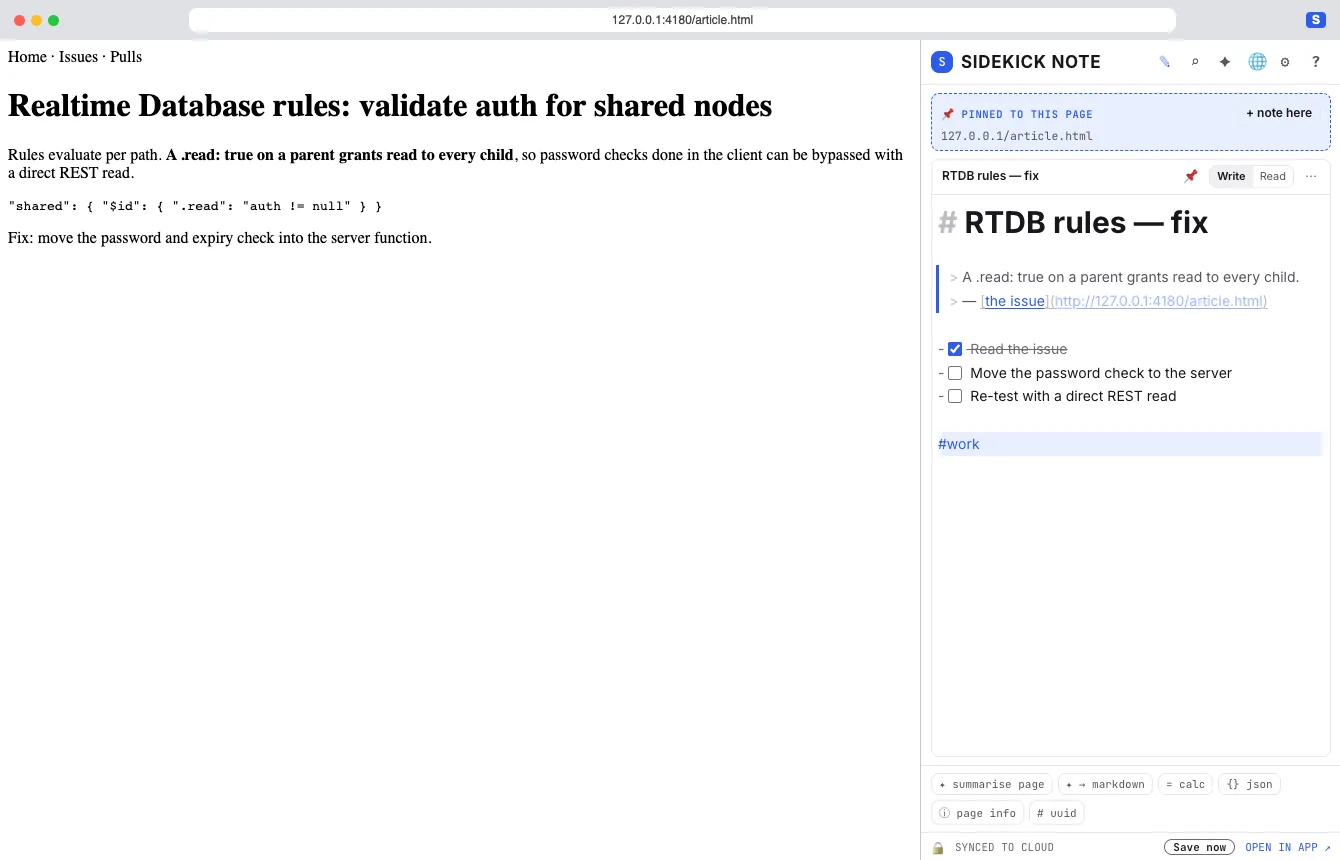
- Panel header: ✎ the note · ⌕ notes + search · ✦ AI chat (⌘LCtrlL) · 🌐 page AI · ⚙ settings · ? help.
- Write / Read with the same Editor as the web app; notebooks, trash, images (with ✏ Annotate and ↩ Revert in Read, Images), share and ⌘JCtrlJ work here too.
- Status bar: sync state, Save now and OPEN IN APP ↗ (the web app in a tab).
Notes pinned to pages
The Pinned box at the top shows the notes pinned to the page you are on. Click + note here to make one. A note can be pinned to this page or to the whole site (📌 buttons in the note). The panel follows you: switch tabs or follow a link and the right notes appear. In the web app, the Pinned to pages view lists them all.
Capture
- Select text on a page, right-click → Save selection to Sidekick Note — or press ⌥⇧SAltShiftS. The quote (as Markdown) is added to the page’s pinned note, with a link back to the source.
- Right-click → Save page link to Sidekick Note saves just the link.
- A capture made while the Side panel is closed waits in memory and is saved into your notes the next time the panel opens.
Page AI and tools
- ✦ summarise page — a summary of the page, saved into its pinned note.
- Ask this page (🌐 view) — questions about the page.
- ✦ → markdown — the selection on the page as clean Markdown in your note (works without AI too).
- = calc, {} json, ⓘ page info, # uuid — small tools for the line or page.
- In the AI chat, the 🌐 This page chip adds the page to a message — off until you turn it on; the page is read only when you send.
The privacy rules are the same as in the web app (AI: menu, chat and privacy): you see what is sent, before and after.
Templates and card presets
The 📄 button in the top bar opens the templates menu: start a note from a built-in or your own template, save the open note as a template, insert a ready-filled card, copy a template link, export or import a pack. Details in Templates.
Settings and look
⚙ in the Panel header: Account (sign out, lock private notebooks, auto-lock), Look, Markdown, Sync, AI and the import from the old Sidekick extension. The look follows the web app by default; turn that off to give the Side panel its own theme. Export and passphrase changes are done in the web app.
If the panel misbehaves
Close and reopen the Side panel. Still stuck: chrome://extensions → Sidekick Note → turn it off and on (your notes stay). See Troubleshooting & FAQ.
Was this helpful?
Thanks! We keep no record of your answer — if something was missing, tell us below.
Something missing or wrong? Write to support@plaazaa.com.