Notes & writing
Widgets: cards in your notes
Turn a few lines of Markdown into a card: a recipe you can scale, a checklist, a bill splitter, a unit converter, a chart, a songbook with chords above the lyrics, a trade journal with a candlestick chart. Let the AI write it, share it, export it.
A widget turns a few lines of plain Markdown in your note into a card you can use. The first one is the recipe card: write a recipe, then change the number of servings from 1 to 100 and every amount follows. There are also a checklist, a bill splitter, a unit converter and a chart, a songbook card (chords above the lyrics) and a trade journal card for stock and crypto trades. The note itself stays ordinary Markdown, so it still reads fine in any other app.
Make a recipe card
- Open a note and press ⌘KCtrlK. Type “recipe” and pick Format: Insert recipe card. A small block appears and the word Title is selected — type the name of the dish.
- Write one ingredient per line, starting with
-:- 400 ml coconut milk. Add numbered steps below if you like. - Switch to Read or Split (see Writing in Markdown). The block is now a Widget card.
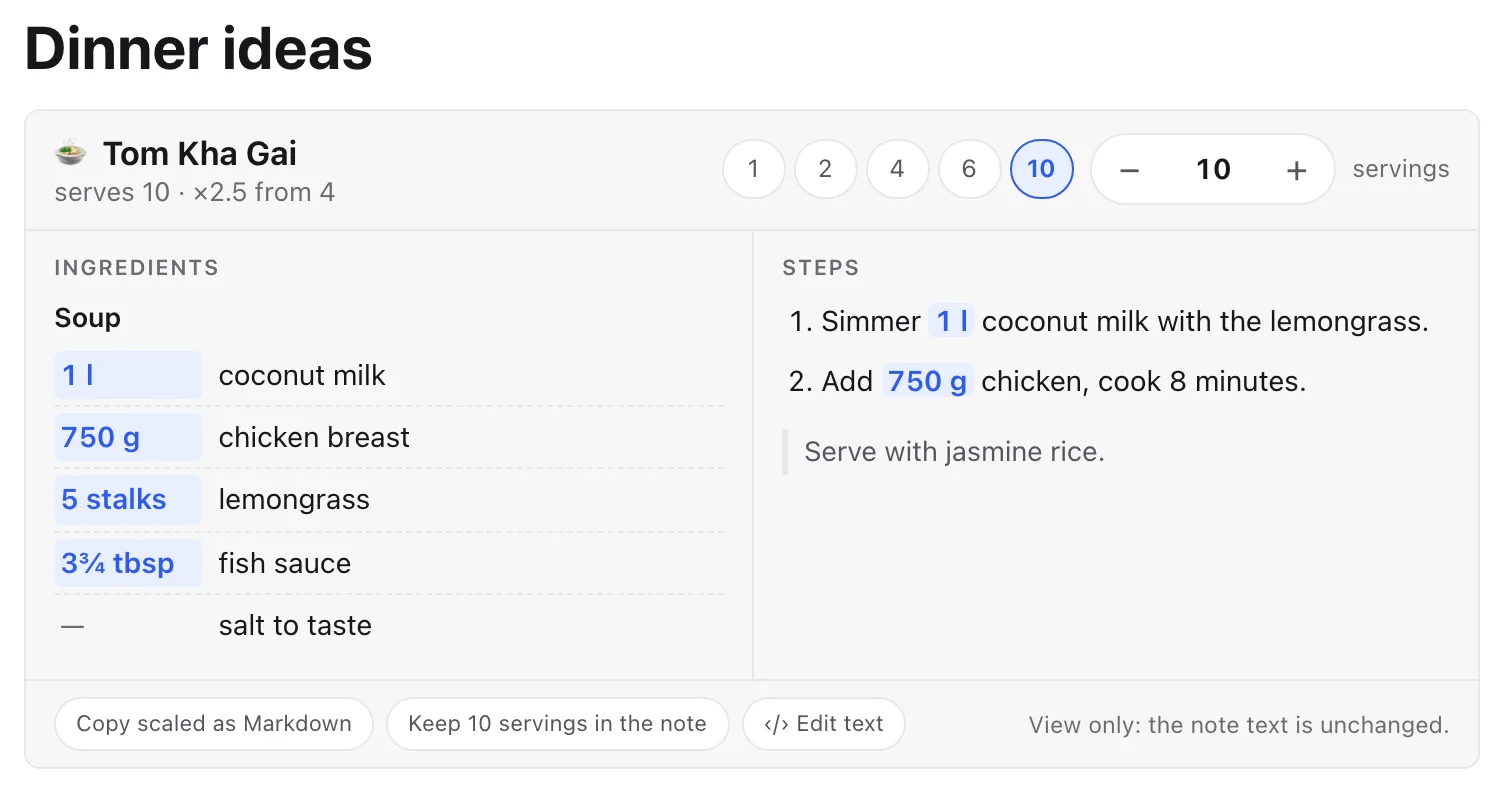
The recipe block
This is what you write. It is just text — the card is drawn from it.
```recipe servings=4 | Tom Kha Gai
## Soup
- 400 ml coconut milk
- 300 g chicken breast
- 2 stalks lemongrass
- 1 1/2 tbsp fish sauce
- salt to taste

1. Simmer {400 ml} coconut milk with the lemongrass.
2. Add {300 g} chicken, cook 8 minutes.
> Serve with jasmine rice.
```| Part | How to write it |
|---|---|
| First line | ```recipe servings=4 | Title — servings is required (a whole number, 1–100); the title is optional. |
| Ingredient | - amount unit name. A line with no amount (- salt to taste) never changes. |
| Amounts | 2 · 1.5 · 1,5 · 1/2 · 1 1/2 · ½ · ranges like 2-3. |
| Units | g, kg, ml, l, tsp, tbsp, cup — and Thai: กรัม, กก., มล., ลิตร, ช้อนชา, ช้อนโต๊ะ, ถ้วย. Counting words such as stalks, cloves, slices, ชิ้น, กลีบ, ฟอง are kept as you wrote them. |
| Groups | A line starting with ## (for example ## Sauce) starts a new group of ingredients. |
| Steps | A numbered list. Write an amount inside braces — {400 ml} — and it scales with the card. |
| Note | A line starting with >. It is shown under the steps and never scales. |
| Total time | Add time=45m (or 1h30m) after servings: ```recipe servings=4 time=45m | Title. It shows on the card. |
| Timer | Write {timer 8 min} inside a step (also {timer 90 s}, {timer 1h30m}, {timer 8 นาที}). The step gets a start button. |
| Ticked item | - [x] 2 limes is ticked (the card writes this when you tick an item). |
| Keep fixed | Put = before an amount to stop it from scaling: - =1 bay leaf. |
The closing ``` line is needed. The block must be at the top level of the note — not inside a list, quote or callout.
Using the card
- Change the servings with the Stepper (− and +), by typing a number, or with the quick chips 1 · 2 · 4 · 6 · 10. Every amount, including the amounts inside the steps, is recalculated and nicely rounded (1½ tbsp, 750 g, 1 l). Amounts that changed are tinted.
- This is a view: your note text does not change. The number you picked is remembered on this device only.
- Units: when the recipe has amounts in grams, ml, cups, spoons, oz or lb, a Units row appears: As written, Metric or US. It only changes how the card shows the amounts (1 cup = 240 ml, 1 tbsp = 15 ml, 1 tsp = 5 ml).
- Shopping ticks: tick an ingredient as you shop. On a card in your own note the tick is saved in the note as
[x](so it syncs); on a published or shared page it lasts only for that visit. “N of M got” and Reset ticks appear once something is ticked. - Timers: a step with
{timer 8 min}has a ⏱ button. Press it to count down, press again to stop. The card says “Done” and announces it when the time is up. Timers never scale with the servings. - Card toolbar: Copy scaled as Markdown copies the block with the new amounts. Keep N servings in the note rewrites the block in your note for good, with the new amounts. ‹/› Edit text opens the note at the block so you can change the words.
- A Block chip (⚠ 2) means the card could read your block but skipped something — click it to see what, for example an unused option or a line that is not an ingredient, step or note.
- If the card cannot read the block at all, you keep a normal code block and a short hint such as “Can’t read this widget: servings missing”. Fix the line and the card appears.
Checklist
A list of things to tick off — packing, shopping, a launch plan. Ticks are saved in the note.
```checklist | Packing list
- [x] passport
- [ ] charger
## Beach
- [ ] sunscreen
```
Each line is - [ ] item (open) or - [x] item (done); ## starts a group. The card shows a progress bar and “2 of 4 done”, and Reset clears all ticks. On a published page, ticks last only for that visit.
Split a bill
Share a bill, trip costs or any shared expenses between people.
```split people=3 tax=7 tip=10 cur=THB | Dinner
- Pad thai 120
- Tom yum 180
- Drinks 150
```peopleis required (1–100).taxandtipare optional percents of the subtotal.curis an optional currency code such as THB or USD. Each expense is- name amountwith the amount last.- The card shows the subtotal, tax, tip, the total and Each pays. Change the number of people with the stepper and the tip with the chips (0 · 5 · 10 · 15 · 20 %). Keep N people and X% tip in the note writes your choice into the block; Copy summary copies a one-line summary.
- Money is counted in cents, and each share is rounded up to the cent, so the group never pays too little.
Unit converter
A list of values with their counterpart in the other system — handy for recipes, trips and DIY.
```convert | Oven and trip
- 180 C
- 5 km
- 2 lb
```
Units: km mi m ft cm in kg lb g oz l gal ml floz C F (and Thai names such as กม., ปอนด์, องศาเซลเซียส). The card shows each line as “180 °C = 356 °F”, and a Try row converts any value you type.
Chart
A quick bar or line chart from a few numbers.
```chart type=bar unit=kg | Weight by week
- Week 1: 72.5
- Week 2: 72
- Week 3: 71.2
```
type is bar (default) or line; unit is an optional short unit shown after the values. Each point is - label: number (numbers 0 or more, up to 24 points). The card has a Bars / Line switch, and a hidden table so screen readers can read the numbers. Copy data copies them as CSV.
Trade journal
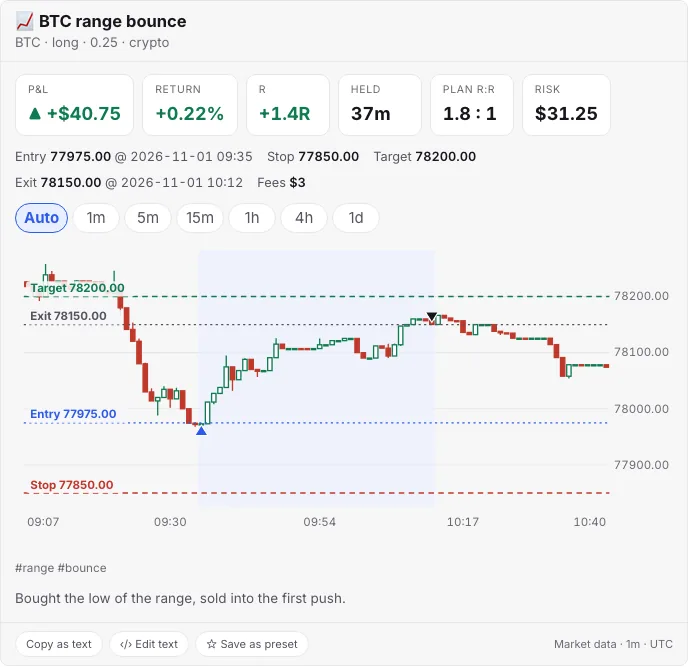
Log a stock or crypto trade in a few lines and get a card: your P&L, the R-multiple (result divided by what you risked), how long you held, and a candlestick chart of the trade with your entry, stop, target and exit marked. You can also just tell the AI chat: “Bought 100 NVDA @ 142.50 at 10:32, stop 140, exit 146 at 11:15”.
```trade symbol=NVDA side=long qty=100 | NVDA opening breakout
date: 2026-11-02
entry: 142.5 @ 10:32
stop: 140
target: 148
exit: 146 @ 11:15
fees: 2
tags: breakout, momentum
note: Held above VWAP.
```
- Required:
symboland anentry:price. Everything else is optional.sideislong(default) orshort;qtyis how many shares or coins. Crypto symbols can beBTC,BTC-USDorETHUSDT. - Times:
entry: 142.5 @ 10:32. Add the day once withdate: 2026-11-02(or write it in the time:@ 2026-11-02 10:32). Times are in New York time for stocks and UTC for crypto; change it withtz: Asia/Bangkok(alsoUTC+7,+07:00,ET,PT). A zone the card does not understand is named in a small note on the card and the default zone is used. - An entry time needs a date. A block with only
entry: 142.5(or a time but no day) still shows its figures, and the chart area tells you what is missing. Add one line such asdate: 2026-10-29and the chart appears. If a chart cannot be drawn, the card says “Chart unavailable” or “No data for this window”; the figures stay. - No exit yet? Leave the
exit:line out: the card says Open and shows your planned reward-to-risk. There is no live price in this first version, so an open trade has no profit figure. - The numbers: P&L = (exit − entry) × size − fees (reversed for a short). R = result per share ÷ (entry − stop). The card warns you (⚠) if a stop or target is on the wrong side of the entry, or the exit is before the entry.
- The chart has candle sizes Auto · 1m · 5m · 15m · 1h · 4h · 1d (remembered on this device only) and shows the open, high, low and close of the candle under your pointer.
- Version 1 covers stocks and crypto. Options and futures, and several entries or exits in one trade, are not supported yet.
Where the prices come from. The numbers on the card always come from your note. The chart needs market prices:
- Crypto and US stocks use our market-data service, no setup. The footer of the card says “Market data”, the candle size and the time zone. Some prices are delayed by 15 minutes, and then the footer says so (“delayed 15 min”). Candles can differ a little from the full market.
- If the service is unavailable for a stock, the card asks for your own free Alpaca key instead: paste the key id and secret in the card. That key is kept on this device only, never inside a note and never sent to our servers: your browser talks to Alpaca directly with your own account, and the footer then says “Your Alpaca key”. Remove my key deletes it.
- Without a price source the card still shows all your numbers, with a short line saying what is missing.
Sample data for demos. Add data=sample to the first line (```trade symbol=ACME side=long qty=200 data=sample | Demo) and the card draws a made-up chart that fits your own entry, stop, target, exit and times, with a Sample data label next to the chart and in the footer. It never asks any price service, so it works offline and is safe to show or publish. Use a made-up symbol such as ACME. The AI chat does not write it for you; it is your choice, for tutorials, screenshots and demo notes.
Privacy. Your note stays private. To draw the chart, the app asks for prices with only the symbol and the time window (for example “BTC, 1 November 09:00–10:45”). Prices you paid, the size, stop, target, notes and tags never leave your note. Shared links, published pages and exports show your numbers and a readable text summary, without the chart.
Good to know. Free price feeds can be incomplete or briefly wrong, so treat the chart as an illustration. Sidekick Note records your trades; it does not give investment advice.
Songbook: chords above the lyrics
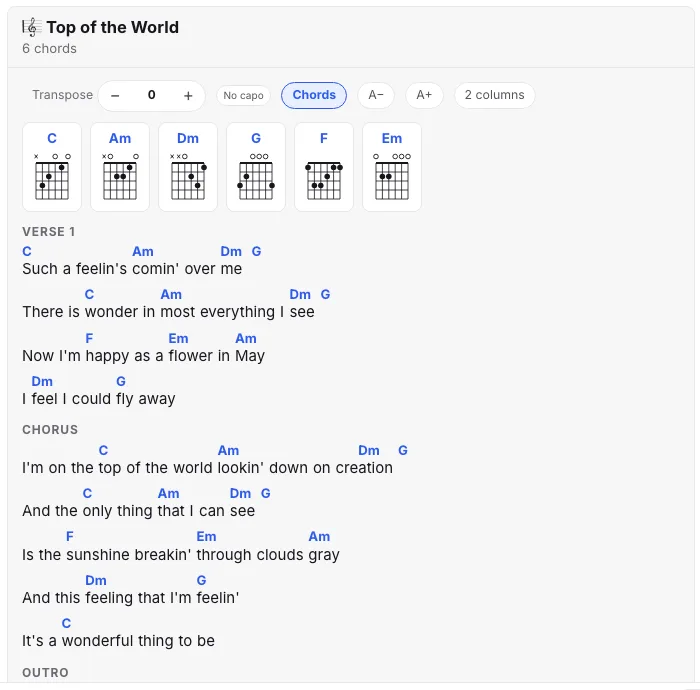
Write a song with the chord in square brackets in front of the word it is played on and Sidekick Note draws it like a songbook, with the chords above the words: [C] Such a feelin's [Am] comin' over [Dm] me. That is exactly how the AI chat writes chords, so an answer to “show me the guitar chords for …” works as it is.
```songbook key=C | Top of the World
chords: C x32010, Am x02210, Dm xx0231, G 320003

(Verse 1)
[C] Such a feelin's [Am] comin' over [Dm] me [G]
There is [C] wonder in [Am] most everything I [Dm] see [G]
```
- Lyrics: a chord goes right before the word or syllable (
cre[Dm]ation); a chord at the end of a line (me [G]) sits above the end. Section lines like(Verse 1)or(Chorus)become headings. - Shapes: an optional
chords:line gives guitar shapes (six characters,x= muted:x32010). Without it the card uses a built-in set of common chords; a chord it does not know is shown by name only. - On the card: Transpose − / + moves every chord and the key; Capo shows the shapes to play; Chords hides them to read the lyrics; A− / A+ change the text size; 2 columns is handy for printing. These are remembered on this device. Keep this key in the note writes the moved chords back into the block.
- Copy as text puts the chords above the words in plain text; Copy ChordPro copies
[C]wordlines for other chord apps.
Already have a song as plain text? A note (or an AI answer) with chords in brackets shows Make a songbook card at the top (in the chat: Insert as songbook card); you can also press ⌘KCtrlK and pick Songbook: turn chords + lyrics into a card. Nothing changes until you click, and Undo brings the old text back. Chords written by an AI can be wrong, so check them by ear.
Ask the AI for chords
You do not need special words. A message with chords, guitar chords, chord chart, lyrics with chords or the same in another language (คอร์ด, コード譜, 和弦, acordes …) makes the answer come as a songbook card.
- “Guitar chords for ‘My Way’ by Frank Sinatra, the whole song.”
- “Chord chart for Zombie by The Cranberries in the key of Em, all verses and choruses.”
- “ขอเนื้อเพลงลอยกระทงพร้อมคอร์ดกีตาร์ ทั้งเพลง”
- “Add chords in C to these lyrics:” and paste your own words — the card keeps them.
Name the song and the artist, say “the whole song” or “all verses”, and give a key or capo if you need one. Under the answer you get Insert card only and Card to end. If the model answers with plain text instead of a card, use 🎼 Insert as songbook card. To change a song that is already in the note, ask “transpose this to G”, “add the missing second verse” or “capo 2”, then press Replace card in note (change preview, ⌘ZCtrlZ undoes it). A short answer? Reply “continue with the remaining verses and the chorus”.
Card language
The words on a card (P&L, Held, Fees, Copy as text, hints and messages) follow the language of your note, in English, Thai, Japanese, Chinese (Simplified), Korean, Hindi or Spanish. Sidekick Note decides in this order:
- The block. Add
lang=thto the first line:```trade lang=th symbol=ACME side=long …(any card; codesen th ja zh ko hi es). It stays in the block when you change servings or tick items. - The note. A
lang: thline in the note's front matter (Properties), or, with no such line, the script of the text itself: a note written in Thai, Japanese, Chinese, Korean or Hindi gets that language automatically. Spanish is recognised when the note clearly is Spanish (or setlang: es). - Your browser's language (in the app), else English.
A published page uses the language of the note, never the reader's browser, so a Thai note shows Thai labels to everyone. Press Update link on an older page to switch it. Trader terms keep the words traders use in that language: for example P&L, R, Stop and Target stay in English in Thai, and Japanese shows 損益, 損切り and 利確. Your own text (titles, notes, item names) is never translated. The warning notes behind the ⚠ chip are still English.
Numbers. On the trade, split, convert and chart cards, amounts, percentages and decimals follow the card's language: 58,40 € (Spanish), ₹1,00,000.00 (Hindi, Indian grouping), ฿700.00 (Thai), ¥700 / ₩12,500 (Japanese / Korean, no decimals). English is unchanged (EUR 21.42). Only the display changes: what you typed in the block, the plain fallback shown where cards cannot run, exports, and a chart's Copy data keep dots and plain numbers, so they paste cleanly anywhere. A currency Sidekick Note does not know (a coin, a typo) is shown as the code after the number.
Let the AI write it
Open the AI tab (⌘LCtrlL) and ask for a recipe — or paste a recipe from a website and ask for a recipe card. It also writes checklists, bill splits, conversions, charts and trades (“make a packing checklist for a beach trip”, “split this bill between 4 people”, “bought 100 NVDA at 142.50 …”). Tell it a trade in your own words, even half of it (“NVDA long 142.5 stop 140”), and it fills in the rest of the block without asking what it can work out. See AI: menu, chat and privacy for the chat itself.
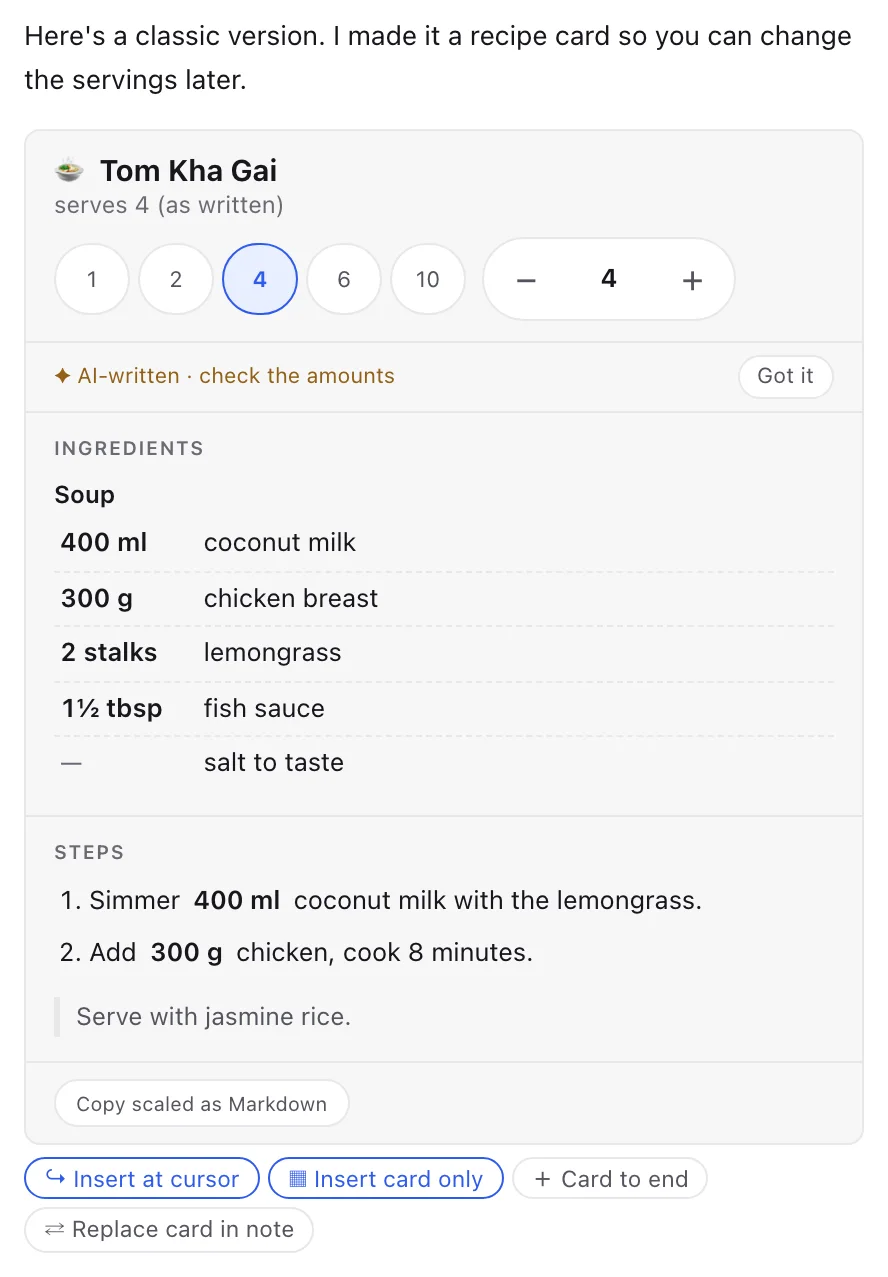
- The answer shows the card with a AI-written strip: “AI-written · check the amounts”. Always read the amounts — the AI can get a number wrong. Click Got it to hide the strip. It also goes away by itself once you edit the block.
- ▦ Insert card only adds just the card at your cursor (without the chat text around it); + Card to end adds it at the end of the note. Both open the Change preview first — accept to insert, and ⌘ZCtrlZ undoes it in one step.
- Change a recipe by chatting. With This note on, say “make it vegan”, “double it” or “add 2 chillies”. The AI sends the whole updated card; ⇄ Replace card in note swaps it in through the change preview, so you see the difference first. If the note has several cards, the one with the same title (or the one at your cursor) is replaced.
- Behind the scenes the app checks every card the AI writes. If one cannot be read it asks once more, quietly; if it still fails you get plain text instead of a broken card.
What is sent: the same as for any AI chat message — your question and the context chips you turned on (AI: menu, chat and privacy). The instructions for widgets are added only when your message is about a recipe, or when the note already has a card.
Sharing, export and print
Because a card is plain Markdown underneath, it travels well:
| Where | What readers get |
|---|---|
| Published link (Sharing a note) | The interactive card on the page: readers can change the servings and copy the scaled recipe, but cannot change your note. Without JavaScript they see a clean ingredient list. Links you published before cards existed show a plain block until you click Update link. |
| Private link (Sharing a note) | The interactive card, read-only. |
| Export as HTML, Copy as rich text, Print | A readable section: the title, the ingredient list and the steps, with the amounts as written in the note. |
| Other Markdown apps | The block as plain text. |
The link preview in chats never shows the recipe lines — only your usual title, description and picture.
More about cards
- The Chrome extension’s Side panel shows the same cards in Read mode and in the AI chat; ‹/› Edit text switches the note to Write.
- Every card works the same way: a few lines of Markdown in your note, a card on top. More card types will come; ask the AI chat for a checklist, a bill split, a conversion or a chart and it will write the block for you.
- Cards are built into the app. They do not load anything from the internet and cannot run other people’s code.
- Card presets: ready-filled cards (a beach packing list, a dinner split, a weekly weight chart) come from ⌘KCtrlK → Insert card preset…, and ☆ Save as preset on any card keeps your own (Templates).
- Undo: in Split and Write, ⌘ZCtrlZ undoes a change a card made to the note (Keep N servings, a ticked item). In Read there is no editor, so those changes are written straight to the note and ⌘ZCtrlZ cannot undo them; switch to Split first if you want to be able to.
- Templates: the starter templates contain working cards (Templates).
Was this helpful?
Thanks! We keep no record of your answer — if something was missing, tell us below.
Something missing or wrong? Write to support@plaazaa.com.