Notes & writing
Writing in Markdown
Write, Split, Read and Rich (beta); the toolbar and helpers; tables, tasks, code, math, diagrams, callouts; YAML front matter; paste from the web or Word.
Notes are plain Markdown — a simple way to format text with a few symbols. Your notes stay readable anywhere and open in other Markdown apps (GitHub, Obsidian, VS Code). Sidekick Note follows CommonMark and GitHub Flavored Markdown, plus the most-used Obsidian extras.
Write, Split and Read
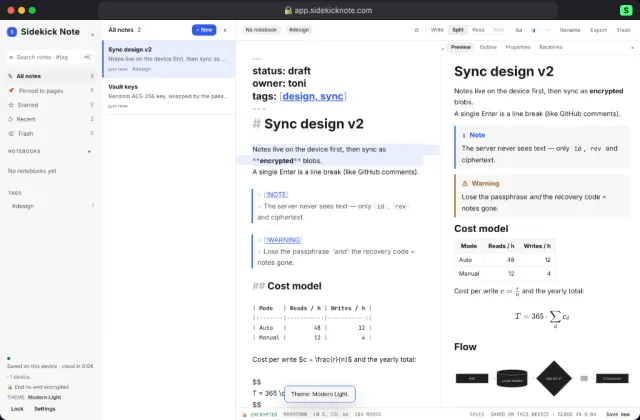
The Mode switch in the Note bar sets how notes open. The mode stays the same when you switch between notes, until you change it (it is remembered on this device). A note opens in another mode only when it has to — for example plain-text notes have no Split, and a note Rich cannot keep exactly opens in Split.
- Write — the Editor alone. Marks like
**fade when you are not on that line. - Split — writing on the left, live preview on the right; they scroll together. Drag the divider; ⌘⇧ECtrlShiftE folds the preview.
- Read — the finished page. Tick task boxes right here. ⌘ECtrlE switches Write ⇄ Read.
- Rich (beta) — edit a formatted page instead of Markdown symbols; see Rich mode below. Off until you turn it on.
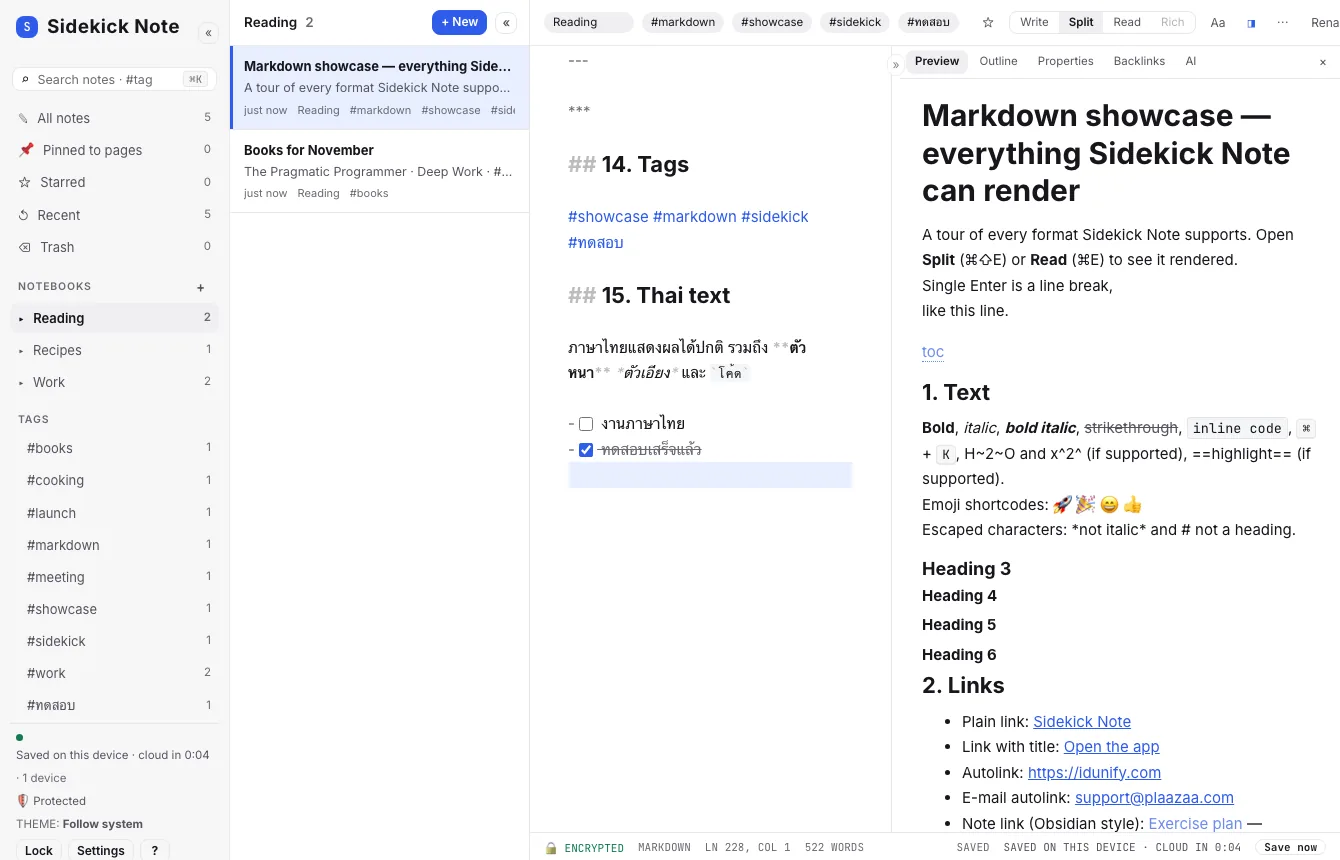
Settings → Markdown picks the mode for new notes and whether a single ↵Enter is a line break (default, like GitHub comments and Obsidian) or strict CommonMark (empty line = new paragraph).
Rich mode (beta)
Rich shows your note as a formatted page — headings, bold, lists, tables — and you type straight into it, like a word processor. The note is still plain Markdown underneath.
- Turn it on: Settings → Markdown → Rich mode (beta) (this device only).
- Open a Markdown note and press Rich in the Mode switch, or ⌘⌥ECtrlAltE, or ⌘KCtrlK → Mode: Rich.
- Opening never changes a note. A note is saved from Rich only after you edit something in it. Switch back to Write without typing and nothing was touched.
- Cards (recipe, checklist, split, convert, chart, trade) are drawn as the real card, right in the note: scale a recipe, tick a checklist item, press Keep 10 servings — it is written into the note exactly as in Read. ‹/› Edit text on the card opens the Markdown behind it. A card the app cannot read stays as text so you can fix it.
- Front matter (the
---block at the top) shows as a folded “Front matter” box and is kept exactly; edit it in Write. - A little tidying. When you edit in Rich it may tidy the formatting of what you edit — table spacing,
~~~fences become```, an underlined heading becomes#. You see a one-time notice the first time. - Callouts (
> [!NOTE],[!tip] Title, foldable[!warning]-) are drawn as coloured boxes like in Read, and their first line is kept exactly. - [[Wiki links]] (
[[Note]],[[Note#Heading|alias]],![[embed]]) show as links — dotted when the note does not exist. Click one to open the note. Type[[Note]]and it becomes a link. - Not everything fits yet. If Rich would change a note’s meaning, the note opens in Split with the reason (for now: formulas with
$…$, subscriptH~2~O, a malformed table, and anything else the check cannot keep exactly). Click Rich again to retry; nothing is lost either way. - Images: paste or drop a picture into Rich and it is encrypted on your device and shown in the note (saved as
, like in Write). Existing pictures show too. - Slash menu: type
/on an empty line for headings, lists, tables, Image… and a Recipe / Checklist / Split / Convert / Chart / Trade card. - Link picker: type
[[and a few letters — pick a note with ↑ ↓ and Enter to insert the link. - Headings, quotes and code use the same sizes and colours as Read, in all nine themes.
- AI and tools work in Rich: select some text and press ⌘JCtrlJ (Fix spelling, Translate, Summarise …) or use the ⌘K tools (change case, format as table …). The change shows as a bar at the top — Accept (⌘↵CtrlEnter), Reject (Esc) or Try again — and ⌘ZCtrlZ undoes an accepted change in one step. Formatting commands (bold, headings, lists, cards) also work from ⌘K. Use your browser’s find (⌘FCtrlF) to search a note in Rich.
- Rich works on Markdown notes, not plain-text notes. It also works on a phone.
- Line breaks look the same everywhere. With Settings → Markdown → “Strict CommonMark line breaks” off (the default), a single Enter is a new line in Read, Split and Rich. In Rich, Enter starts a new line, Enter twice leaves a blank line, and Shift+Enter starts a new paragraph (e.g. to type
/for the slash menu on a fresh line).
The basics
| Type | Get |
|---|---|
# Title · ## Section | Headings (levels 1–6) |
**bold** · *italic* · ~~strike~~ | bold · italic · |
- item · 1. item | Lists — ↵Enter continues the list |
- [ ] task · - [x] done | Task lists with tick boxes |
[text](https://…) | Link (⌘⇧KCtrlShiftK) |
[[Other note]] | Link to another note (shown in its Backlinks) |
> quote | Quote |
`code` and ```js blocks | Code with highlighting for about 190 languages |
#tag | A tag (letters; #fff-style colours with digits are not tags) |
= 12 * 7.5 | A line starting with = shows the result (calculator) |
Tables
| Item   | Qty |
|--------|----:|
| Coffee |   2 |
Press Tab to move to the next cell — the table is tidied as you go. ⇧TabShiftTab goes back.
Math, diagrams, callouts, footnotes
- Math:
$E = mc^2$inline, or$$ … $$blocks (KaTeX). - Diagrams: a
```mermaidblock draws flowcharts, sequence diagrams and more. - Callouts: GitHub style
> [!NOTE],[!TIP],[!WARNING]… and Obsidian style> [!info] Title. - Footnotes
[^1], emoji:rocket:, a table of contents[[toc]].
Toolbar, helpers and find
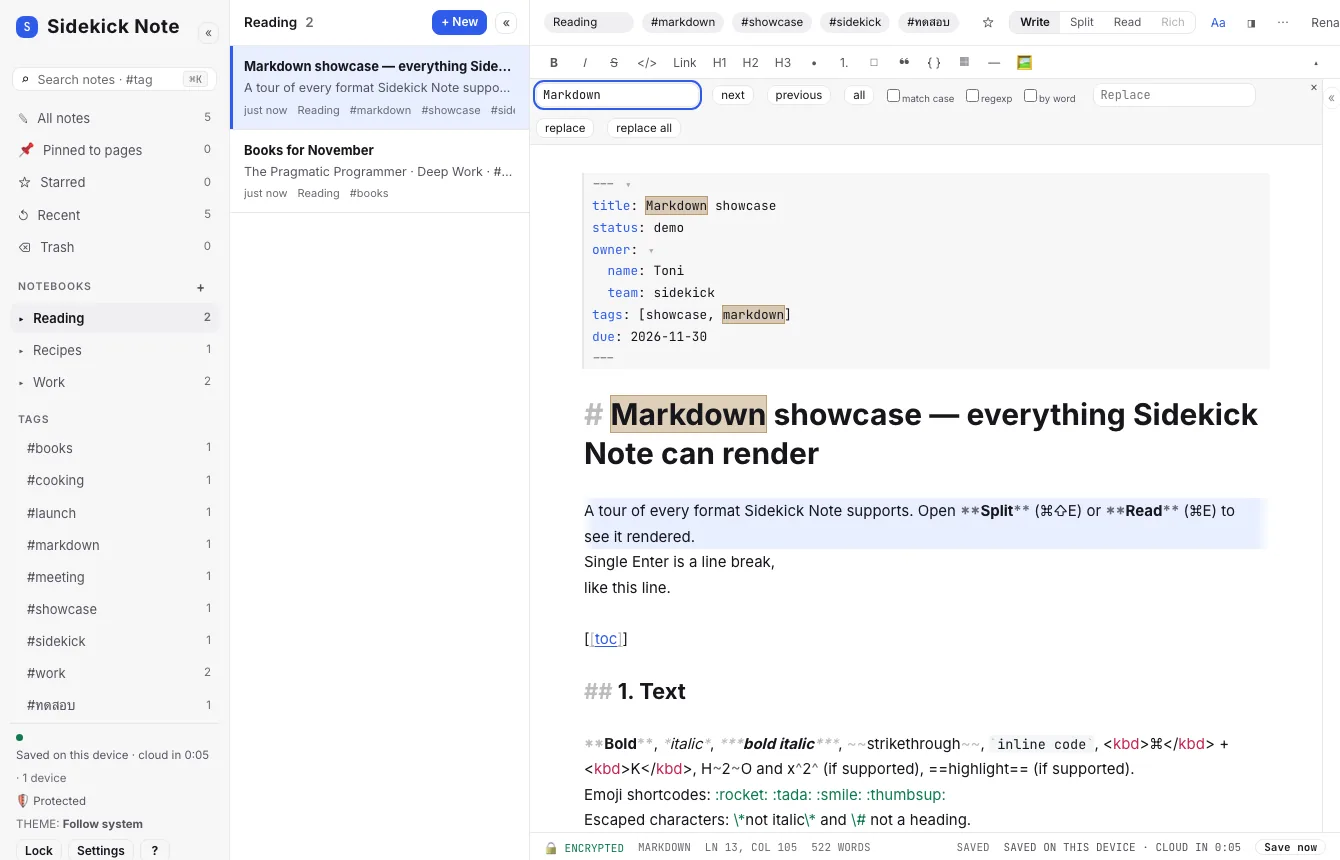
- Aa (Toolbar toggle) shows a slim formatting Toolbar. It is hidden by default; turn it on for good in Settings → Markdown.
- ⌘FCtrlF opens find and replace; ⌘DCtrlD adds the next match as another cursor.
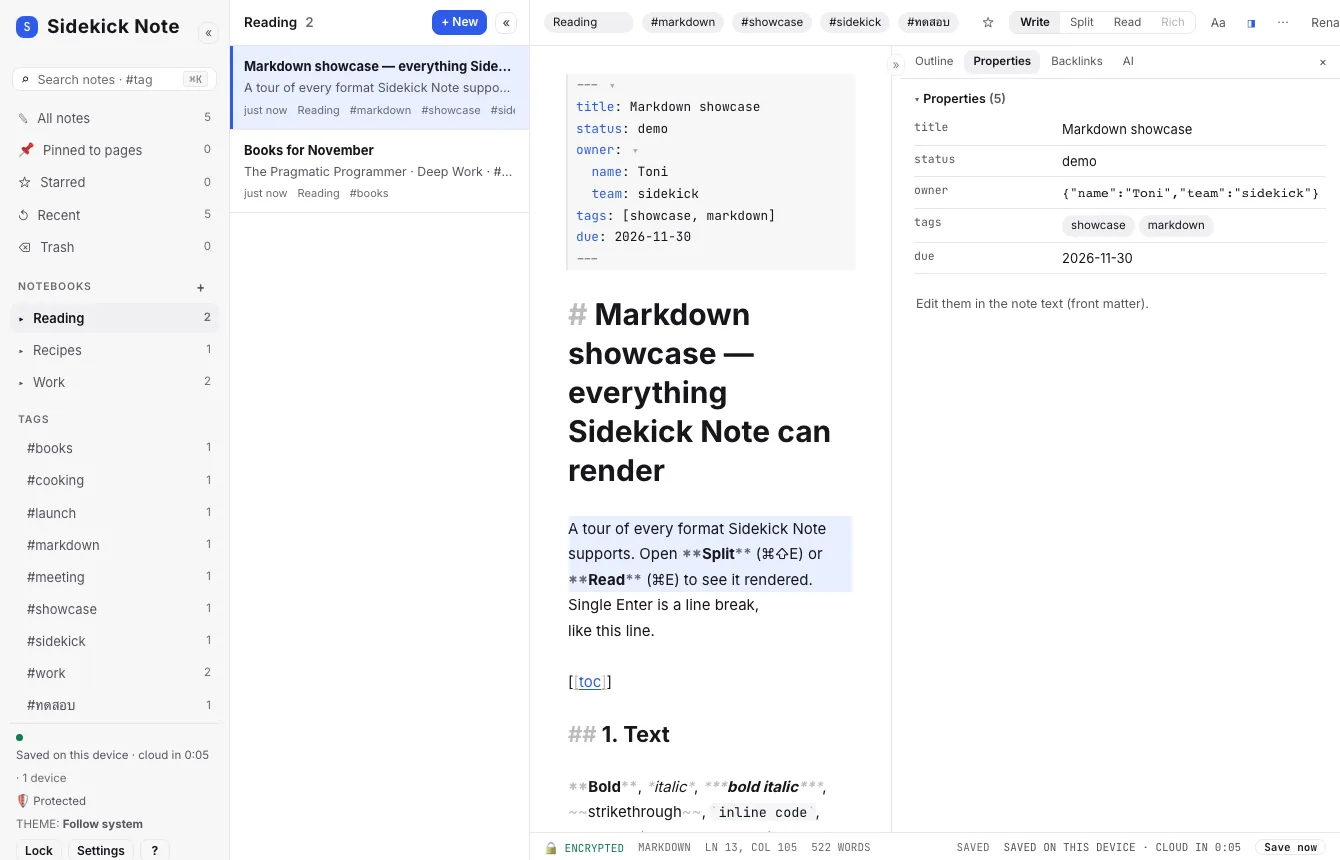
- The Right panel (◨) has Outline (click a heading to jump), Properties (the front matter) and Backlinks (notes that link here).
YAML front matter and Properties
A block between --- lines at the very top of a note holds its properties, like in Obsidian and static-site tools:
---
title: Trip plan
status: draft
tags: [travel, 2026]
due: 2026-11-30
---
Sidekick Note highlights it as YAML, checks it as you type (a problem is marked on its line; ⌘⇧YCtrlShiftY lists them), indents with Tab and shows the values in the Properties tab of the Right panel. The Command palette (⌘KCtrlK, type “yaml”) has YAML helpers that open as a change preview.
Paste from the web or Word
- Pasting from a web page, Google Docs or Word turns headings, lists, links and tables into Markdown.
- ⌘⇧VCtrlShiftV pastes plain text instead.
- If the paste looks messy and AI is on, a Smart paste offer asks “Format as Markdown?” — nothing happens unless you click it (AI: menu, chat and privacy).
Widgets: cards from Markdown
A fenced block such as ```recipe servings=4 | Tom Kha Gai becomes an interactive card in Read and Split — the recipe card lets you change the servings and every amount follows. The text stays plain Markdown. Insert one with ⌘KCtrlK → Insert recipe card. Full guide: Widgets: cards in your notes.
Ready-made starting points: Templates has starter notes (daily note, meeting, trip plan, meal plan…) with cards already in them, and Insert card preset… adds a filled card.
Try it: the showcase note
Copy this note into a new note and open Split to see everything Sidekick Note can render.
Show the Markdown showcase (4,656 characters)
---
title: Markdown showcase
status: demo
owner:
name: Toni
team: sidekick
tags: [showcase, markdown]
due: 2026-11-30
---
# Markdown showcase — everything Sidekick Note can render
A tour of every format Sidekick Note supports. Open **Split** (⌘⇧E) or **Read** (⌘E) to see it rendered.
Single Enter is a line break,
like this line.
[[toc]]
## 1. Text
**Bold**, *italic*, ***bold italic***, ~~strikethrough~~, `inline code`, <kbd>⌘</kbd> + <kbd>K</kbd>, H~2~O and x^2^ (if supported), ==highlight== (if supported).
Emoji shortcodes: :rocket: :tada: :smile: :thumbsup:
Escaped characters: \*not italic\* and \# not a heading.
### Heading 3
#### Heading 4
##### Heading 5
###### Heading 6
## 2. Links
- Plain link: [Sidekick Note](https://sidekicknote.com)
- Link with title: [Open the app](https://app.sidekicknote.com "app.sidekicknote.com")
- Autolink: https://idunify.com
- E-mail autolink: support@plaazaa.com
- Note link (Obsidian style): [[Exercise plan]] — creates the note if it does not exist
- Heading link: [jump to Tables](#4-tables)
- Reference link: [Borland SideKick on Wikipedia][sk]
[sk]: https://en.wikipedia.org/wiki/Borland_Sidekick
## 3. Lists
- Bullet one
- Bullet two
- Nested bullet
- Deeper bullet
- Bullet three
1. First
2. Second
1. Nested numbered
2. Another
3. Third
### Tasks
- [x] Write the showcase note
- [ ] Try **Split** mode
- [ ] Tick this box in Read mode
- [ ] Nested task
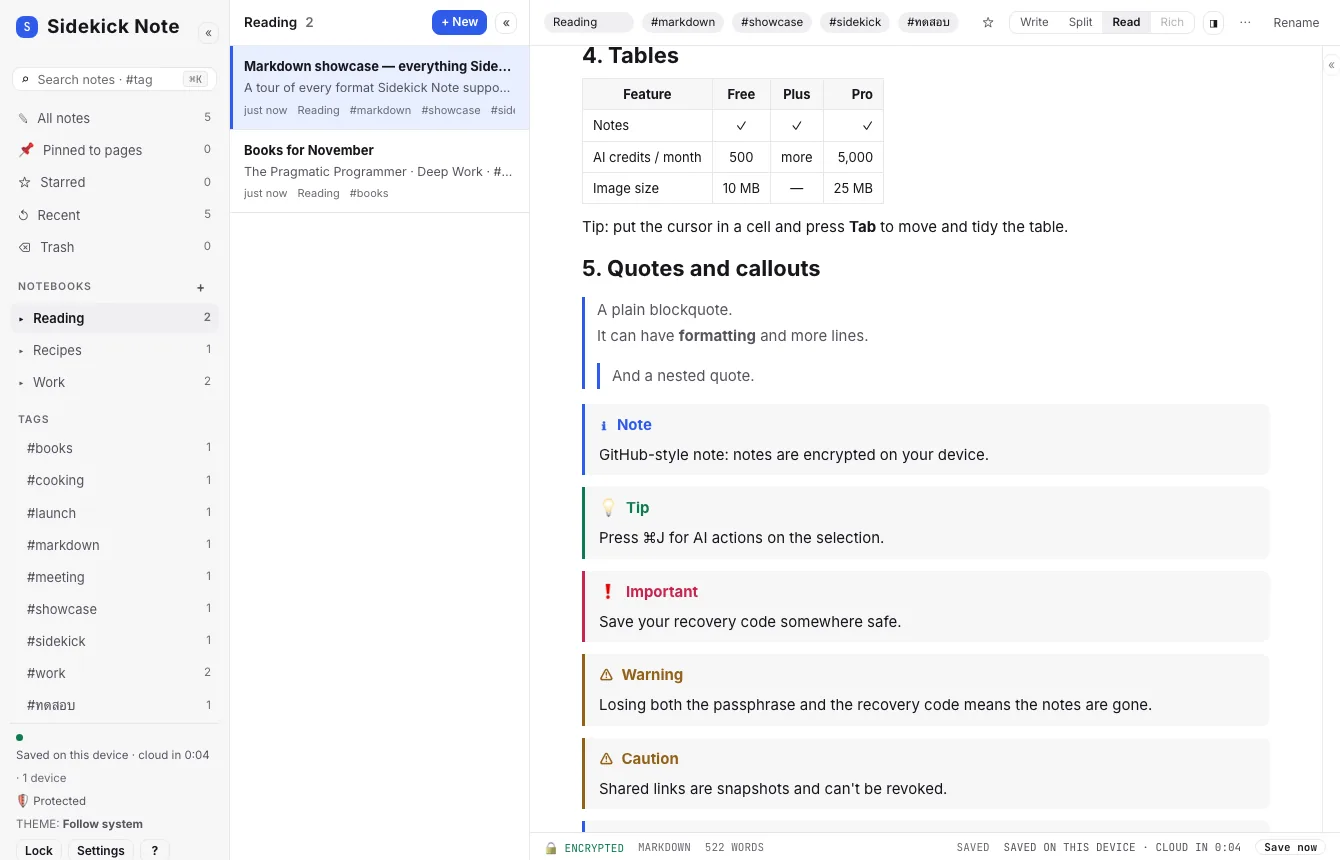
## 4. Tables
| Feature | Free | Plus | Pro |
|:--------|:----:|:----:|----:|
| Notes | ✓ | ✓ | ✓ |
| AI credits / month | 500 | more | 5,000 |
| Image size | 10 MB | — | 25 MB |
Tip: put the cursor in a cell and press **Tab** to move and tidy the table.
## 5. Quotes and callouts
> A plain blockquote.
> It can have **formatting** and more lines.
>> And a nested quote.
> [!NOTE]
> GitHub-style note: notes are encrypted on your device.
> [!TIP]
> Press ⌘J for AI actions on the selection.
> [!IMPORTANT]
> Save your recovery code somewhere safe.
> [!WARNING]
> Losing both the passphrase and the recovery code means the notes are gone.
> [!CAUTION]
> Shared links are snapshots and can't be revoked.
> [!info]- Obsidian callout (folded — click to open)
> Hidden until you open it.
> [!question] Obsidian callout with a title
> Does it render? It should.
## 6. Code
```ts
// TypeScript
export async function seal(note: Note, key: CryptoKey) {
const iv = crypto.getRandomValues(new Uint8Array(12));
return { id: note.id, iv, body: await aesGcm(key, iv, encode(note)) };
}
```
```python
# Python
def fib(n: int) -> int:
return n if n < 2 else fib(n - 1) + fib(n - 2)
```
```bash
curl -s -o /dev/null -w "%{http_code}" https://sidekicknote.com
```
```sql
SELECT plan, COUNT(*) FROM users GROUP BY plan ORDER BY 2 DESC;
```
```json
{ "name": "Sidekick Note", "theme": "hercules", "autolock": 30 }
```
```diff
- old: sync every 10 s
+ new: sync after 60 s idle
```
```yaml
# YAML block — try ⌘K → "Format YAML" or "YAML ⇄ JSON"
app:
name: Sidekick Note
themes: [hercules, amber, clean]
sync:
mode: auto
idle: 60
```
Indented code block (4 spaces)
## 7. Calculator
=12*7.5
=(1000 * 2.4) / 1024
=2^10 + 24
## 8. Math (KaTeX)
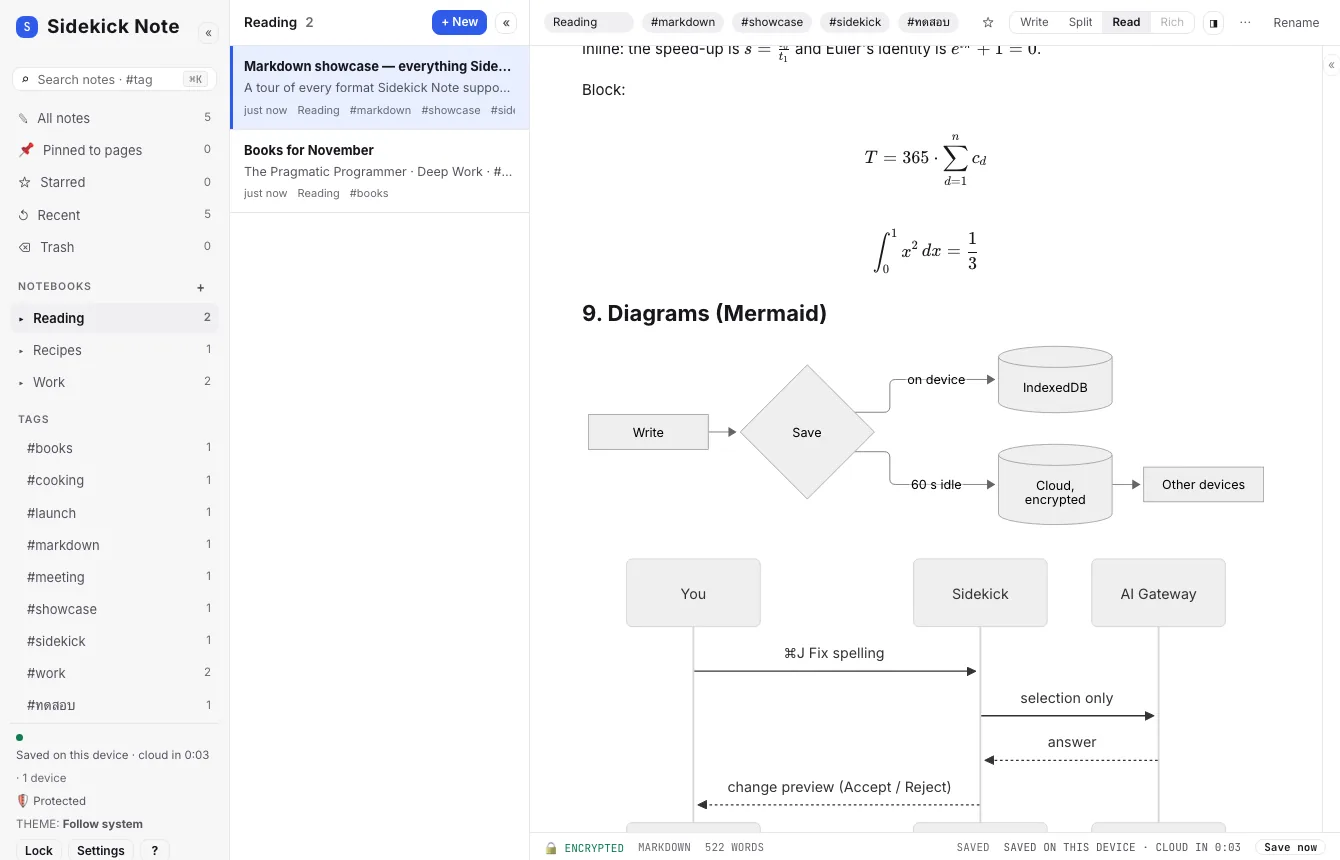
Inline: the speed-up is $s = \frac{t_0}{t_1}$ and Euler's identity is $e^{i\pi} + 1 = 0$.
Block:
$$
T = 365 \cdot \sum_{d=1}^{n} c_d
$$
```math
\int_0^1 x^2 \, dx = \frac{1}{3}
```
## 9. Diagrams (Mermaid)
```mermaid
graph LR
A[Write] --> B{Save}
B -->|on device| C[(IndexedDB)]
B -->|60 s idle| D[(Cloud, encrypted)]
D --> E[Other devices]
```
```mermaid
sequenceDiagram
You->>Sidekick: ⌘J Fix spelling
Sidekick->>AI Gateway: selection only
AI Gateway-->>Sidekick: answer
Sidekick-->>You: change preview (Accept / Reject)
```
## 10. Images
From a link (shown as-is; the image dialog can also "save an encrypted copy"):

Try it: paste a screenshot here (⌘V) — it is encrypted on your device and uploaded as unreadable data.
## 11. Collapsible section
<details>
<summary>Click to expand</summary>
Hidden text with **Markdown** inside, and a list:
- one
- two
</details>
## 12. Footnotes
Sidekick is inspired by a 1984 pop-up notepad.[^1] Notes are end-to-end encrypted.[^e2e]
[^1]: Told as "inspired by" only.
[^e2e]: The server stores only ciphertext.
## 13. Horizontal rules
---
***
## 14. Tags
#showcase #markdown #sidekick #ทดสอบ
## 15. Thai text
ภาษาไทยแสดงผลได้ปกติ รวมถึง **ตัวหนา** *ตัวเอียง* และ `โค้ด`
- [ ] งานภาษาไทย
- [x] ทดสอบเสร็จแล้ว
GitHub and Obsidian compatibility
Spec tests: CommonMark 0.31.2 — 98.8 % of examples; GitHub Flavored Markdown — 96.7 %. Obsidian extras that work: [[wiki links]], callouts, #tags, front matter. Export gives standard .md files (Export & import).
Was this helpful?
Thanks! We keep no record of your answer — if something was missing, tell us below.
Something missing or wrong? Write to support@plaazaa.com.