Sync, protection & sharing
Protection & private notebooks
Standard protection for every note by default; private notebooks with their own passphrase and recovery code for end-to-end privacy.
Protected by default, private when you need it. Every note and image is encrypted on your device and stays encrypted in our cloud. You choose how private each notebook is.
Standard protection (every note)
- Your notes are sealed with a random key made for your account (AES-256).
- That key is itself locked with a key in Google Cloud Key Management Service and opened only for your signed-in account — our staff cannot browse notes, and notes are never used for ads or AI training.
- There is no passphrase to remember: sign in with IDUnify on any device and your notes are there. Lost your device? Just sign in elsewhere.
- The key stays on the device (in a form that cannot be copied out) until you Sign out.
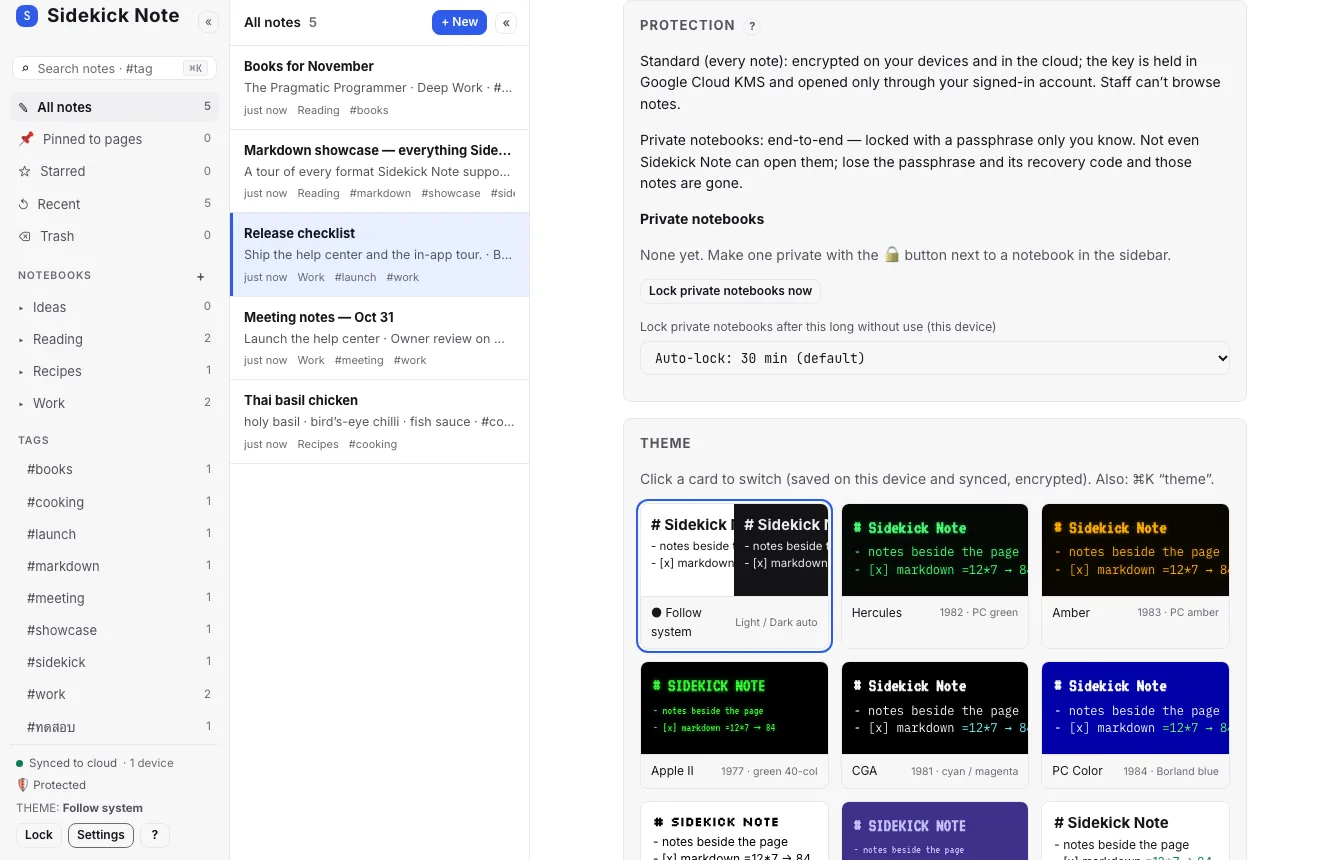
Private notebooks (end-to-end)
For notes nobody else can open — not even us — make a notebook private. It gets its own key, locked by a passphrase only you know.
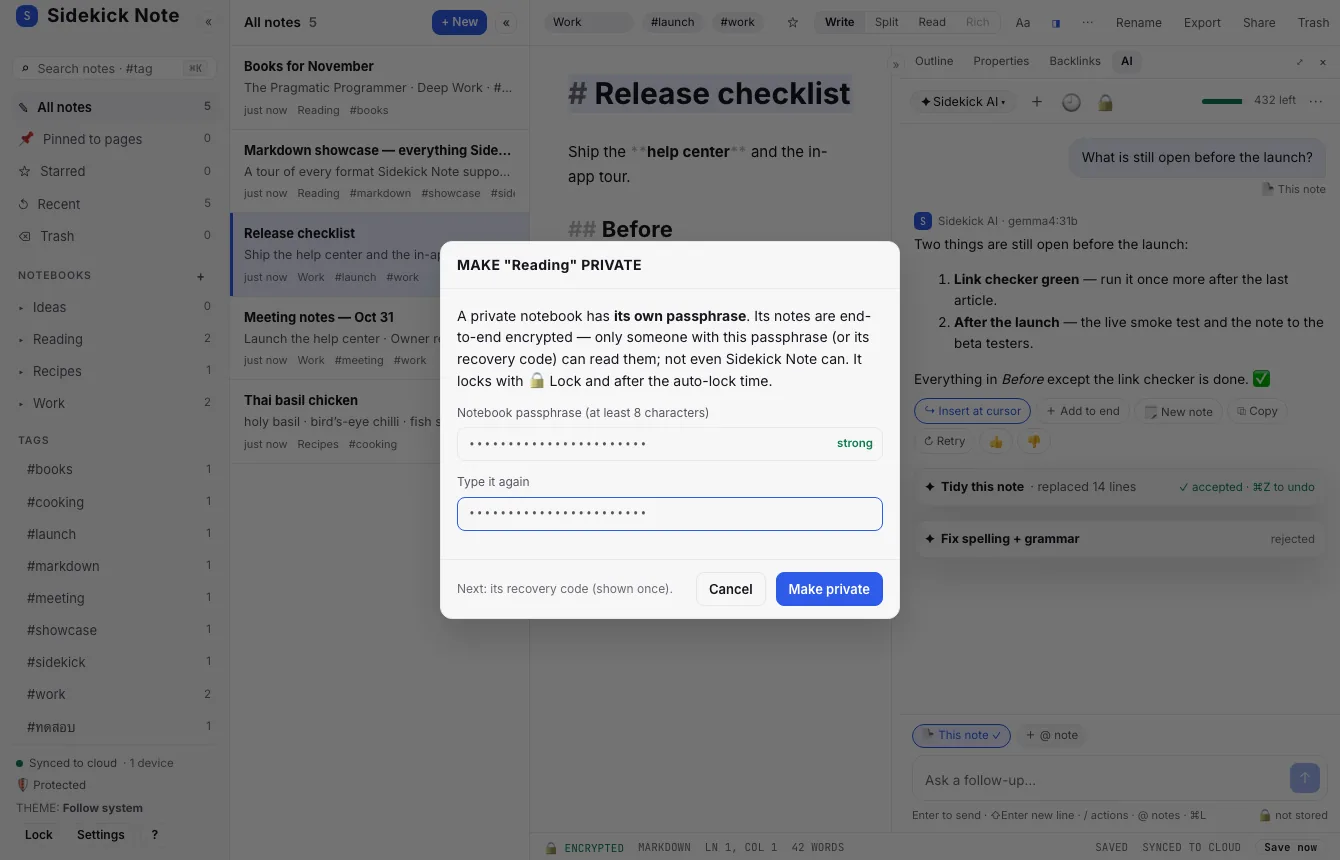
- Point at a notebook in the Sidebar and click 🔒 (“Make … private”).
- Choose a passphrase (8 characters or more; a few unrelated words work well) and type it again.
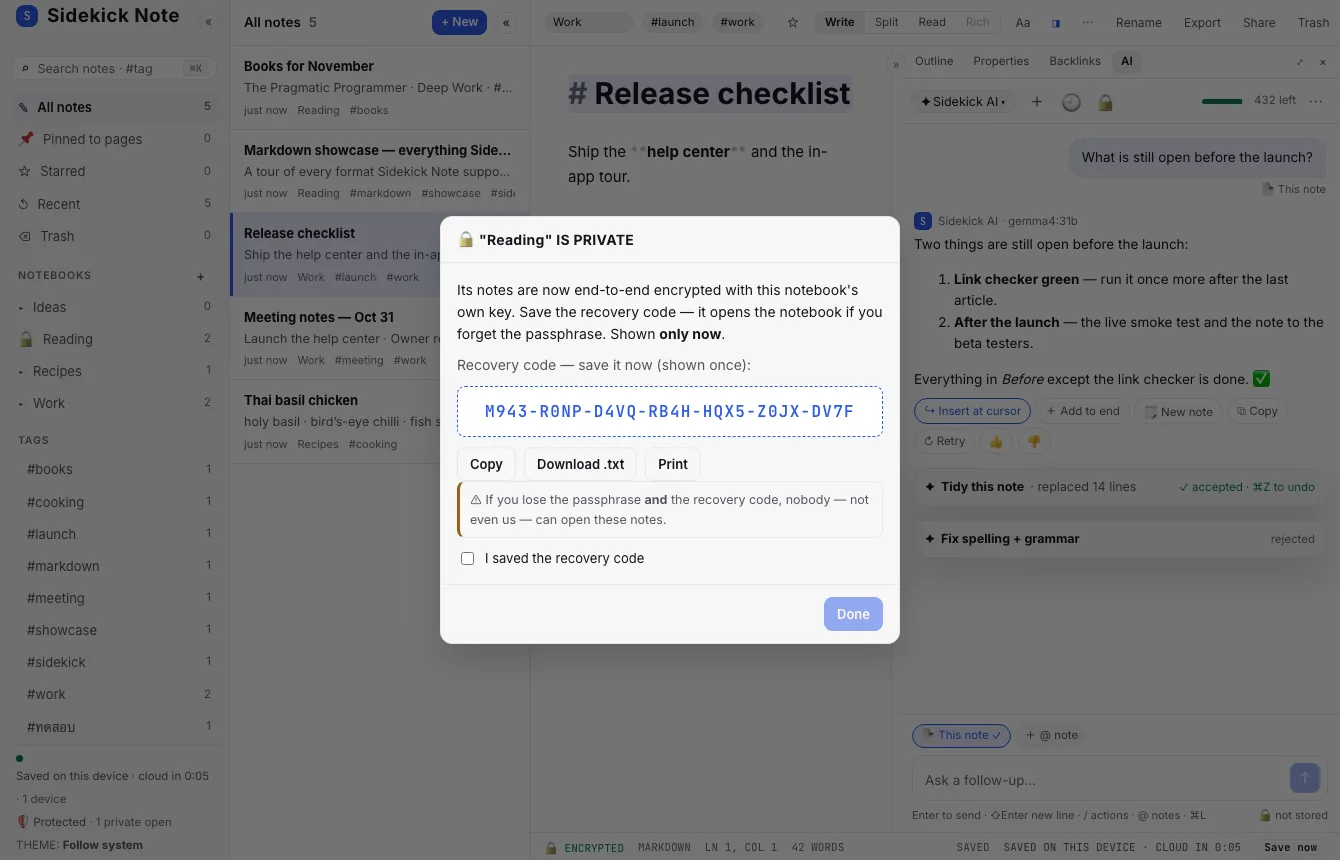
- Save the recovery code that appears — print it, download it, or put it in a password manager — then tick “I saved the recovery code” and click Done.
Lock and unlock
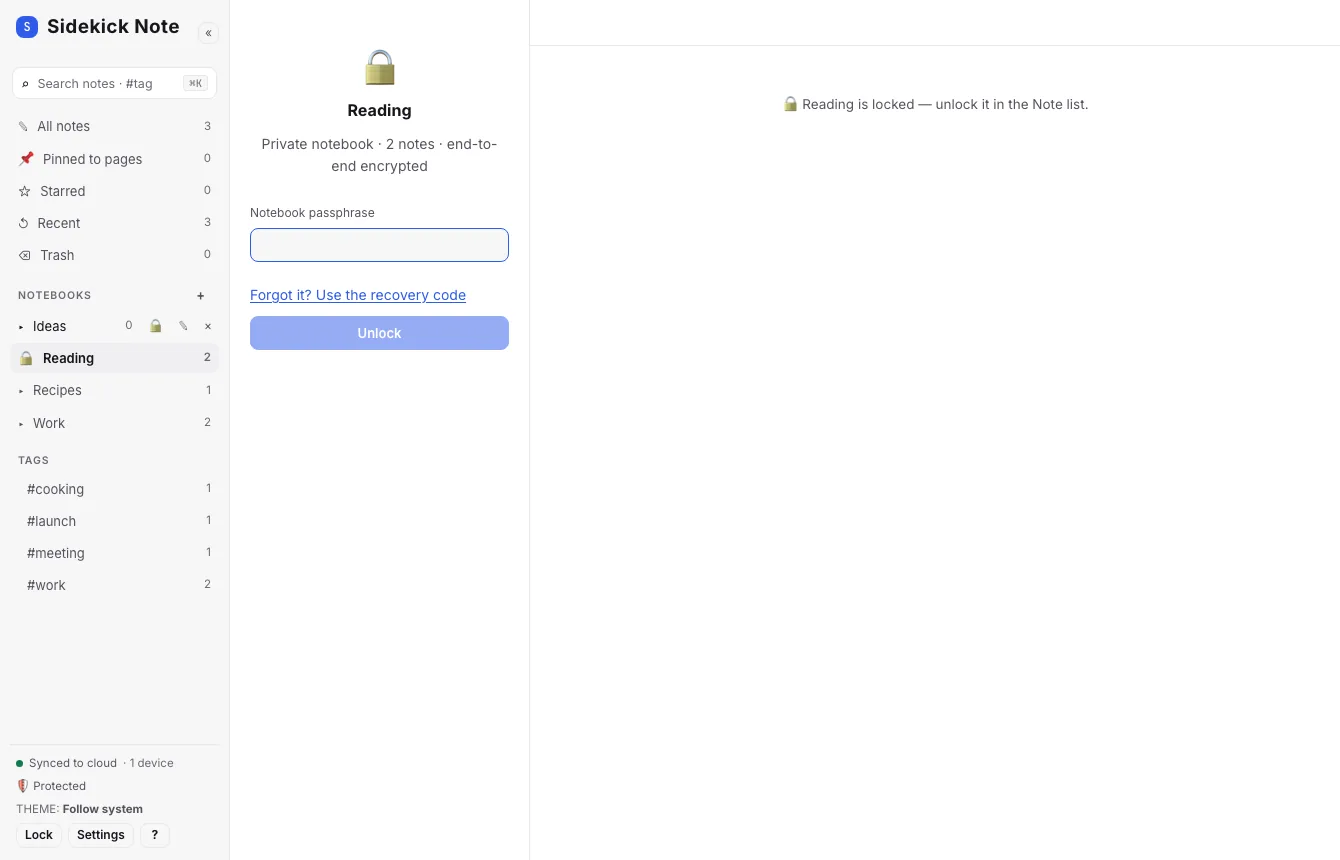
- A private notebook is locked when the app starts. Its notes are hidden from lists and search; the Sidebar shows 🔒 and a count, and the Note list shows the Unlock card.
- Unlock: click the notebook and type the passphrase (or the recovery code).
- Lock again: Lock at the bottom of the Sidebar (also locks your other tabs), ⌘KCtrlK “Lock private notebooks”, or Settings → Protection.
- Auto-lock: private notebooks lock after 30 minutes without use (default). Settings → Protection: 5, 15, 30 or 60 minutes, or off — per device. Reloading the page locks them too.
The ⚿ button next to an unlocked private notebook offers Lock, Change passphrase and Stop being private.
Moving notes in and out
Moving a note into a private notebook (or out of one) asks first, because the note is sealed again with the other key. A locked notebook cannot receive notes — unlock it first. AI chats and images added to a private note are sealed with the notebook key too.
AI and sharing on private notes
- AI: before a private note goes to a cloud AI (Sidekick AI or your own key), Sidekick Note asks once per note per session. On-device AI does not ask. See AI: menu, chat and privacy.
- Share: allowed, with a warning — the link is a separate, readable copy for anyone who has it (Sharing a note).
Templates and presets
The Templates notebook is an ordinary notebook: its notes have Standard protection like any other. A note that sits in a private notebook cannot be saved as a template or a card preset, and cannot be shared as a template link, because the copy would leave that privacy. Copy the text you need into a normal note first. A template link is plain (not encrypted) by design: it is meant to be sent (Templates).
Accounts from before Standard protection
If you set up a vault passphrase in an early version, you are asked for it once (“UNLOCK YOUR NOTES”). Your account then switches to Standard protection — same key, nothing re-encrypted — and you will not be asked again. Settings → Protection shows “Switch…” on a device that still uses the old vault.
Was this helpful?
Thanks! We keep no record of your answer — if something was missing, tell us below.
Something missing or wrong? Write to support@plaazaa.com.