Getting started
Getting started
Sign in with IDUnify, pick Retro or Clean, write your first note, and choose between the web app and the Chrome extension.
Sidekick Note is a fast, private Markdown notepad. It runs as a web app at app.sidekicknote.com and as a Chrome extension that opens beside the page you are on. Both use the same account and the same notes.
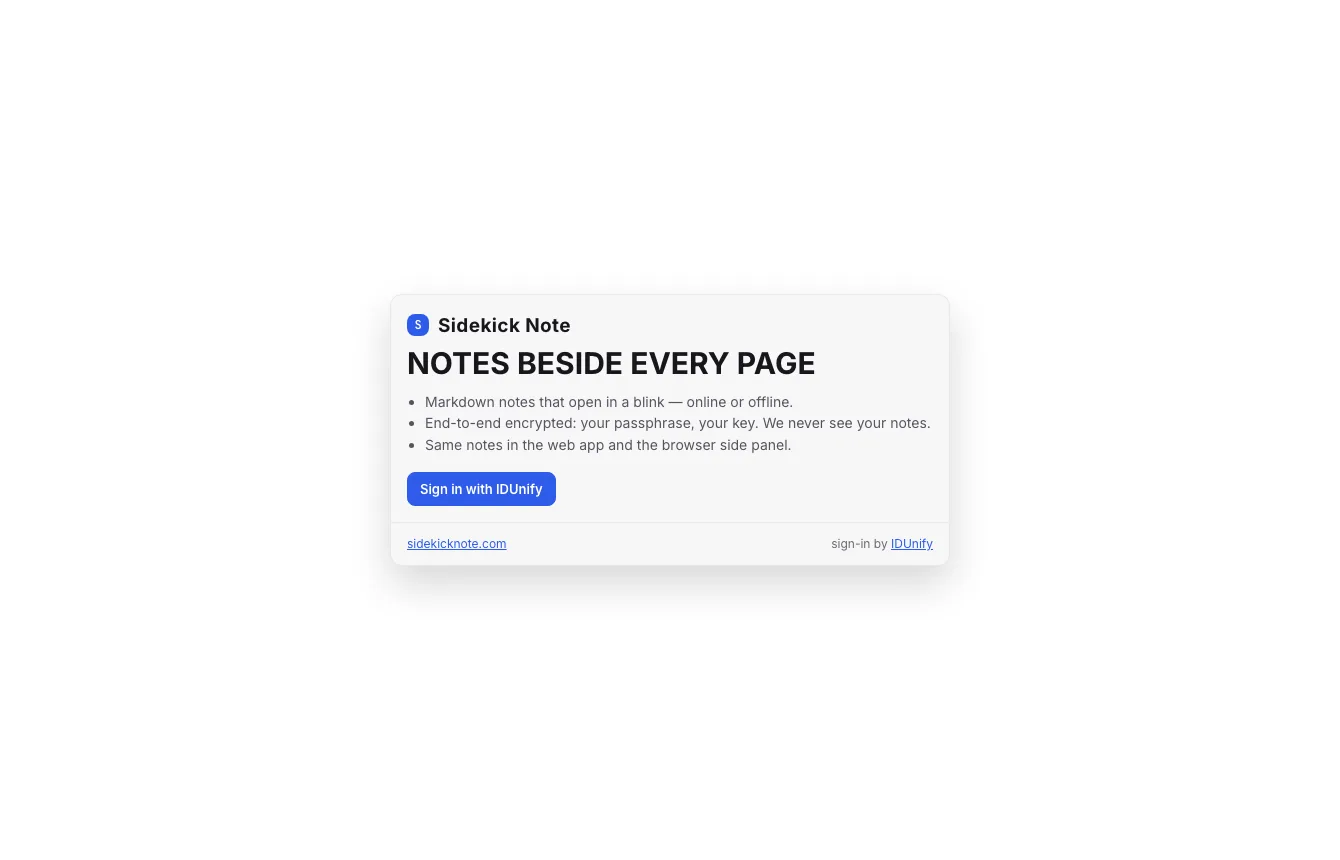
1. Sign in with IDUnify
- Open app.sidekicknote.com and click Sign in with IDUnify.
- Sign in (or create a free account) on the IDUnify page. IDUnify is the account you sign in with — it knows your name and e-mail, never your notes.
- You come back to Sidekick Note, signed in. On a computer you have used before, you are signed in quietly.
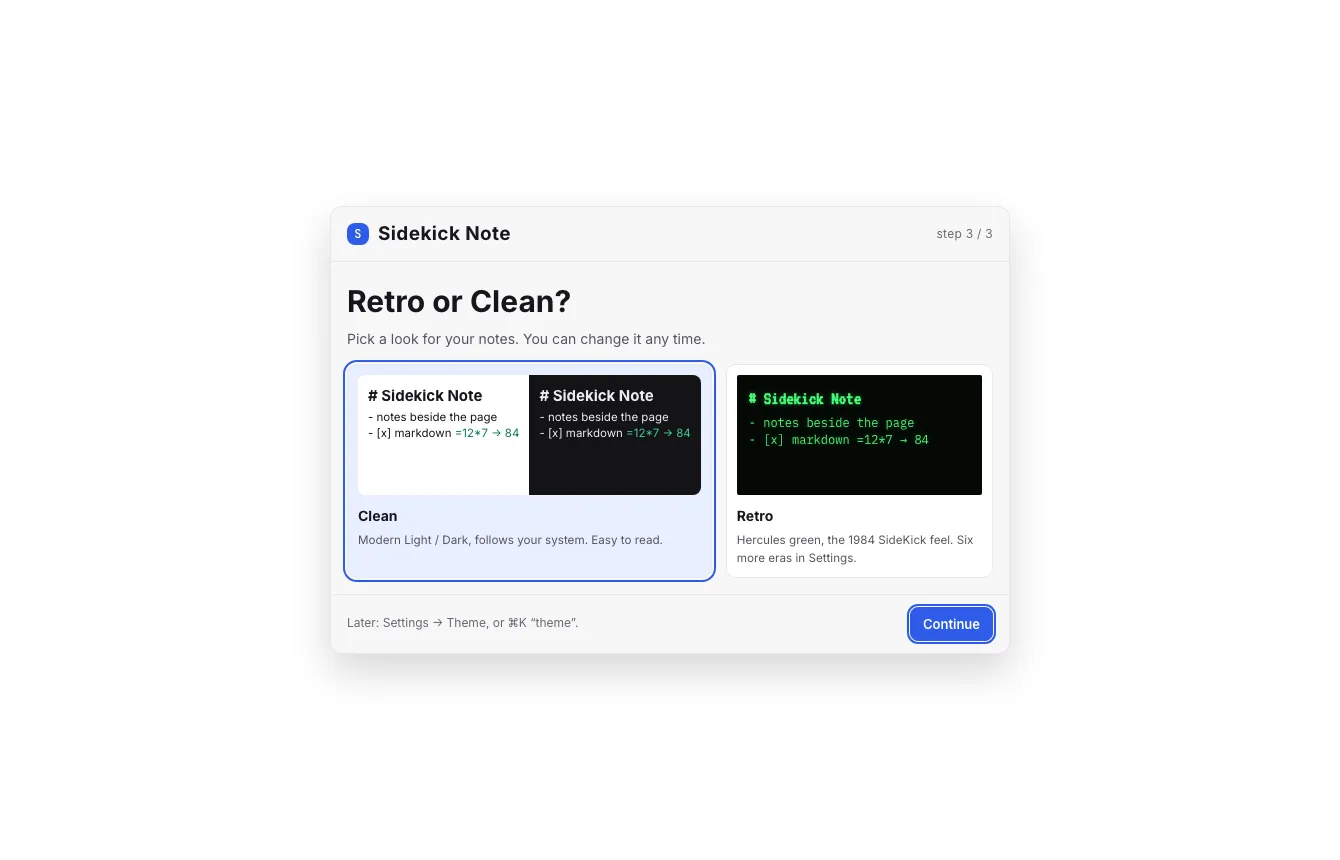
2. Retro or Clean?
The first time, Sidekick Note asks how it should look. Clean (pre-selected) uses Modern Light or Dark and follows your system. Retro starts in Hercules green, the 1980s green-screen look. Click either to preview it, then Continue. You can change it any time — there are nine themes (see Themes & layout).
3. Write your first note
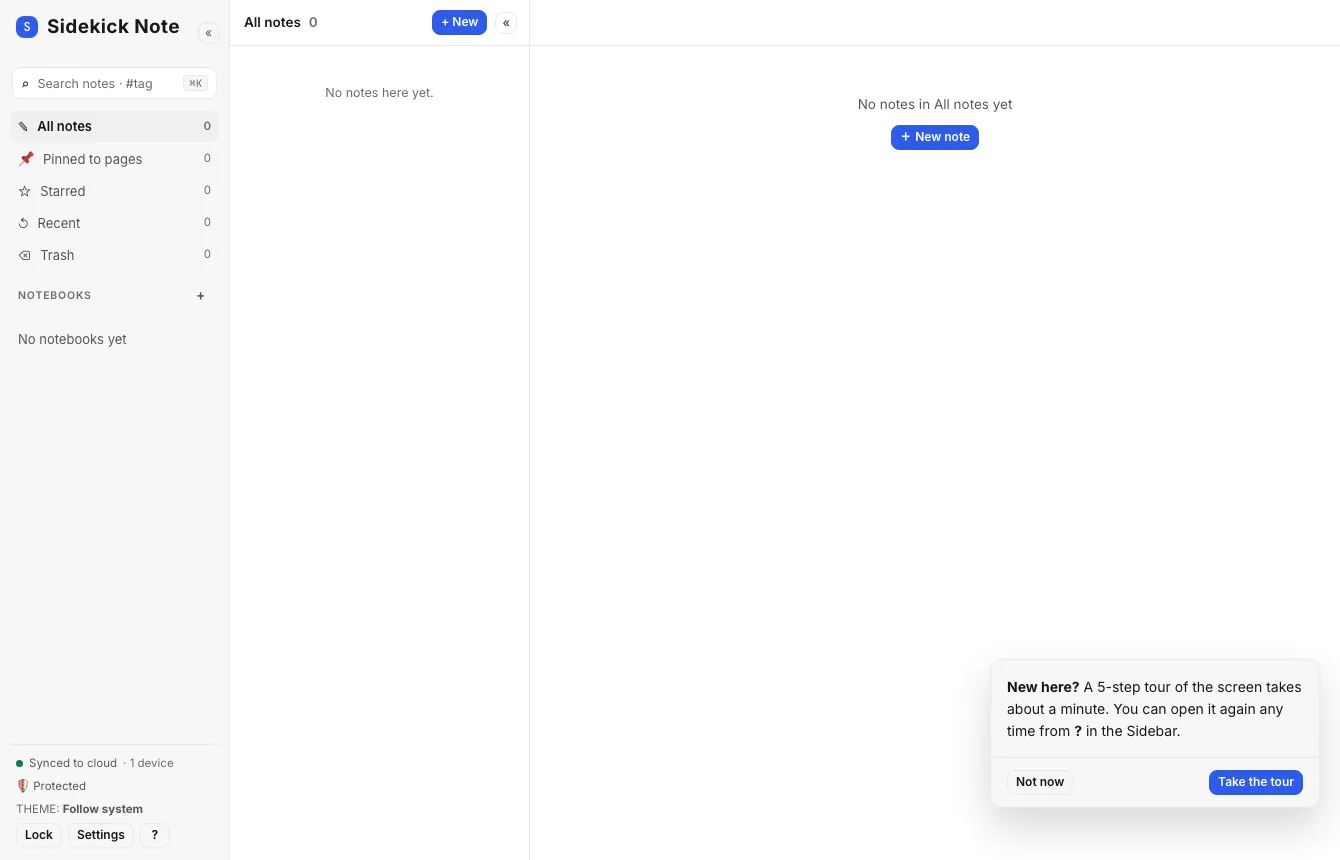
- Click + New at the top of the Note list (or press ⌥NAltN).
- Type. The first line becomes the title — start it with
#for a heading, like# Shopping list. - That's it: every change is saved on your device at once, and sent to the cloud a minute after you stop typing. To send it right away, click Save now in the Status bar (⌘SCtrlS).
4. Web app or Chrome extension?
| Web app | Chrome extension | |
|---|---|---|
| Where | app.sidekicknote.com, any browser | The Side panel beside any web page (Chrome) |
| Best for | Writing and organising: Split view, Right panel, Command palette, Settings | Notes about the page you are on: pinned notes, capture, page AI |
| Open with | A bookmark or tab | ⌘⇧SAltS or the toolbar button |
| Notes | The same notes, the same account — sign in once on each | |
The extension is in a private beta — see Chrome extension.
What next?
- Tour of the screen — the name of every part of the screen.
- Writing in Markdown — headings, lists, tables, tasks and more.
- Keyboard shortcuts — or press ⌘/Ctrl/ in the app.
- Templates — start a note from a ready-made template (daily note, meeting, trip plan…) or insert a ready-filled card; save your own.
- Widgets: cards in your notes — notes with working cards: a recipe you can scale, checklists, bill splitting, a unit converter, charts.
Was this helpful?
Thanks! We keep no record of your answer — if something was missing, tell us below.
Something missing or wrong? Write to support@plaazaa.com.