Look, layout & keys
Keyboard shortcuts
Every shortcut for Mac and Windows — layout, writing, AI and the Chrome extension.
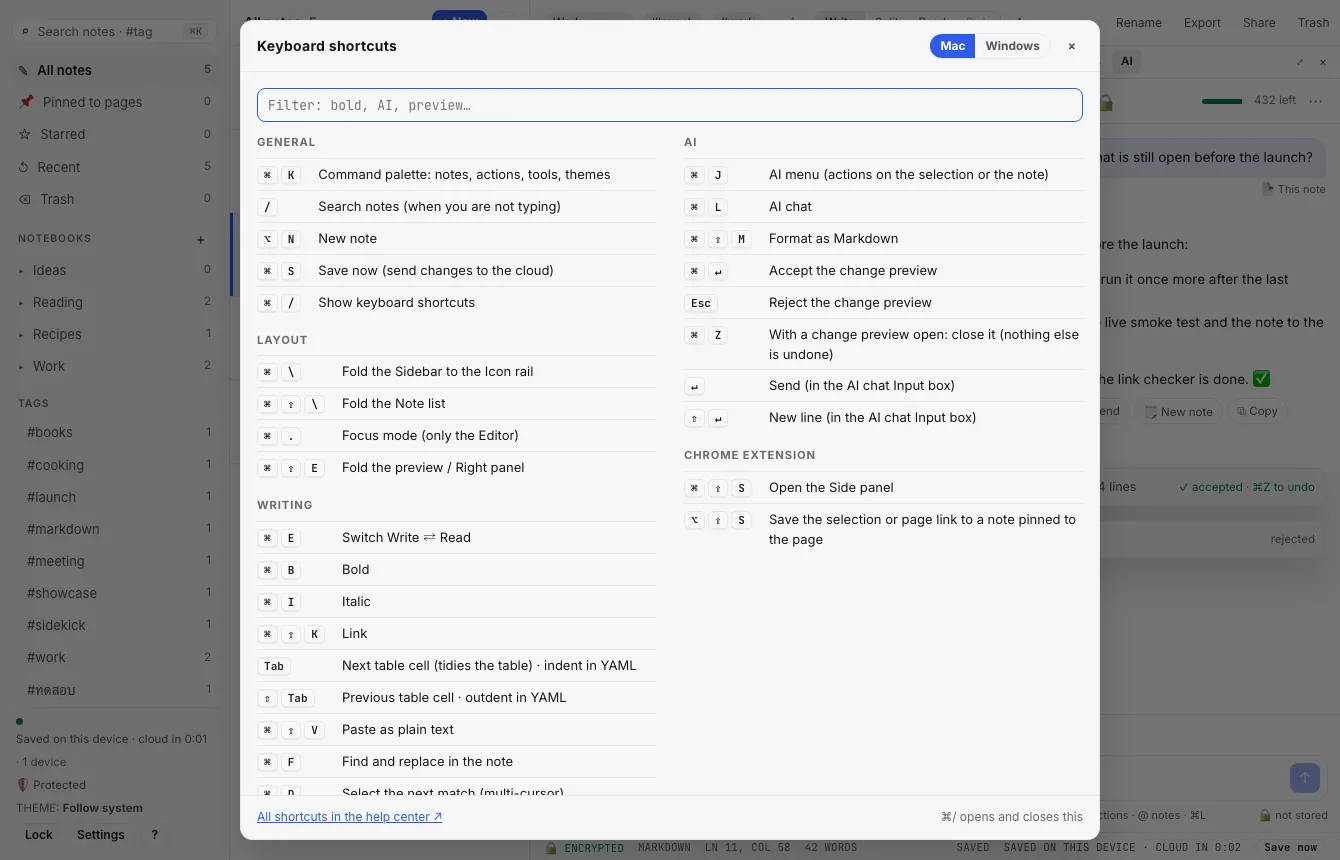
In the app, press ⌘/Ctrl/ to see this list, with a filter box — or click ? at the bottom of the Sidebar → Keyboard shortcuts. Mod is ⌘ on a Mac and Ctrl on Windows and Linux.
General
| Mac | Windows | What it does |
|---|---|---|
| ⌘K | CtrlK | Command palette: notes, actions, tools, themes |
| / | / | Search notes (when you are not typing) |
| ⌥N | AltN | New note |
| ⌘S | CtrlS | Save now (send changes to the cloud) |
| ⌘/ | Ctrl/ | Show keyboard shortcuts |
Layout
| Mac | Windows | What it does |
|---|---|---|
| ⌘\ | Ctrl\ | Fold the Sidebar to the Icon rail |
| ⌘⇧\ | CtrlShift\ | Fold the Note list |
| ⌘. | Ctrl. | Focus mode (only the Editor) |
| ⌘⇧E | CtrlShiftE | Fold the preview / Right panel |
Writing
| Mac | Windows | What it does |
|---|---|---|
| ⌘E | CtrlE | Switch Write ⇄ Read |
| ⌘B | CtrlB | Bold |
| ⌘I | CtrlI | Italic |
| ⌘⇧K | CtrlShiftK | Link |
| Tab | Tab | Next table cell (tidies the table) · indent in YAML |
| ⇧Tab | ShiftTab | Previous table cell · outdent in YAML |
| ⌘⇧V | CtrlShiftV | Paste as plain text |
| ⌘F | CtrlF | Find and replace in the note |
| ⌘D | CtrlD | Select the next match (multi-cursor) |
| ⌘Z | CtrlZ | Undo |
| ⌘⇧Z | CtrlY | Redo |
| ⌘⇧Y | CtrlShiftY | List the YAML front matter problems |
AI
| Mac | Windows | What it does |
|---|---|---|
| ⌘J | CtrlJ | AI menu (actions on the selection or the note) |
| ⌘L | CtrlL | AI chat |
| ⌘⇧M | CtrlShiftM | Format as Markdown |
| ⌘↵ | CtrlEnter | Accept the change preview |
| Esc | Esc | Reject the change preview |
| ⌘Z | CtrlZ | With a change preview open: close it (nothing else is undone) |
| ↵ | Enter | Send (in the AI chat Input box) |
| ⇧↵ | ShiftEnter | New line (in the AI chat Input box) |
Annotator (drawing on a picture)
These keys work in the Annotator (Images).
| Keys | What it does |
|---|---|
| V P H L A R O T K N B C | Select · pen · highlighter · line · arrow · rectangle · ellipse · text · callout · numbered badge · blur · crop. |
| Left Right Up Down | Nudge the selected mark by 1 pixel (⇧Shift = 10). |
| ⌘DCtrlD | Duplicate the selected mark. |
| ] [ | Bring the selected mark forward · send it back. |
| ⇧Shift (while drawing or dragging a handle) | Straight 45° line, square or circle; keep proportions when resizing; snap rotation to 15°. |
| ⌘ZCtrlZ ⌘⇧ZCtrlShiftZ | Undo · redo. |
| Delete | Remove the selected mark. |
| ↵Enter | Finish a text; apply a crop you just dragged. |
| ⌘↵CtrlEnter | Done: save the marked-up picture into the note. |
| Esc | Cancel the text, the crop, or the Annotator (it asks first if you drew something). |
Template picker and card presets
These keys work inside the Template picker (⌘KCtrlK → New note from template) and the preset list (⌘KCtrlK → Insert card preset…).
| Keys | What it does |
|---|---|
| Up Down | Move through the list; the preview follows. |
| ↵Enter | Picker: make a new note from the template. Preset list: insert the card at the cursor. |
| ⌘↵CtrlEnter | Picker only: put the template into the note you have open, at the cursor. |
| Esc | Picker: close. Preset list: go back one level, then close. |
Type to search in both. The EN | TH chip in the picker switches the language of the starter templates and presets (Templates).
Chrome extension
| Mac | Windows | What it does |
|---|---|---|
| ⌘⇧S | AltS | Open the Side panel |
| ⌥⇧S | AltShiftS | Save the selection or page link to a note pinned to the page |
Change the extension’s keys at chrome://extensions/shortcuts. In the Side panel, the Command palette, Alt+N, the pane keys and Format as Markdown are web-app only.
Was this helpful?
Thanks! We keep no record of your answer — if something was missing, tell us below.
Something missing or wrong? Write to support@plaazaa.com.