Getting started
Tour of the screen
One annotated screenshot of the web app and one of the Chrome Side panel, with the name of every part.
Every part of Sidekick Note has one name. We use the same names in the app, in these guides and when we answer your messages — so “click Save now in the Status bar” always means the same button. The full list is in UI names (glossary).
The web app
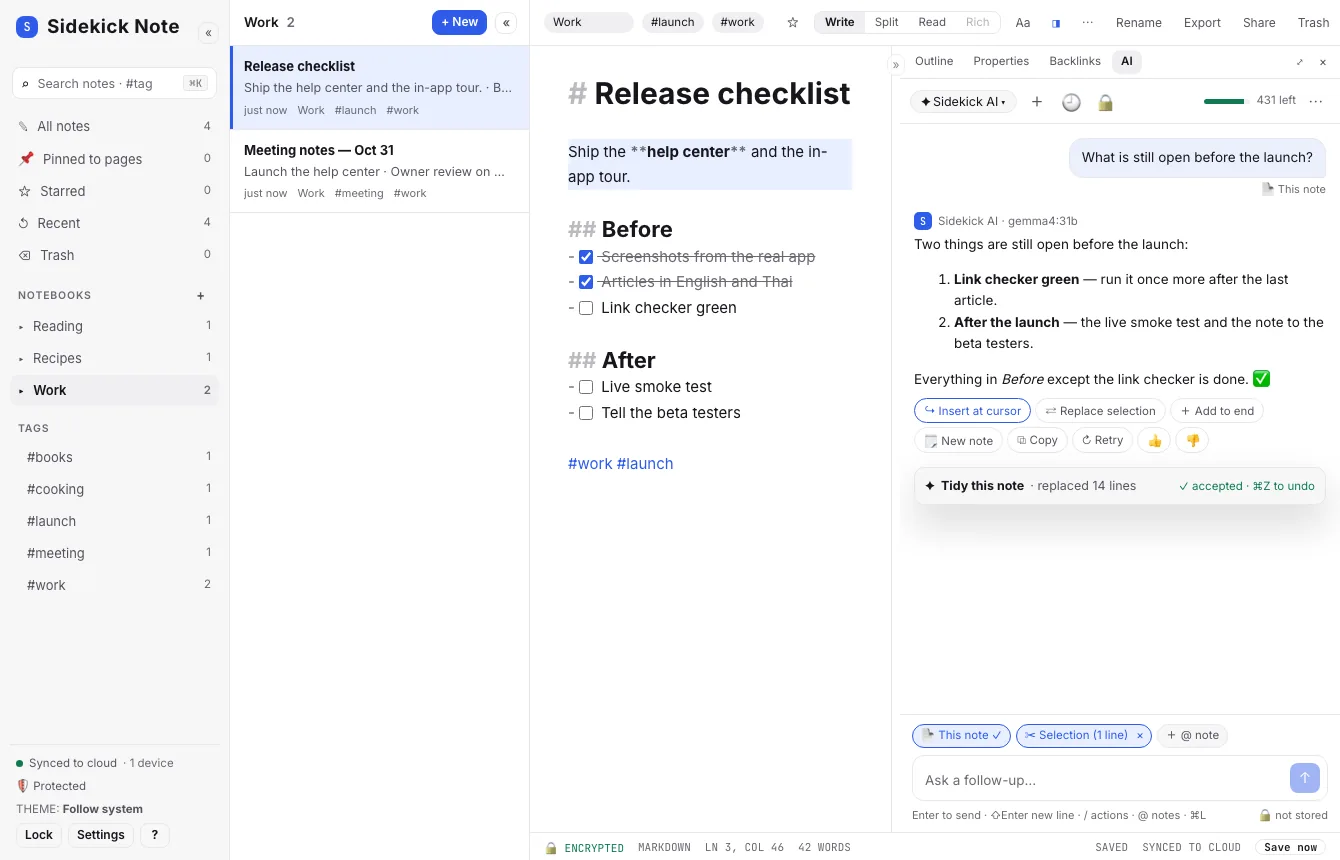
- 1. Sidebar — the left column. Fold it to the Icon rail with ⌘\Ctrl\. At the bottom, the Account row shows who is signed in — click it for Settings, your IDUnify account and Sign out.
- 2. Views — All notes · Pinned to pages · Starred · Recent · Trash.
- 3. Notebooks — your notebooks; + adds one; 🔒 marks a private notebook.
- 4. Status block — sync state, number of devices, protection and theme.
- 5. ? (Help menu) — help center, the guided tour, keyboard shortcuts, what’s new. Next to Lock and Settings.
- 6. Note list — the notes of the view or notebook you picked. Fold it with ⌘⇧\CtrlShift\.
- 7. List header — title, count, + New and the fold button «.
- 8. Note card — one note: title, first words, time, tags.
- 9. Note bar — notebook and tag chips, ☆ star, and the note’s buttons: Rename · Export · Share · Trash.
- 10. Mode switch — Write · Split · Read (Rich comes later). ⌘ECtrlE switches Write ⇄ Read.
- 11. Toolbar toggle (Aa) — shows the formatting Toolbar.
- 12. Right panel toggle (◨) — opens or folds the Right panel (⌘⇧ECtrlShiftE).
- 13. Note menu (⋯) — Plain text, Copy as…, Print, Never send to AI, Move…
- 14. Editor — the writing area.
- 15. Status bar — Encrypted · Markdown · line and column · words · Saved · Synced.
- 16. Save now — sends your changes to the cloud at once (⌘SCtrlS).
- 17. Right panel — Preview, Outline, Properties, Backlinks and AI; » folds it, ⤢ pops it out wider.
- 18. Panel tabs — switch between the Right panel’s tabs.
- 19. AI header — model picker, + New chat, 🕘 History, 🔒 privacy, Credits meter, ⋯.
- 20. Credits meter — AI credits left this month; click it for your IDUnify AI credits page.
- 21. Thread — the conversation with the AI about this note.
- 22. Action card — the result of an AI menu (⌘JCtrlJ) action, with what changed.
- 23. Composer — the bottom of the AI tab: Context chips, Input box, Send / Stop and the hint line.
- 24. Context chips — exactly what is sent with your message: This note, Selection, @notes, Image.
The Chrome Side panel
“Side panel” always means the Chrome extension — the column Chrome opens beside the web page. (In the web app the right column is the Right panel.)
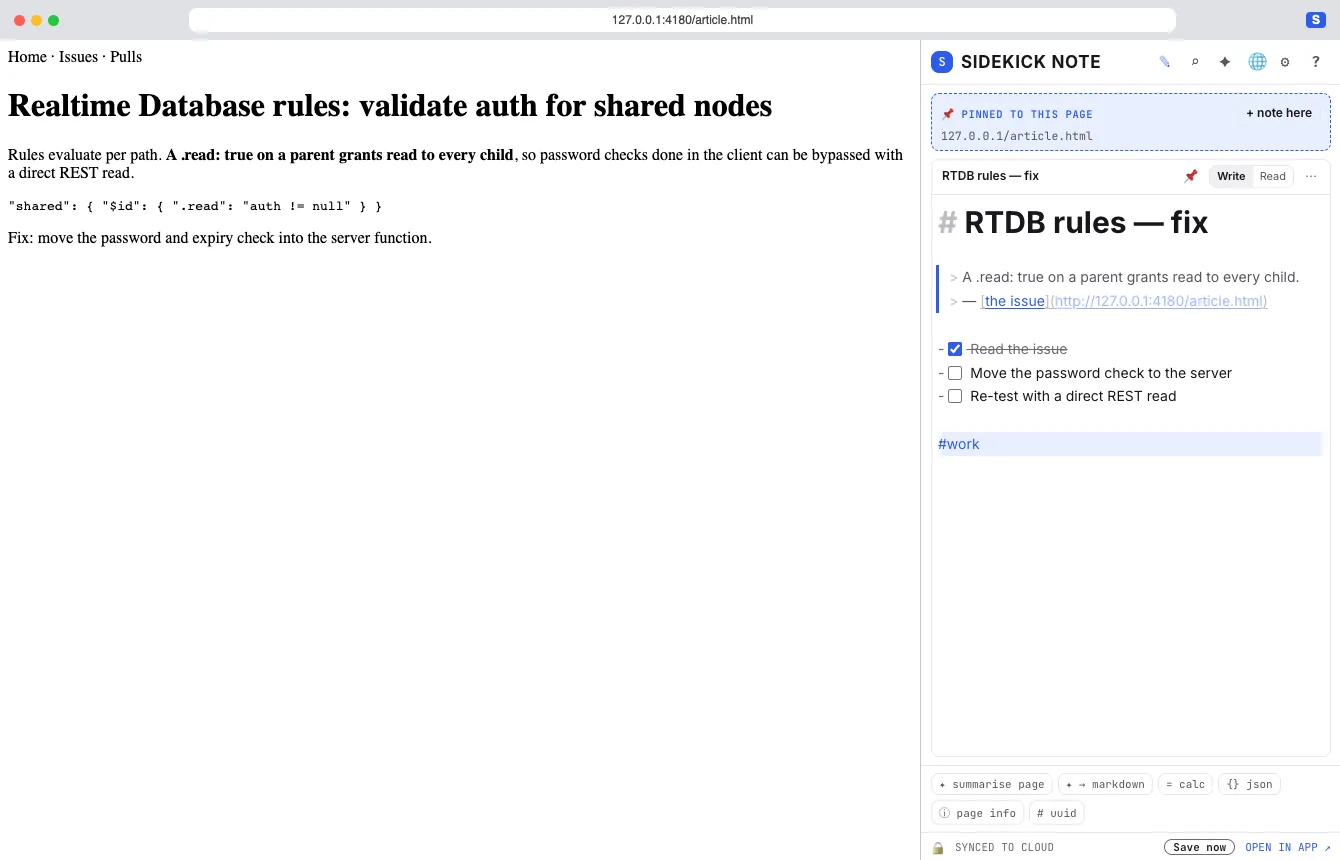
- 1. Panel header — logo “SIDEKICK NOTE” and icons: ✎ note, ⌕ notes + search, ✦ AI chat, 🌐 page AI, ⚙ settings, ? help.
- 2. Pinned box — “📌 Pinned to this page”: notes pinned to this page or site come first; + note here makes one.
- 3. Note — the open note — the same Editor and Write / Read as the web app.
- 4. Tools row — summarise page · → markdown · calc · json · page info · uuid.
- 5. Status bar — sync state, Save now and OPEN IN APP ↗.
The Side panel also has a 📄 Templates button next to the view icons: new note from a template, save a note as a template, card presets, template links and packs (Templates). In the web app the same commands are in the Command palette (⌘KCtrlK).
Pop-ups you will meet
| # | Name | What it is |
|---|---|---|
| ⌘K | Command palette | Jump to notes, actions, tools, themes. |
| ⌘J | AI menu | AI actions on the selection or the note. |
| – | Change preview | Any AI edit: the difference in the Editor + Preview bar (Accept · Reject · Try again · Stop). |
| – | Smart paste offer | Pasting messy text: “Format as Markdown?” |
| – | Image dialog | 🖼 / paste: upload, link, screenshot. |
| – | Share dialog | Share: two Share ways — 🌐 Publish link (default) and 🔒 Private link. |
| – | Publish link | A web page at my.sidekicknote.com with a link preview; can be updated and turned off. |
| – | Private link | The end-to-end encrypted copy (app.sidekicknote.com/x#…): no preview, cannot be turned off. |
| – | Link options | Keep updated · Show in search engines · Allow Duplicate · Show my name · Look · Link expires · Password · Custom address · Preview image. |
| – | Link preview | In the Share dialog: how the link will look as a chat / social card. |
| – | Preview image | The link’s picture in chats: Auto · Pick an image · Upload · Generated card. |
| – | Published page | The public page of a Publish link: cover, icon, title, the note, Duplicate to my Sidekick. |
| – | Password page | A protected Publish link asks for its password first. |
| – | Theme picker | Settings → Theme / ⌘K “theme”: theme cards. |
| – | Unlock card | A locked private notebook: passphrase or recovery code. |
| – | Toast / Banner | A short message / a message strip at the top. |
| ? | Help menu | Help center, Tour of the screen, Keyboard shortcuts (⌘/), What’s new. |
| – | Guided tour | 5 steps with a spotlight: Sidebar → Note list → Editor + Mode switch → Right panel / AI → Status bar + Save now. |
| ⌘/ | Shortcuts overlay | Every keyboard shortcut, with a filter and a Mac / Windows switch. |
| – | Tour invite | First run only: “New here?” — Take the tour or Not now. |
More: UI names (glossary) · Keyboard shortcuts · Themes & layout
Was this helpful?
Thanks! We keep no record of your answer — if something was missing, tell us below.
Something missing or wrong? Write to support@plaazaa.com.