Look, layout & keys
Themes & layout
Retro or Clean, nine themes, folding panes, Focus mode and the Right panel.
Sidekick Note can look like a 1980s green screen or a clean modern app — your choice, on every device.
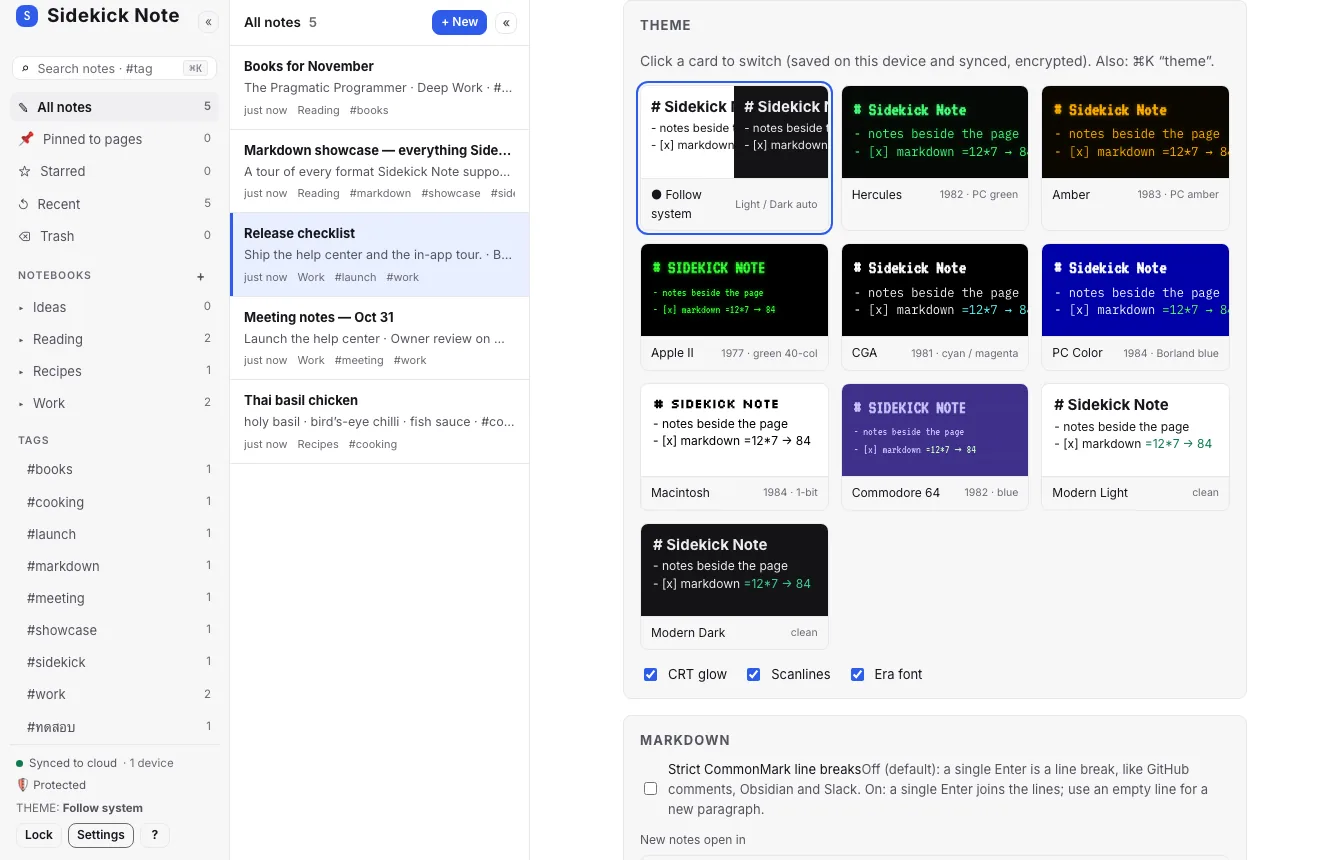
Nine themes
| Clean | Retro |
|---|---|
| Modern Light, Modern Dark, or Follow system (switches with your computer’s light / dark setting) | Hercules (PC green) · Amber · Apple II · CGA · PC Color · Macintosh · Commodore 64 |
- Switch: Settings → Theme (click a card to preview and pick), or ⌘KCtrlK and type “theme”, or click THEME in the Status block.
- Retro switches: CRT glow, scanlines and the era font can be turned off for easier reading.
- Your theme is saved on this device and synced (encrypted) to your others. All themes meet WCAG AA contrast.
Folding panes
Make room when you need it — each pane folds and the choice is remembered on this device:
| Fold | How |
|---|---|
| Sidebar → Icon rail | « in the Brand row, or ⌘\Ctrl\ |
| Note list | « in the List header, or ⌘⇧\CtrlShift\ |
| Focus mode (Editor only) | ⌘.Ctrl. |
| Right panel / preview | ◨ in the Note bar, » in the panel, or ⌘⇧ECtrlShiftE |
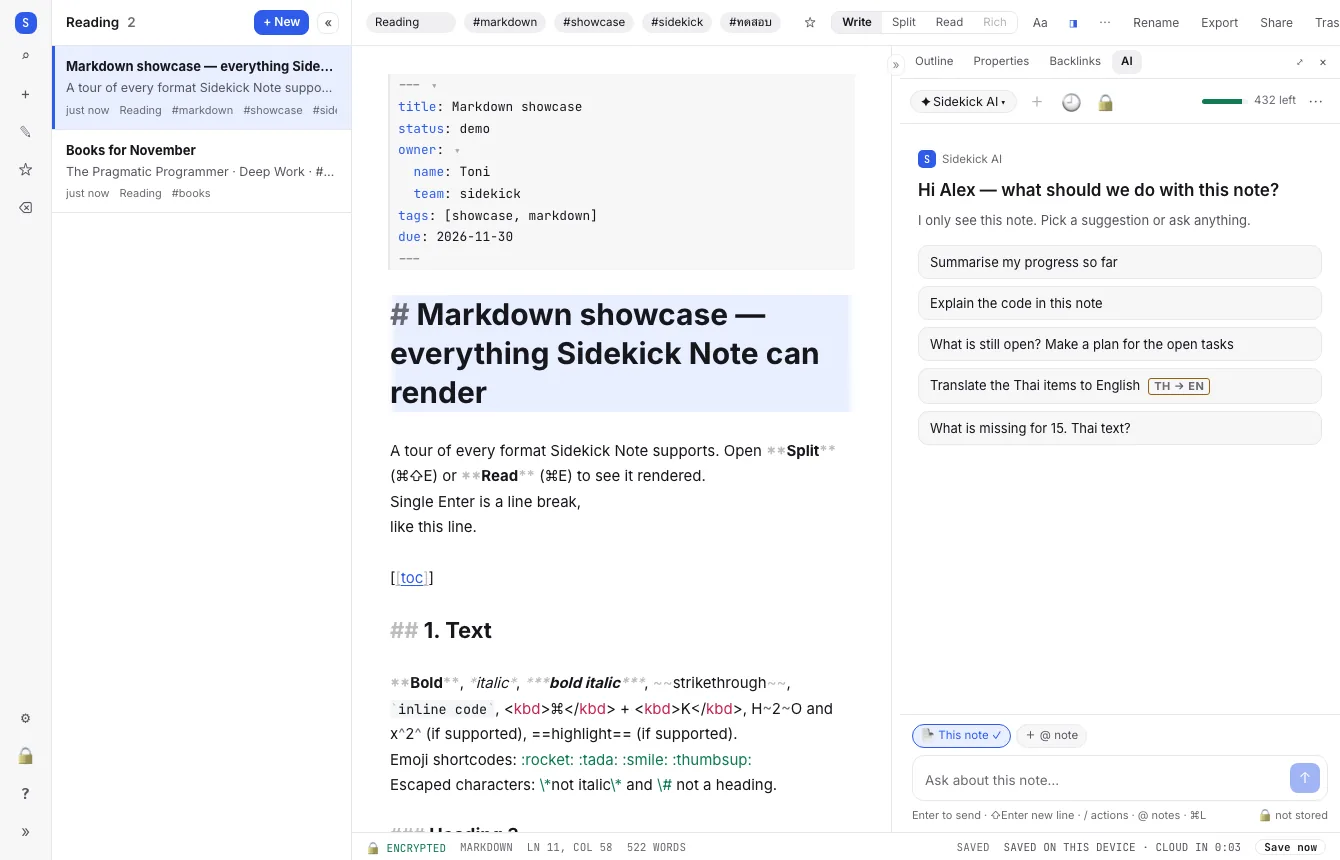
Clicking a View, a Notebook or a tag in the Sidebar unfolds a folded Note list so you see what you picked, and the Editor follows with the first note of that list (or an empty state with + New note). Clicking a #tag inside a note also leaves Focus mode.
The Right panel
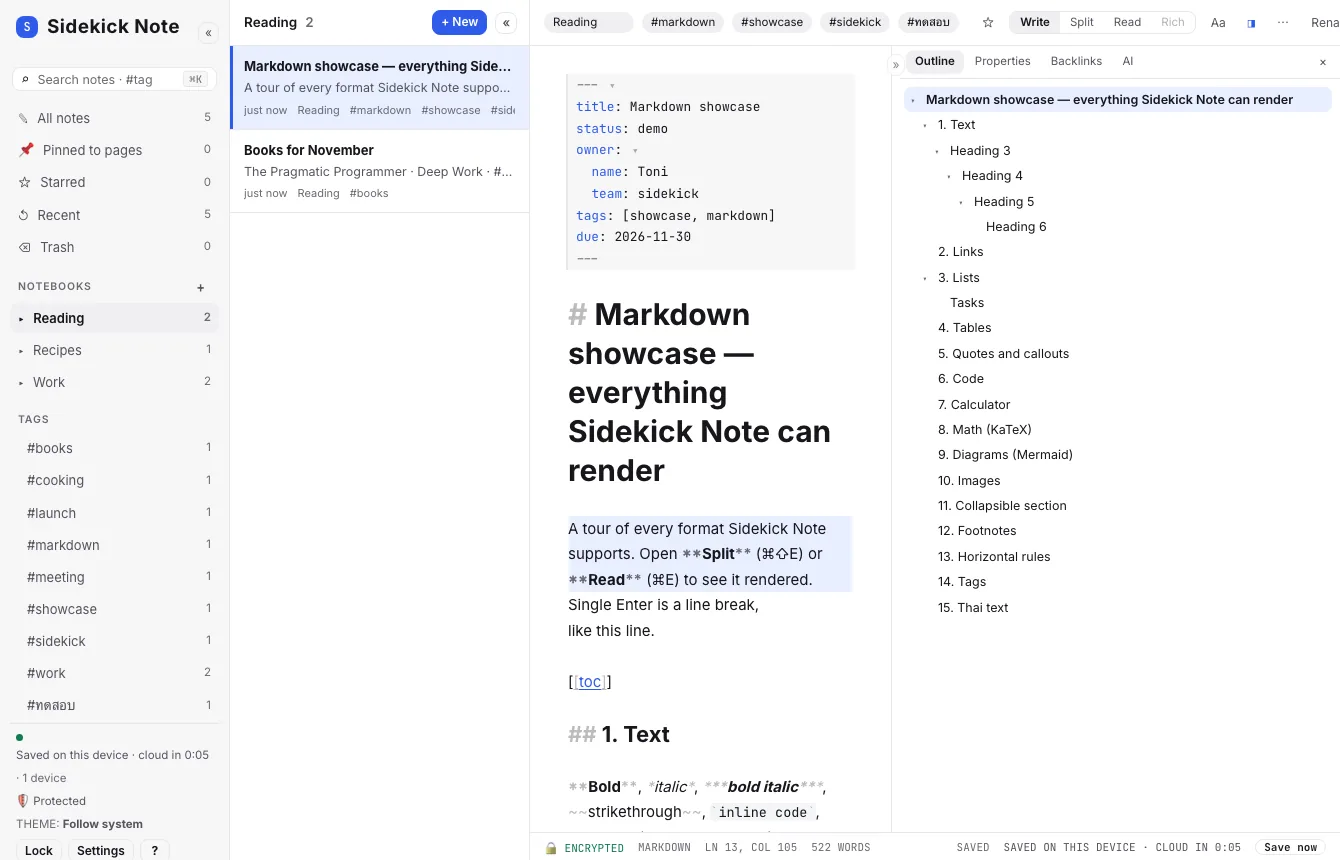
◨ opens the Right panel with its Panel tabs: Preview (in Split), Outline (headings — click to jump), Properties (front matter), Backlinks (notes that link here) and AI (AI: menu, chat and privacy). Drag its edge to resize, ⤢ pops it out wider, » folds it.
On a phone
At phone width you see one pane at a time: the list, then the note. The browser’s back button closes the note. Split is not offered there; Write and Read are.
Was this helpful?
Thanks! We keep no record of your answer — if something was missing, tell us below.
Something missing or wrong? Write to support@plaazaa.com.