Your data & account
Import notes
Bring in Markdown files, a folder, or exports from Obsidian, Notion, Bear, Joplin, Logseq, Evernote, Google Keep and Day One, Word documents, EPUB books and saved web pages (or a .zip of them): the preview, what is converted, how to undo and what to do if something looks wrong.
Bring the notes you already have into Sidekick Note: a few Markdown files, a whole folder, or an export from Obsidian, Notion, Bear, Joplin, Logseq, Evernote, Google Keep, Day One, Word documents, EPUB books and saved web pages — or a .zip of any of these. Everything is read and encrypted on your device — nothing is sent anywhere — and your existing notes are never changed.
At a glance
| You have | What to give Sidekick Note | What you get |
|---|---|---|
A few .md / .txt files | The files (button or drag and drop) | One note per file |
| A folder of notes | The folder or a .zip of it | Notes, with folders as notebooks |
| Obsidian vault | The vault folder (or a .zip of it) | Notes, notebooks, [[links]], tags and pictures |
| Notion | The .zip from Export → Markdown & CSV | Notes, notebooks, page links, pictures and databases as tables |
| Bear | Notes exported as TextBundle / TextPack (or Markdown) | Notes, notebooks from folders, #tags, pictures |
| Joplin | A .jex file, or the “MD – Markdown” export folder | Notes, notebooks (nested ones as “Parent / Child”), tags, pictures, note links |
| Logseq | The graph folder (with pages, journals, assets) | Pages, a “Journals” notebook, tags, tasks, pictures, block references |
| Evernote | One or more .enex files | One notebook per file; notes with formatting, checkboxes, tags and pictures |
| Google Keep | The Takeout .zip with Keep selected | A “Google Keep” notebook: notes, checklists, labels as tags, pinned = starred, pictures |
| Day One | The JSON export (.zip) | A notebook per journal; one note per entry with tags, photos and the entry date |
| Word (and Google Docs, Pages) | .docx files | One note per document: headings, bold / italic, lists, tables, links, pictures |
| EPUB books | .epub files (without DRM) | A notebook per book: a note per chapter, in order, and a Contents note with links |
| Saved web pages | .html files | One note per page, as clean Markdown |
Import in three steps
- Start. Settings → Import Markdown → Import Markdown files… (files or a .zip) or Import a folder or .zip… — or press ⌘KCtrlK and type import — or just drag files, a folder or a .zip onto the Sidekick Note window.
- Check the preview. Sidekick Note works out what it is and tells you what it found. Nothing has been created yet; press Cancel to stop.
- Press Import. A message tells you how many notes, notebooks and images were added. The last imported note opens.
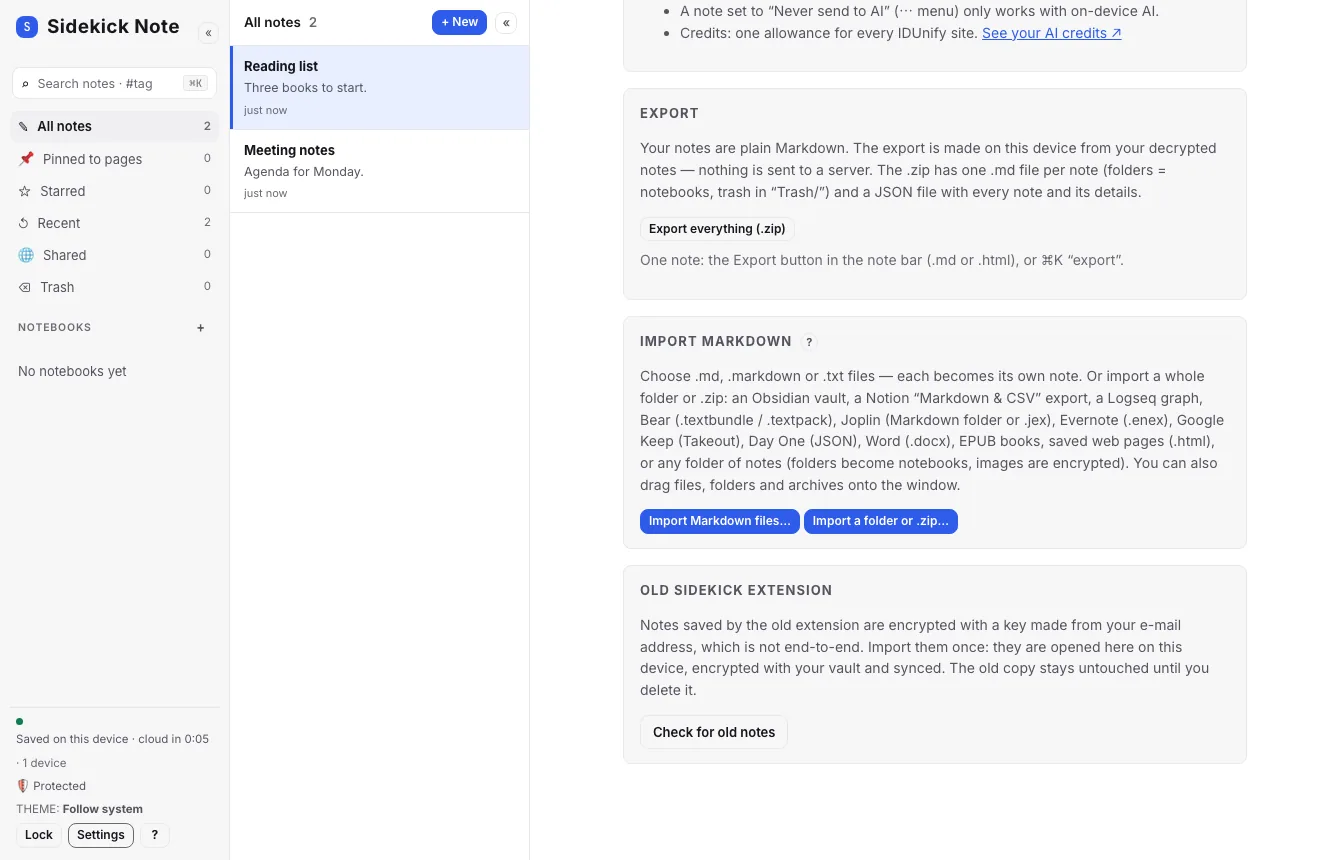
- 1. Import Markdown — the section in Settings (scroll down to it, next to Export).
- 2. Import Markdown files… — pick one or many .md, .markdown or .txt files, or a .zip.
- 3. Import a folder or .zip… — pick a whole folder (a vault) or a .zip of one.
Drag and drop
Drag files, a folder or a .zip over the window. A dashed frame shows that Sidekick Note will import them. Let go to continue.
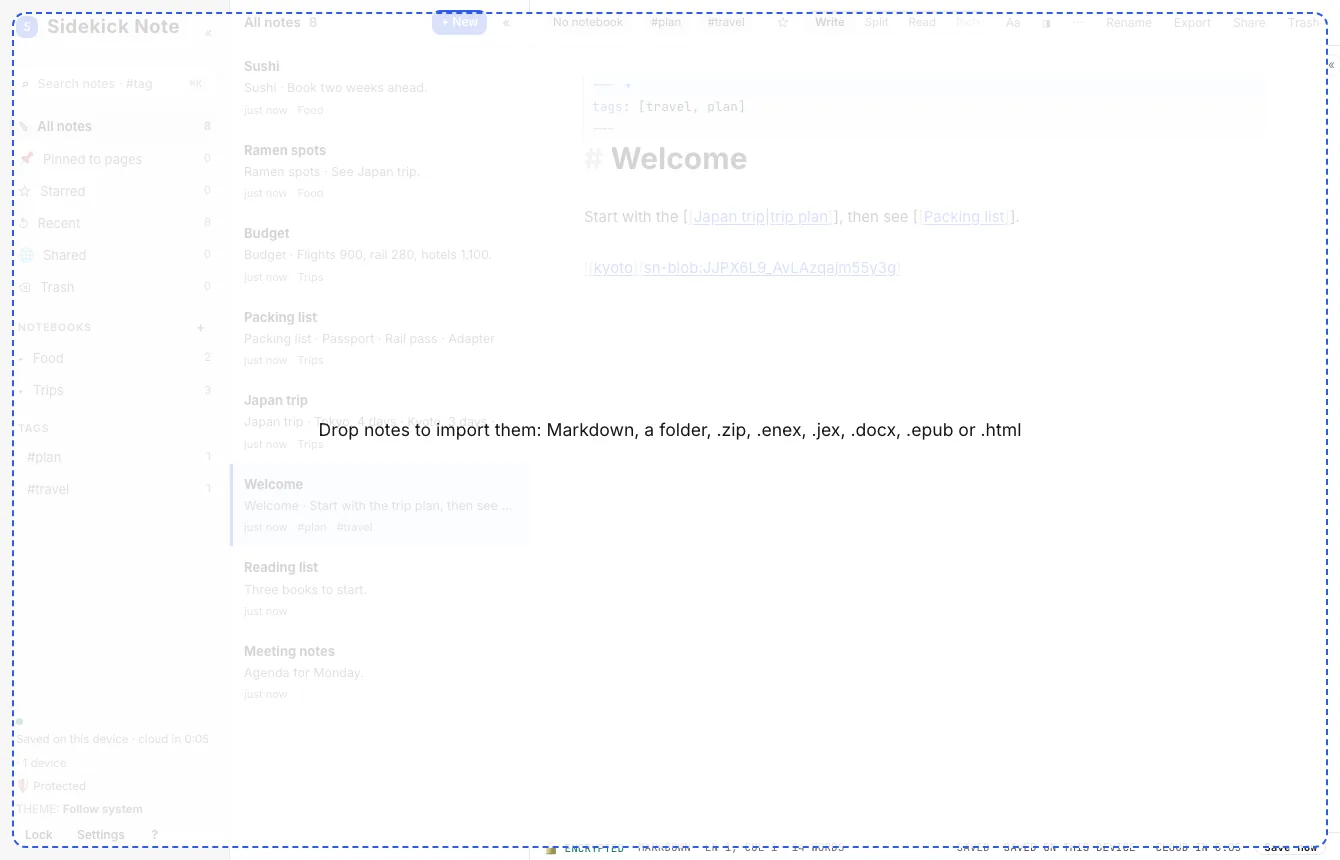
- Plain .md files dropped on the window are imported at once (no preview).
- A folder or a .zip always shows the preview first.
- Dropping a file onto the open note asks what you want — see below.
Dropped onto the open note
If you drop a .md file onto the note you are editing, Sidekick Note asks: Insert here puts the text where you dropped it; Import as new note makes a separate note. A folder or .zip dropped there is imported as notes — it is never pasted into your note as text.
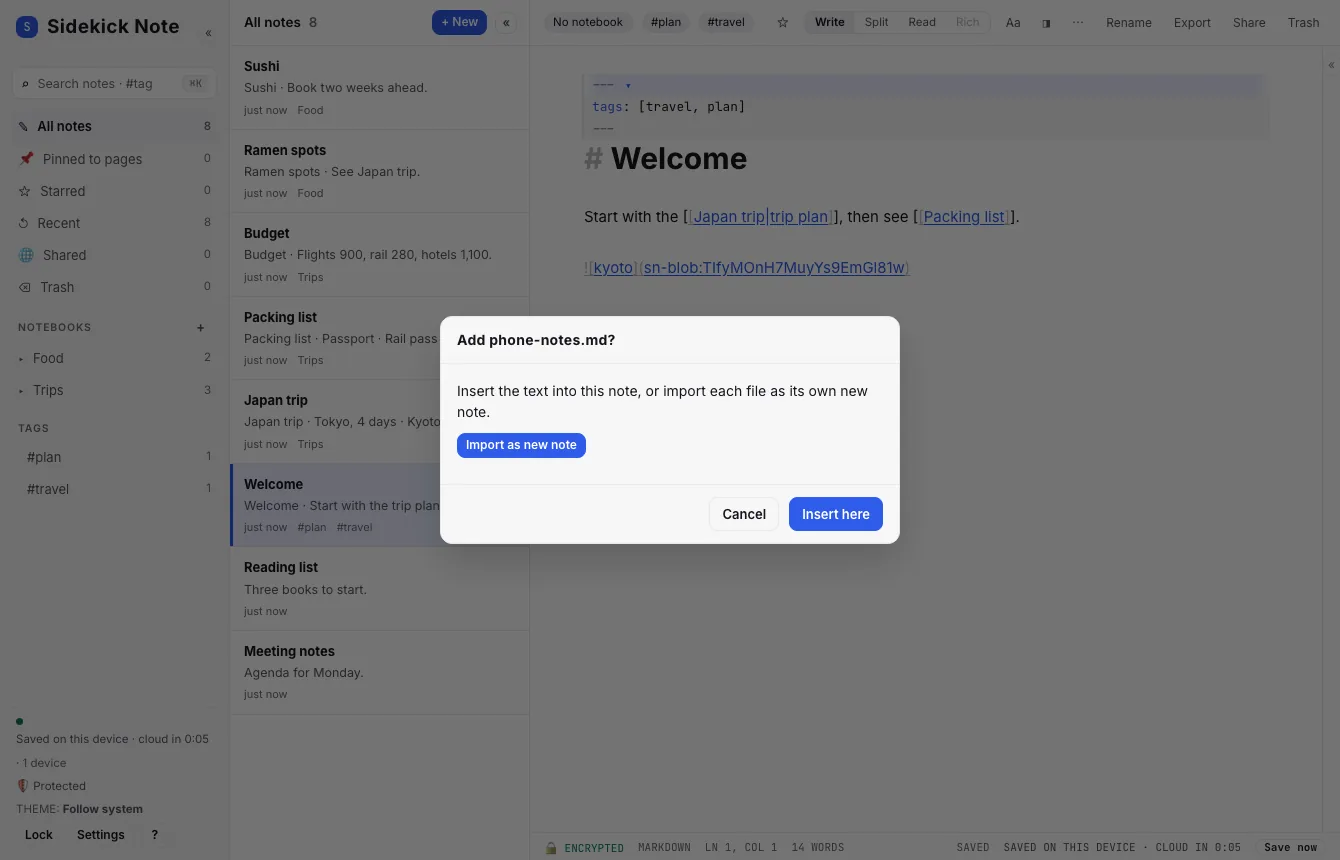
- 1. The question — the name of the file you dropped.
- 2. Import as new note — a separate note, titled from the file.
- 3. Insert here — the text goes into this note at the drop point.
The preview
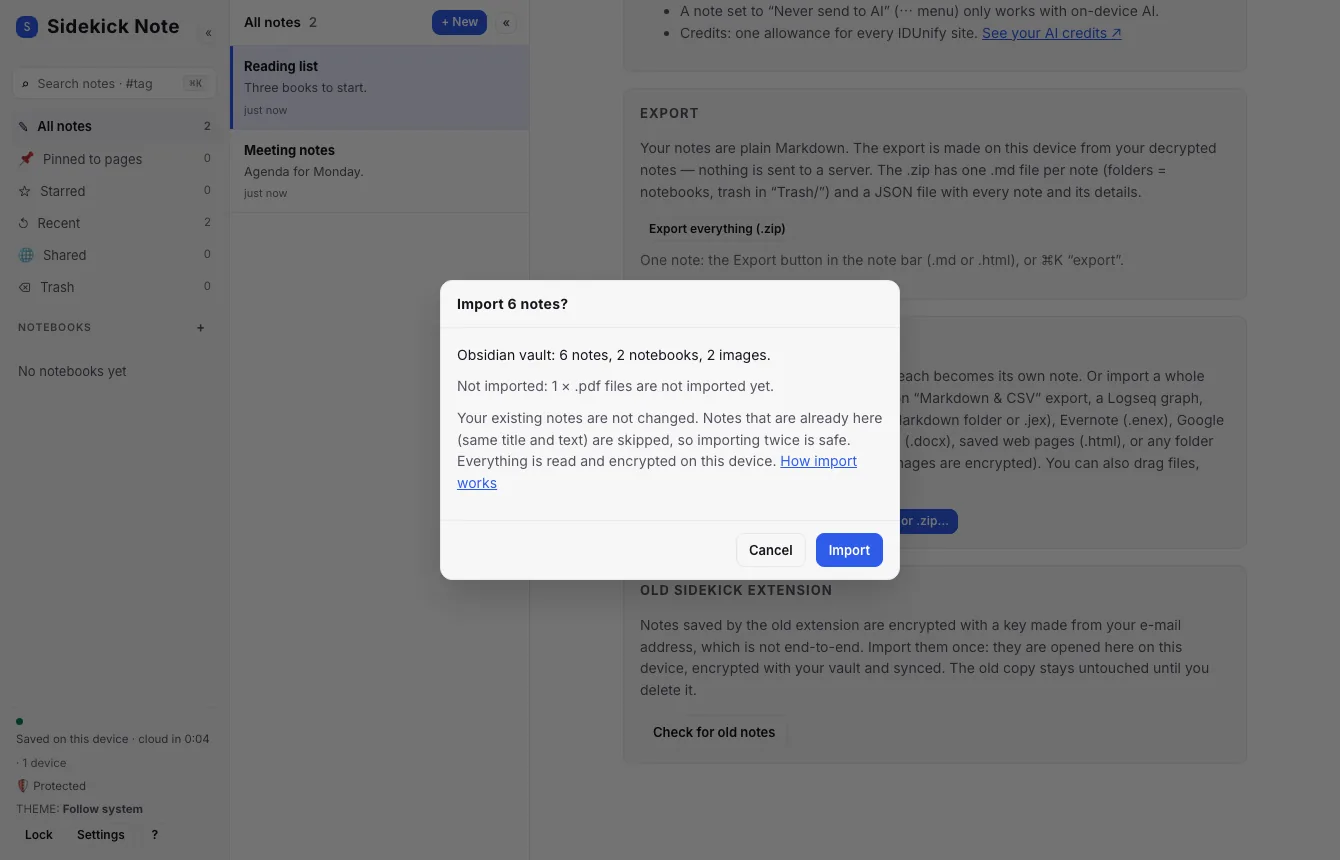
- 1. Summary — what it is (Obsidian vault, Notion export, or Folder of Markdown files) and how many notes, notebooks and images.
- 2. Not imported — files left out and why (for example PDFs). Empty when everything can be imported.
- 3. Import — creates the notes. Large imports show a “Importing… 40 of 300” message.
- 4. Cancel — stops; nothing is created.
After the import
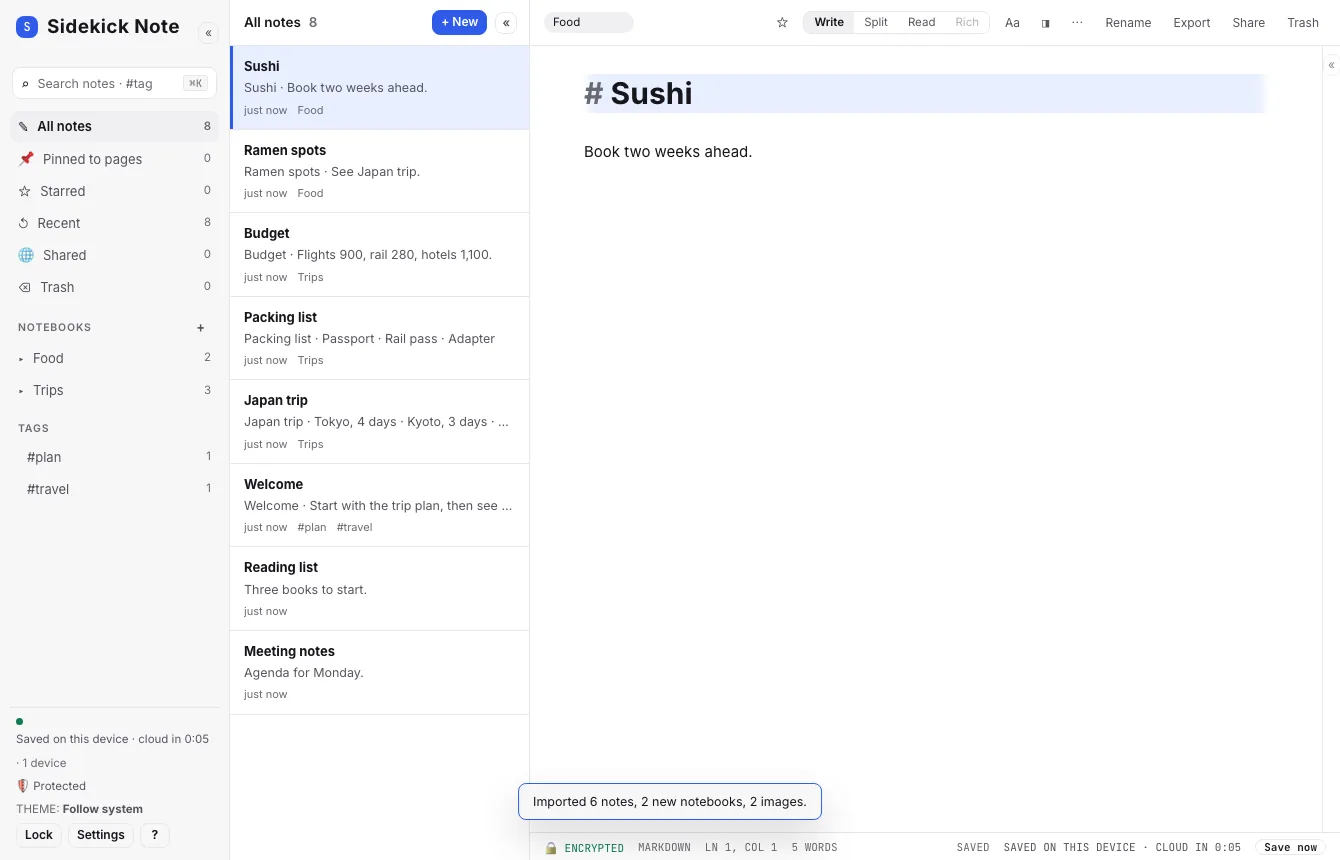
- 1. Notebooks — one per folder; a folder inside a folder becomes “Parent / Child”.
- 2. Note list — the imported notes (they are dated today).
- 3. Message — notes, new notebooks and images added; “already there” and any skipped files.
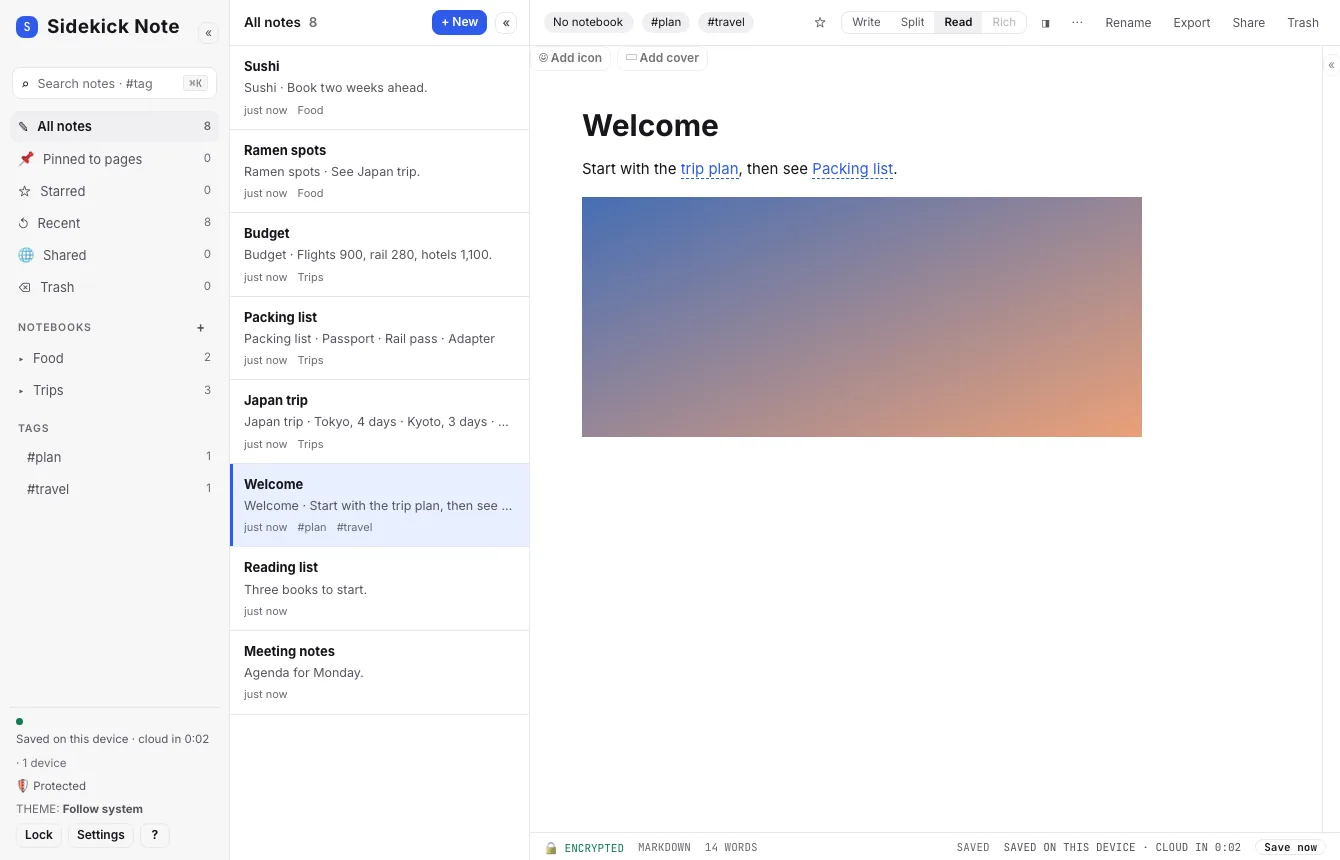
Notes that came from a folder go into a notebook of the same name. Notes without a folder go into the notebook you are viewing (or have no notebook).
Dragging from VS Code (or a path)
A drag from VS Code, or a path copied from a terminal, may arrive as only the path (/Users/me/notes/readme.md, file:///…, vscode://file/…, C:\notes\readme.md). A web page is not allowed to open a file by its path, so Sidekick Note cannot check that the file exists on your computer or read it. Instead of typing the path into your note by accident, it tells you so:
- Choose the file… (or Choose the folder…) opens the file picker. If you pick the same name, it is imported at once; if you pick a different one, you are asked and can Import anyway.
- Insert the path as text puts the path in the note, as it did before. Cancel (Esc) does nothing.
- If the drag also carries the real file — dragging from Finder does — it is imported directly, as described above.
A path you type or paste into a note is just text; nothing is imported.
Obsidian vault
- You don’t need to export anything. Find the vault folder on your computer (in Obsidian: the vault name at the bottom left → Reveal in Finder / Show in system explorer).
- Choose Import a folder or .zip… and pick that folder — or drag it onto the window. A .zip of the folder works too.
- Titles are the file names, exactly as in Obsidian, so your links keep working.
[[Note]],[[Note#Heading]]and[[Note|shown text]]stay as they are. A folder in the link ([[Trips/Japan trip]]) is dropped, because Sidekick Note links by title.![[picture.png]]andbecome pictures: found by their path, then by file name, then encrypted and kept with the note.- Front matter
tags:(a list,[a, b]ora b) become tags;#tagsin the text stay as they are. - The
.obsidiansettings folder,.trashand plugin data are ignored.
Notion export
- In Notion, export what you want: a page’s ⋯ menu → Export, or Settings → Export all workspace content.
- Choose the format Markdown & CSV and include subpages. Download the .zip. (Notion may split a big export into several .zip files inside one .zip — that is fine.)
- In Sidekick Note choose Import Markdown files… or drop the .zip as it is — you do not need to unzip it.
- The long ID Notion adds to every file name is removed (Trip plan 3f9a… becomes Trip plan).
- A link between two exported pages becomes a
[[wiki link]]to the imported note. Links to the web are untouched. - Pictures next to a page are kept. A Notion database (a .csv) becomes a note with a table (first 500 rows).
- Pages with the same title in different places can’t be linked reliably: their links stay as plain text.
Bear
- In Bear, select the notes (⌘A for all) → File → Export Notes….
- Choose TextBundle or TextPack — they keep your pictures with each note. (Plain “Markdown” export works too, pictures next to the notes.) Save into a folder.
- In Sidekick Note drop that folder, or the
.textpackfiles, onto the window — or use Import a folder or .zip….
- Each note’s title is its first heading (or the bundle name). Pictures in
assets/are encrypted and kept. - Bear’s multi-word tags
#two words#become#two-words;#simpletags and#nested/tagsstay as they are.[[note links]]keep working.
Joplin
- In Joplin choose File → Export all and pick JEX – Joplin Export File (best: it keeps tags and note links) or MD – Markdown.
- Drop the
.jexfile (or the Markdown folder) onto the Sidekick Note window, or choose it with Import Markdown files… / Import a folder or .zip….
- Notebooks become notebooks; a notebook inside a notebook becomes “Parent / Child”. Joplin tags become tags (JEX only).
- Pictures are kept; links between your notes (
:/id) become[[wiki links]]. To-do notes start with a checkbox. - Other attachments (PDFs, audio) are named in the text but not imported yet.
Logseq
- Find your graph folder on your computer — the one that contains
pages,journalsandassets. - Choose Import a folder or .zip… and pick it, or drag it onto the window. (The
logseqsettings folder inside it is ignored.)
- Each page is a note; journal pages go into a Journals notebook titled like 2026-11-04. A namespaced page
a___b.mdbecomes “a/b”. - Your outline stays a nested list.
title::andtags::properties become the title and tags;TODO/DONEbecome checkboxes;#[[two words]]becomes#two-words;((block references))are replaced by the block’s text;{{embed [[Page]]}}becomes an embedded note;SCHEDULED/DEADLINEbecome “📅 …” lines. [[Page]]links, tags and pictures inassets/work as before.
Evernote
- In Evernote choose File → Export Notes… (or right-click a notebook → Export Notebook…) and pick the format ENEX (.enex). Do it once per notebook.
- Drop the
.enexfiles onto the Sidekick Note window, or choose them with Import Markdown files…. You can pick several at once.
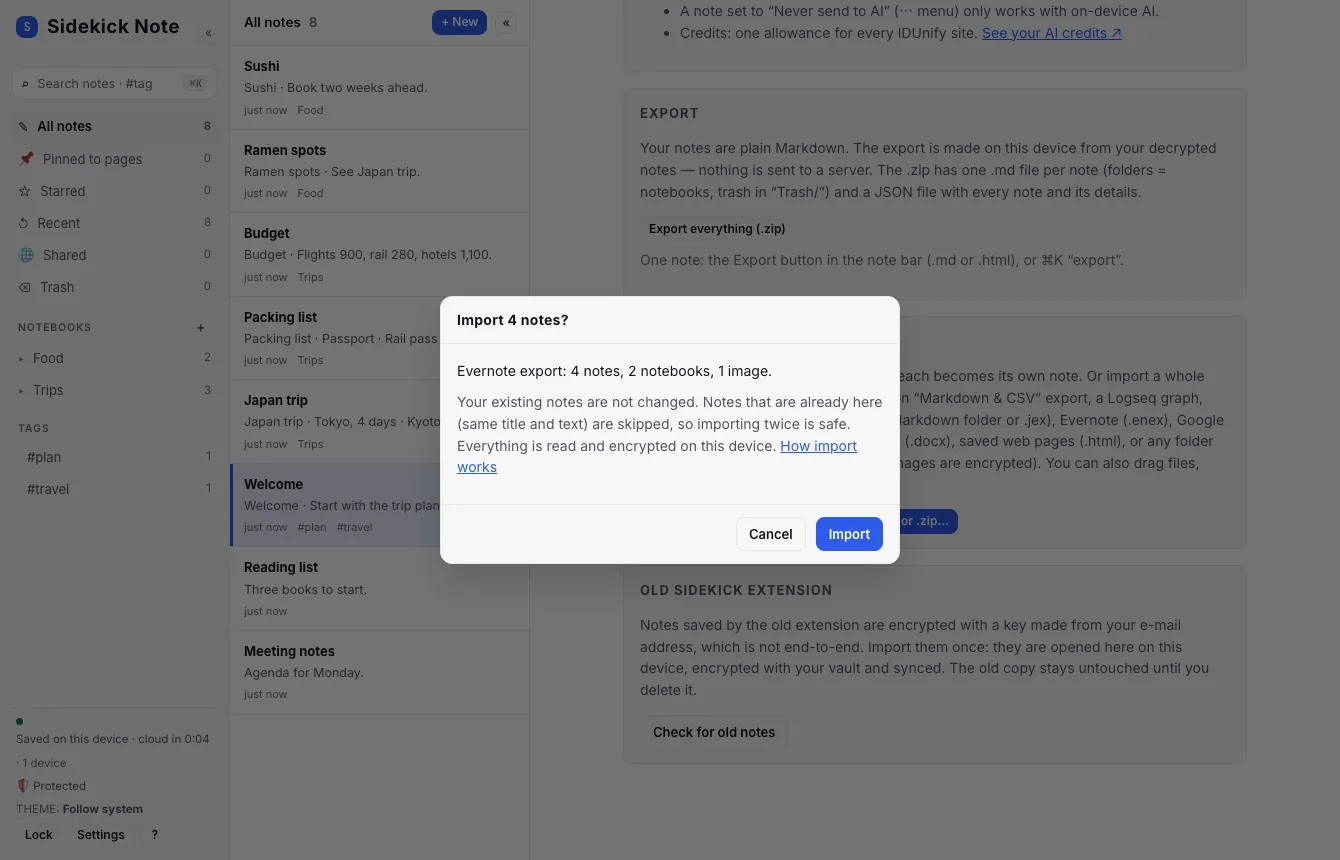
- 1. Summary — one notebook per .enex file; the notes and pictures found inside them.
- 2. Import — creates the notebooks and notes.
- The notebook is named after the file (Recipes.enex → “Recipes”). Evernote tags become tags.
- Formatting (bold, lists, tables, links), checkboxes and pictures are kept. The page a note was clipped from is added as a “Source:” line.
- PDFs and other attachments are named (📎 file.pdf) but not imported yet; text locked with Evernote’s encryption becomes “[encrypted text not imported]”.
- An .enex file can be up to 200 MB. Original created / modified dates are not carried over yet.
Google Keep
- Go to takeout.google.com, choose Deselect all, then tick only Keep and create the export. Download the .zip when it is ready.
- Import the .zip as it is (Import Markdown files… or drag it onto the window). You do not need to unzip it.
- All notes go into a notebook called Google Keep. Text notes stay text; checklists become
- [ ]/- [x]items; labels become tags; pinned notes are starred; web links Keep saved are added as links. - Pictures are encrypted and kept. Audio and other attachments are named in the note but not imported yet. Notes in Keep’s trash are skipped (the preview says how many).
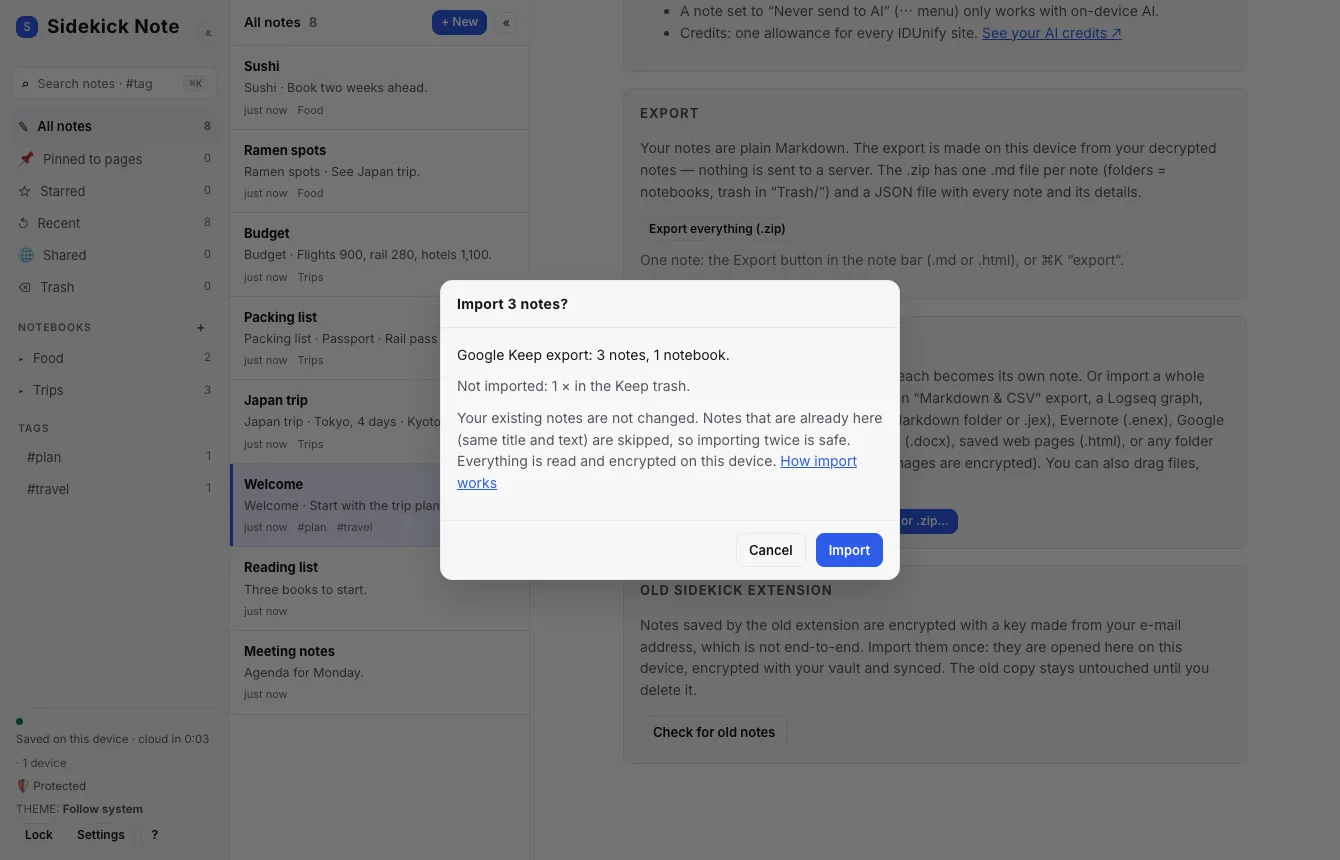
- 1. Summary — notes found in the Takeout and the one notebook they go into.
- 2. Not imported — what is left out (here the note in Keep’s trash).
- 3. Import — creates the notes.
Day One
- In Day One choose File → Export → JSON (include photos) and save the .zip.
- Import the .zip as it is. Each journal becomes a notebook named after its file; each entry becomes a note.
- Tags and starred entries carry over, and photos are encrypted and kept at the place they were in the entry. Video, audio and PDF attachments are named but not imported yet.
- Notes cannot carry the original date yet, so each entry ends with a line like Day One · 2024-05-01 12:30 — you keep the date in the text.
Word documents (.docx)
Drop one or more .docx files, or pick them with Import Markdown files…. Each document becomes a note named after the file. Headings, bold / italic / strikethrough, bullet and numbered lists (with levels), tables, links and pictures are kept. Text boxes, comments, footnotes and tracked deletions are left out. Older .doc files: open them in Word and save as .docx first. Google Docs: File → Download → Microsoft Word (.docx). Pages: File → Export To → Word.
EPUB books
Drop one or more .epub files, or pick them with Import Markdown files…. Each book becomes a notebook named after the book:
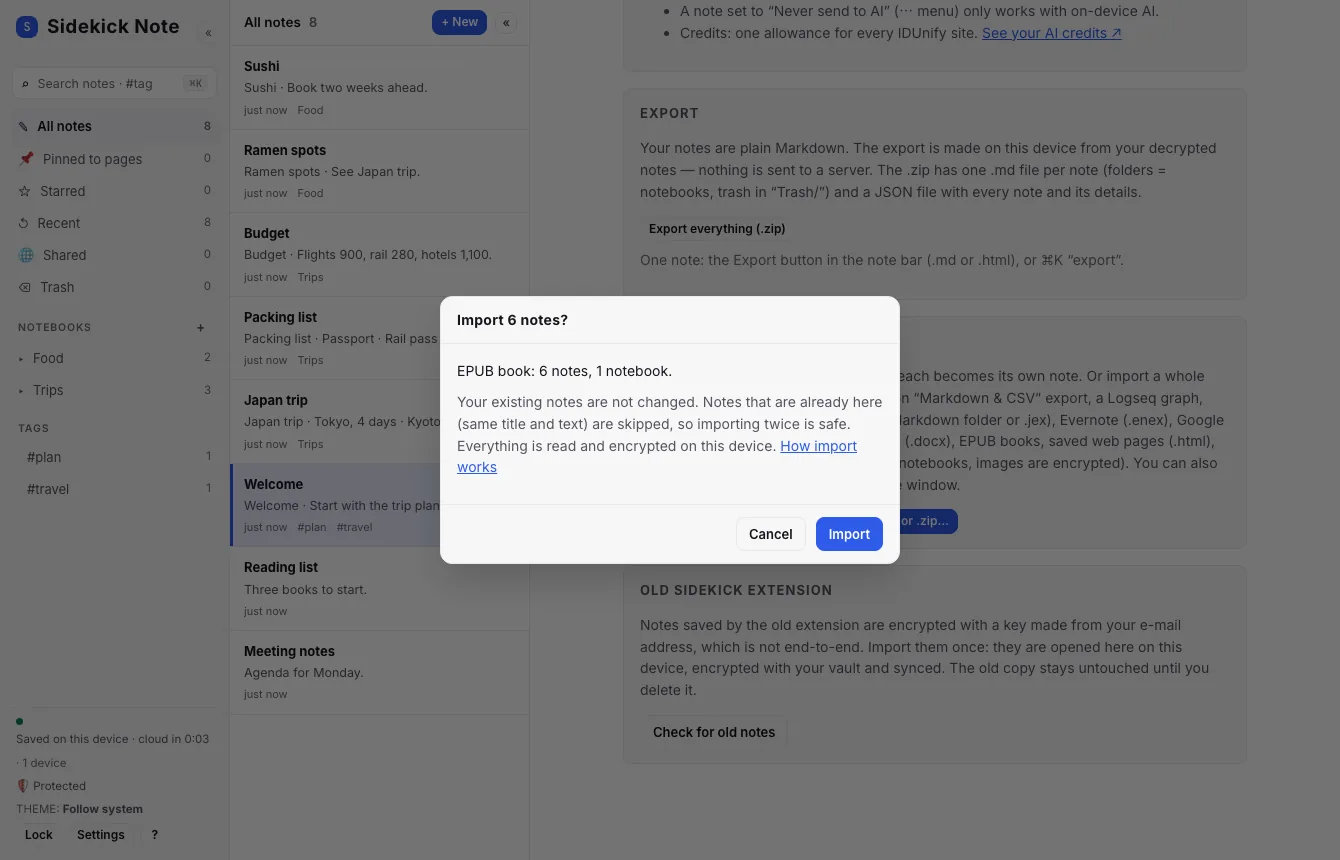
- 1. Summary — one notebook per book; the notes are the chapters plus a Contents note.
- 2. Import — creates the notebook and notes.
- One note per chapter, in reading order, titled from the book’s table of contents and numbered (01. The Harbour). They are created last-to-first, so the Note list (newest first) reads top-down in book order with the Contents note on top. A page with no table-of-contents entry and no heading of its own (a title page, an epigraph, the second half of a chapter) is folded into the chapter before it, so a story is not cut into stray fragments. A very long chapter is split into “(part 2)”, “(part 3)”… so it fits your note size.
- A Contents note named after the book has the author, the cover and a
[[link]]to every chapter. Links inside the book between chapters work too; footnote links become plain text. - Headings, bold / italic, lists, tables, block quotes, links and pictures are kept; pictures are encrypted. The long licence text at the end of a Project Gutenberg book is left out (the preview says so). Several books in one import get their title added to the chapter names so links never mix them up.
Saved web pages (.html)
Drop .html files (or a folder of them, for example a Notion or Evernote HTML export). Each page becomes a note with its <title> as the title and the content as Markdown — headings, lists, tables, links and pictures that sit next to the file. Scripts and styles are removed.
Apple Notes and others
Apple Notes has no built-in “export everything”. A free Mac app such as Exporter (Mac App Store) can save all your notes as Markdown or HTML into a folder — then use Import a folder or .zip…. Simplenote: Settings → Export Notes gives a .zip of .txt files; import the .zip and each .txt is a note.
Any folder of Markdown files
Works for notes from Typora, VS Code, GitHub, Bear or Joplin exported as Markdown, or files you wrote yourself. Each .md and .txt is a note. The title is the front matter title:, else the first # heading, else the file name. A link like [text](other-note.md) to another file in the same import becomes a [[wiki link]]; pictures next to the notes are kept.
What changes, what stays
| In your files | In Sidekick Note |
|---|---|
Folder Trips/, Trips/2026/ | Notebooks “Trips” and “Trips / 2026” |
[[Folder/Note|text]] (Obsidian) | [[Note|text]] |
![[pic.png]],  | An encrypted picture (the original file is not changed) |
[text](Page%20abc123.md) (Notion) | [[Page|text]] |
Name 0123…ef.md (Notion) | The note “Name” |
Database .csv (Notion) | A note with a Markdown table |
Front matter tags: | Tags on the note |
#two words# (Bear), #[[two words]] (Logseq) | #two-words |
TODO / DONE (Logseq), Evernote checkboxes | - [ ] / - [x] |
 and [text](:/id) (Joplin) | A picture / [[Note|text]] |
| Keep checklists, labels, pinned | - [ ] items, tags, a star |
| Word headings, lists, tables | # headings, Markdown lists and tables |
Code blocks and `inline code` | Never rewritten |
| Everything else you wrote | Kept as written |
Safe to repeat — and to undo
- Importing the same thing twice is safe. A note with the same notebook, title and text is skipped (“already there”). A note you edited in the source is imported again as a new note.
- Undo: an import only adds notes. To undo it, open the notebook it created, select its notes and move them to Trash (you can restore them from Trash for a while).
- Private notebooks: to import into one, open it first and unlock it; notes without a folder then go into it and pictures are sealed with its key.
Limits
- Up to 5,000 notes and 3,000 pictures per import; a .zip or .jex up to 600 MB (100 MB per file), an .enex up to 200 MB; notes must fit your plan’s note size.
- Pictures: PNG, JPEG, GIF, WebP and AVIF, within your plan’s picture size. Others (SVG, HEIC) are left out.
- Imported notes get today’s date; the original dates are not carried over yet.
- Not imported yet: PDFs, other documents, audio and video, Obsidian canvases, Logseq whiteboards, Notion’s HTML export. The preview lists what was left out.
If something looks wrong
Dropping a folder does nothing
Use Import a folder or .zip… in Settings instead (some browsers hand over a dropped folder differently). Or zip the folder and drop the .zip.
“No notes found to import”
The folder has no .md / .txt files (Notion: choose Markdown & CSV, not HTML or PDF). Check you picked the right folder.
A [[link]] is not clickable or opens an empty note
Links go by note title. Check that a note with that exact title exists (upper / lower case does not matter). In Obsidian vaults the title is the file name.
I see “[image not imported: …]”
That picture was too big for your plan, in a format we can’t keep (SVG, HEIC), or missing from the folder. Add it to the note by hand (drop it on the note).
Some files were skipped
The message and the preview say why: empty file, over the note size, an unsupported type (.pdf, .docx), or a locked private notebook.
My Evernote notes look plain or have extra blank lines
Evernote stores each line as its own block, so imported notes can show a blank line between lines. Formatting inside lines (bold, links, lists, tables) is kept. Tidy the odd note by hand — the import never touches your Evernote data.
My EPUB says “DRM-protected”
The book is locked by its store. Sidekick Note cannot (and will not try to) remove DRM. Use a DRM-free copy of the book.
The chapters of my book show in the wrong order
The Note list is sorted by date. Chapters are created so that it reads in book order, but if you changed the sorting or edited notes, open the Contents note: it lists every chapter in order with a link. Every chapter title also starts with its number (01., 02. …).
My Word document lost its layout
Notes are Markdown, so page layout (columns, headers, fonts, colours, text boxes) is not kept — the text, headings, lists, tables, links and pictures are. Check the note after the import; the original .docx is never changed.
My Keep Takeout shows “No notes found”
Make sure Keep was ticked in Takeout and that you import the .zip (or the Keep folder inside it) — the notes are the .json files there.
My Logseq page is one long list
Logseq pages are outlines, so they import as nested lists. Properties such as title:: and tags:: are turned into the title and tags.
It is slow on a big vault
Hundreds of notes with many pictures take a minute or two — each one is encrypted on your device. Keep the tab open; a message shows progress.
“The .zip is damaged” / “too large”
Make the .zip again, or import the folder instead. Zip64 and password-protected zips are not supported.
More about taking notes out: Export & import. How links, tags and pictures work in notes: Writing in Markdown and Images.
Was this helpful?
Thanks! We keep no record of your answer — if something was missing, tell us below.
Something missing or wrong? Write to support@plaazaa.com.